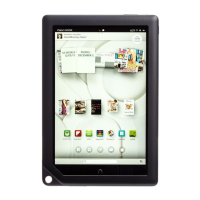
.
Status bar: This is the top of the screen. You see whatever you name your
NOOK (Patrick’s NOOK in Figure 1.4). Also, you see notifications in the
middle of the screen. On the right side, you see the current time, Wi-Fi con-
nectivity, settings (the gear icon), and battery monitor.
.
Profile: This is the icon or image, the date, and a welcome greeting on the
left side of the screen just below the status bar. You use this to change pro-
files outside of the Welcome Back screen.
.
Your NOOK Today: This takes you to the Your NOOK Today screen
(covered next).
.
Active Shelf: This is a carousel of large icons of recently accessed items,
new downloads and purchases, and so on. You can scroll through the Active
Shelf by swiping your finger left or right across it. Tap one of the icons to
launch the app, magazine, book, and such.
.
Pages: You have five pages on the Home screen to do with as you please.
The Home screen is the middle of the five (you can see which page you are
on by looking at the dots immediately below the notifications in the status
bar; the white dot is the current page). On these pages you can add apps,
books, and more for quick access.
.
Launch buttons: These are Library, Apps, Web, Email, and Shop. Tapping
these launches new screens. Depending on the profile, some of these Launch
buttons may not be visible.
.
Search box: You can tap in here and begin typing for something you’re
searching for. This is an easy way to access your content.
.
Quick Corner: By default, the Quick Corner action is the Recent Drawer.
However, you can set it to be Continue Reading. The Recent Drawer icon is
a filled in square overlapping the outline of a square. The Continue Reading
icon is a spread open book with a clock on the bottom right.
If you press and hold an empty area of the Home screen, the Add to Pages screen
appears. From here, you have a variety of options for accessing your content.
Recent Drawer
If your Quick Corner is set up for the Recent Drawer, if you tap the icon, the Home
screen goes dark, and the bottom third of the screen presents a scrollable list of the 50
most recently used and accessed apps, videos, books, and so on (see Figure 1.5).
When you tap Recent Drawer, you also have a magnifying glass to open a search
page. If you tap the Recent Drawer icon again, it closes the Recent Drawer and
returns you to the screen you were previously on. Use the Recent Drawer to quickly
6
CHAPTER 1:
Getting Started with Your NOOK HDs


 To Next Page
 Loading...