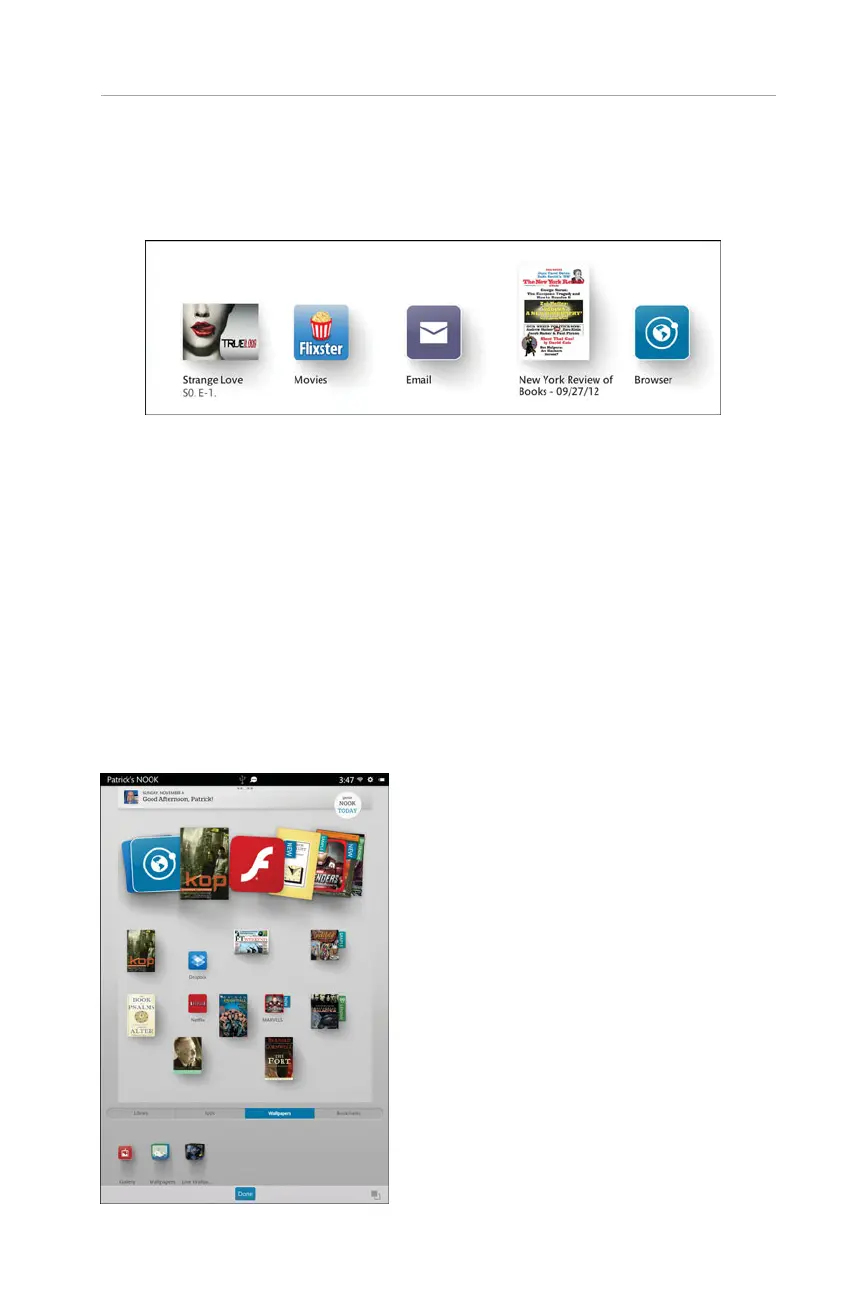
and easily access recent items without having to press the Home button and navigate
where you want to go.
7
Orienting Yourself to Your NOOK
FIGURE 1.5 The Recent Drawer.
Add to Pages Screen
The Home screen enables you to access your library, app, and Internet bookmarks
quickly for placing onto one of the pages; to do so, you need to access the Add to
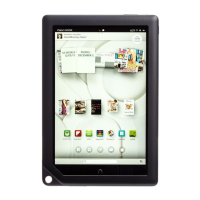
Pages screen (see Figure 1.6). To access this screen, press an area of the Home screen
without an image, and tap Add to Pages from the pop-up menu. The Home screen
shrinks and several options appear. For example of what you can do on this screen,
from the Add to Pages screen, tap Bookmarks. When the list of bookmarks appears,
scroll to the one you want, press and hold it, and drag it to the page. The bookmark is
added to the page, which lets you quickly launch it. Tap Done when complete.
FIGURE 1.6 The Add to Pages screen.



 To Next Page