5. If you chose Wallpaper, choose the wallpaper you want. The screen shows
you the image. Tap Cancel or Set Wallpaper. If you chose Gallery, choose
the photo you want. An enlarged version of the photo appears with some
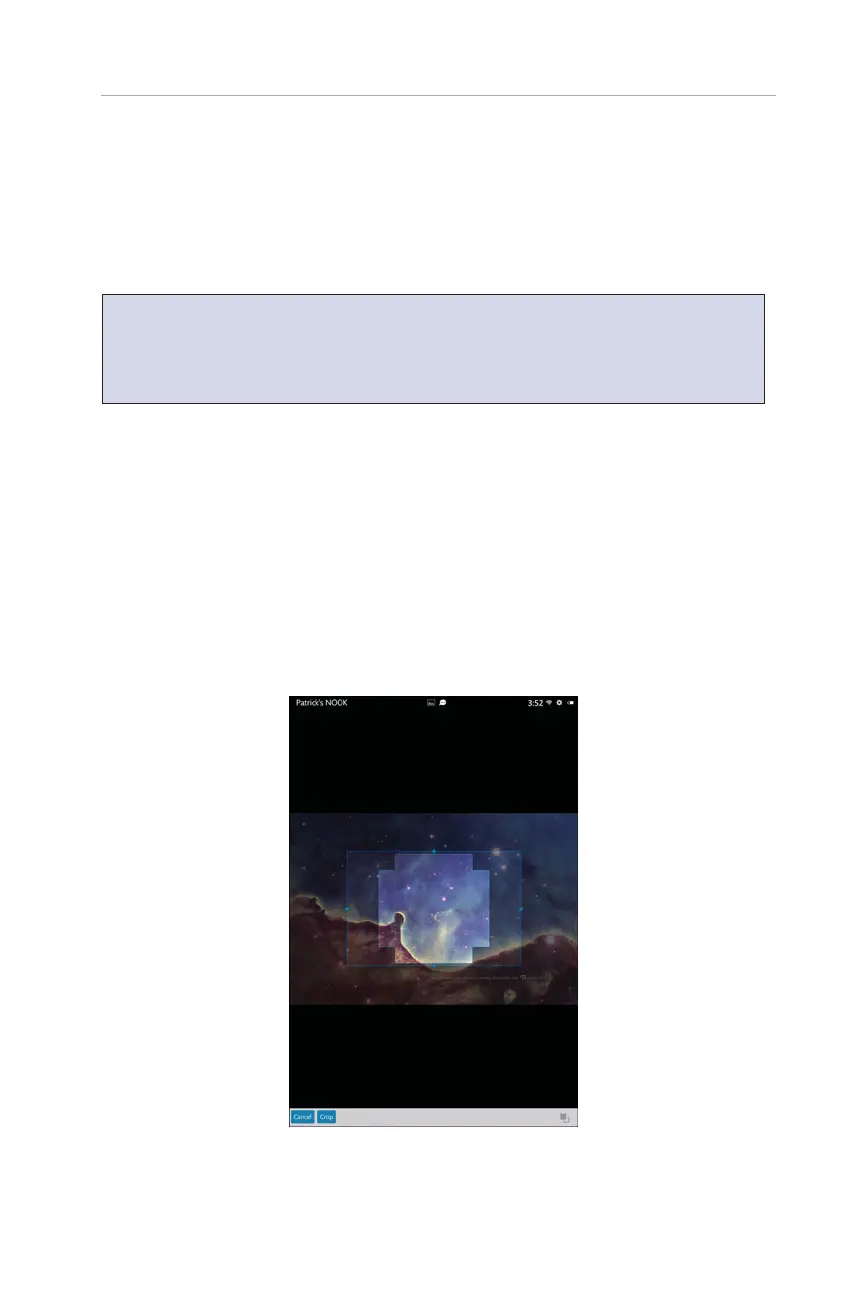
outlined boxes and two buttons: Cancel and Crop.
TIP: You can place images you want to use for wallpaper in the Wallpaper
folder on your NOOK. (Plug your NOOK into your computer and navigate to that
folder.) Because the Gallery displays every JPG, GIF, and PNG file on your NOOK,
including cover images, the Gallery list can quickly become lengthy.
The outside box controls the sizing of the two interior boxes. Those two
boxes represent the landscape and portrait layouts—basically making a nice
image regardless of how you hold your NOOK (see Figure 2.3). Whatever is
inside the interior boxes will be used for the wallpaper. To adjust the crop-
ping size, press and hold the outer box, and then drag it around to wherever
you want it. If you press and hold inside the outer box, you can drag the
boxes around to a place you want to crop. Tap Crop to make it the wallpaper
and return to the Add to Pages screen, or tap Cancel to exit to the Add to
Pages screen.
17
Using Custom Wallpaper
FIGURE 2.3 Pick the area of the image you want to use for your Home screen.



 To Next Page