If you chose Live Wallpapers, choose the Live Wallpaper you want. The
screen shows you the animation. Tap Cancel or Set Wallpaper. You may also
have a Settings option. If you tap this, you are provided settings specific to
that Live Wallpaper. Adjust as you see fit. Tap the back arrow on the bottom
left to apply the adjustments. To set the wallpaper with those configuration
options, tap Set Wallpaper.
Should You Use a Specific File Format for Images?
Your NOOK supports JPEG, GIF, and PNG files. For images, using either JPEG or
PNG is your best option. GIF isn’t a good option for photographs, but if your
image is line art or text, GIF can work fine. If you’re unsure, stick with JPEG.
Your NOOK’s Settings
Your NOOK offers configurable settings for controlling many of its features. If you
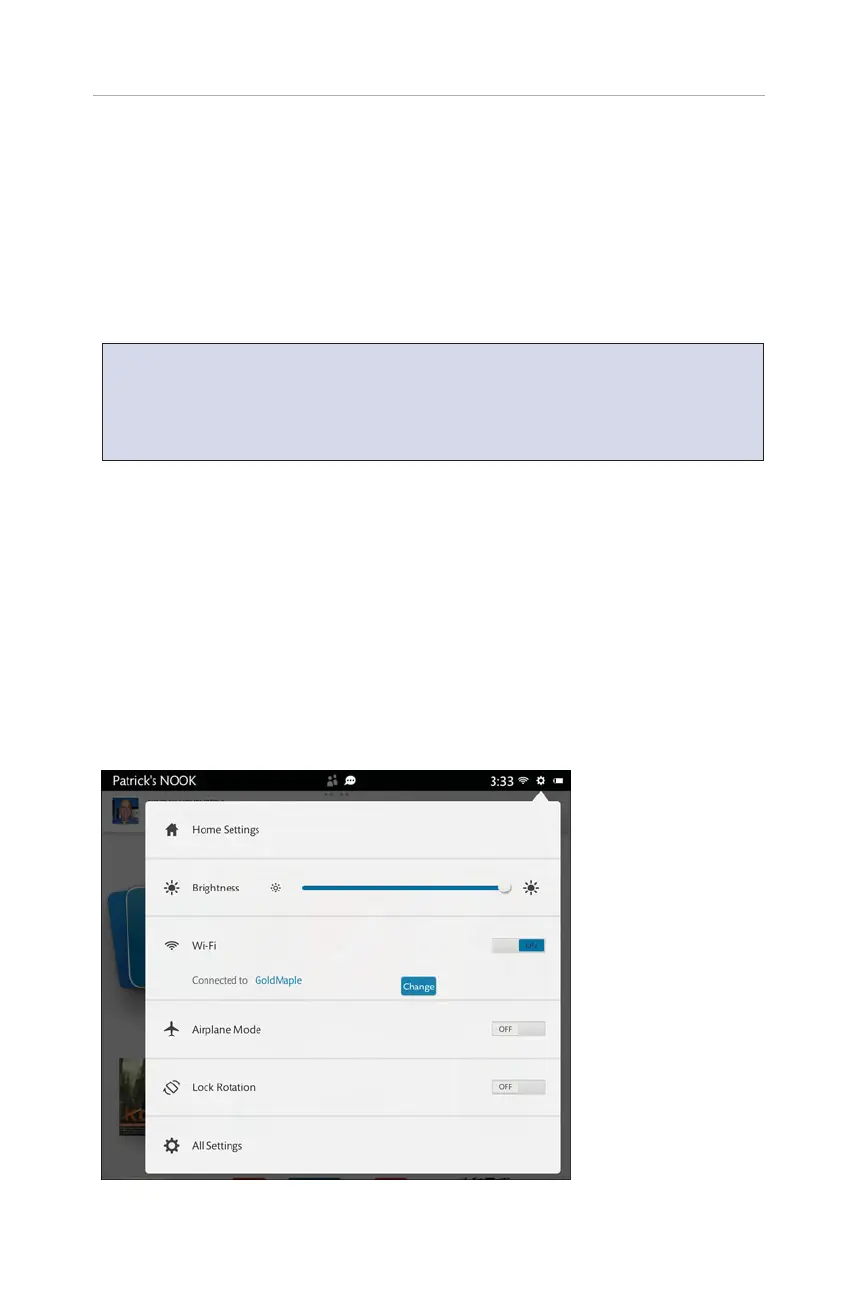
tap the Setting icon in the status bar, you can gain access to the settings. Depending
on what application you currently use, the top option (in Figure 2.4, it is Home
Settings) changes. For example, if you browse the web and tap the Settings icon,
Home Settings is replaced with Browser settings. Regardless, you can get to any set-
ting at any time by tapping the Settings icon and then tapping All Settings (see
Figure 2.5).
18
CHAPTER 2:
Customizing and Configuring Your NOOK HDs
FIGURE 2.4 The
Settings options that
appear initially.



 To Next Page