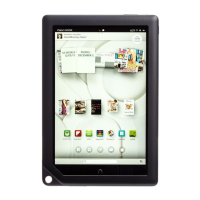
To reset your NOOK to factory settings, do the following:
1. With the NOOK off, hold the Home button and the Power button.
2. The NOOK starts up. Keep holding the buttons.
3. After a few seconds, you see a screen to reset your NOOK to factory set-
tings with two options:
.
Press Power to exit.
.
Press Home to continue.
4. Press the Home button. You see the two options again.
5. Press the Home button.
6. Your NOOK erases the data, deregisters, and reboots the device.
.
Certificate Management: When you go to secure websites, digital certifi-
cates are used to valid legitimate from nonlegitimate sites, thus ensuring
security for your personal information. When you tap this, you can see
which certificates have been approved by both the system (that is, what
B&N has installed) and what you have approved (usually occurs when you
visit a website and your receive that “trust this website’s certificate” infor-
mation.
If you have certificates you know about, have, and want to add to the NOOK
device, you can place them on a microSD card, insert that card, and choose
the Install from SD Card option here.
If you want to remove all certificates, tap Clear Credentials.
CAUTION: Be careful about Clearing Credentials. Do this only if you know what
you are doing and why.
.
Select Time Zone: This setting enables you to select your current local time
zone. Your NOOK normally gets the current time using Wi-Fi access.
However, if Wi-Fi service isn’t available, it still displays the current time,
provided you have configured your time zone. If you do not see the time
zone you need here, tap Show All World Time Zones to see a longer list.
(You can sort this list alphabetically by tapping the three button icon in the
top right.)
.
Use 24-Hour Format: This enables you to choose between a 12-hour time
format and a 24-hour time format.
24
CHAPTER 2:
Customizing and Configuring Your NOOK HDs


 To Next Page
 Loading...