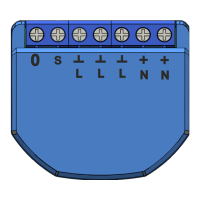
5
8
A window will appear indicating the degree of network connection and adding the current user of the
program to the list of devices:
9
After the procedure, a window will appear in which you can set the name of the device and choose the
room in which it is located. The device name will also be used by Amazon Alexa and Google Home.
10 To delete all data from the smart socket, in the device menu, you need "Delete device", "disabled and delete all data"
When the device is removed from the device list of the application user, the settings of the smart socket will be reset to factory values and it will be necessary to shorten the
procedure of connecting to the Wi-Fi network again. If the password for the Wi-Fi access point was entered incorrectly, then after the timer expires, a "failed to connect to Wi-Fi" window
appears in the application with step-by-step instructions to fix the problem.
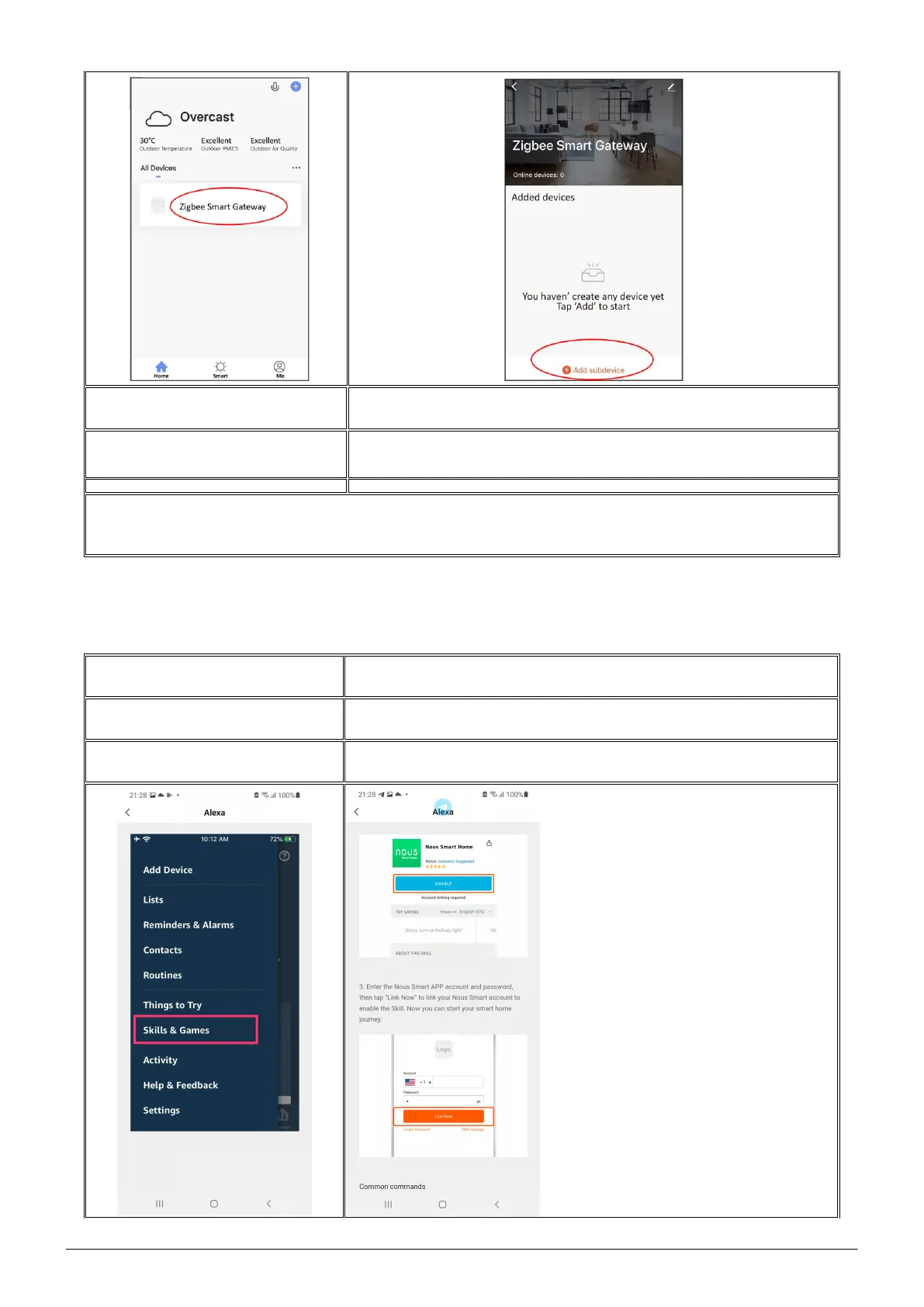
How to connect your device to Alexa
1
Sign in with your Alexa account and password (if you're not already signed in, sign up first); After
logging in, click the menu in the upper left corner, then click "Settings" and select "Set up a new
device";
2
Select "Skills" in the options bar, then search for
"NOUS Smart Home" in the search bar; In the search results, select NOUS Smart Home, then click
Enable.
3
Enter the username and password you previously registered (the account is only supported in the
United States); When you see the correct page, it means that your Alexa account is linked to your
NOUS Smart Home account.


 To Next Page
 Loading...