4
After installing the program, for its correct operation, it is necessary to grant it all
permissions in the corresponding section of the smartphone settings. Then you need to
register a new user of this program.
The procedure for connecting the device to the
Zigbee network:
1
Connect the smartphone to the access point that will be used to connect the device. Make sure the
network frequency range is 2.4 GHz, otherwise the device will not connect, as Zigbee Habs are not
designed to work with 5 GHz Wi-Fi networks; (your ZigBee hub should already be connected to the app)
2
Connect the device to the network. If the global indication does not flash quickly, then press the button
for 5-7 seconds to reset the smart outlet settings to factory values.
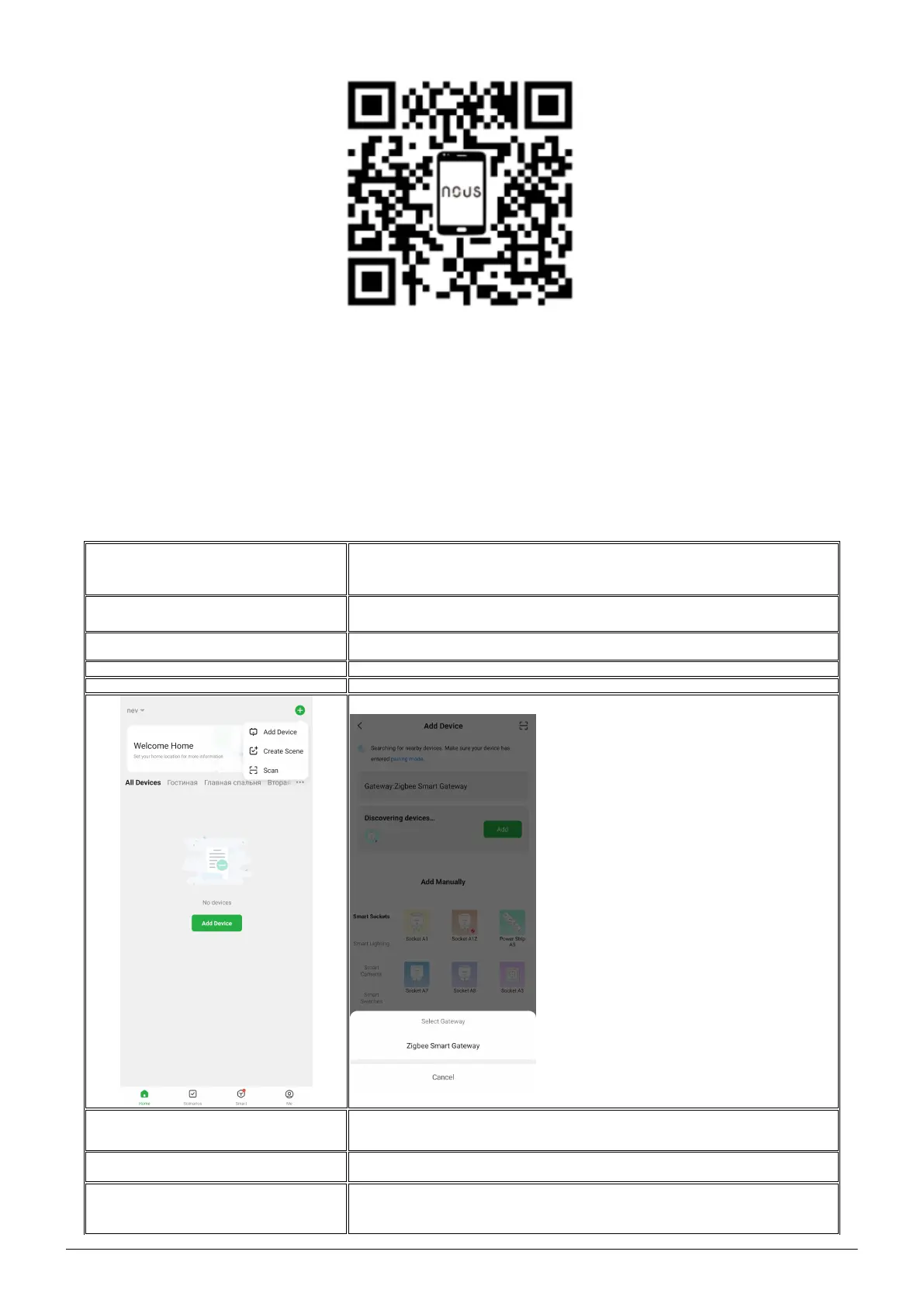
3 Open the Nous Smart Home app and click the button to add a new device
4 An autoscan will appear, prompting you to add a new device. Confirm the connection and start pairing.
5 If autoscan doesn't see your device, you can select it manually from the list of devices
6
In the "Add Manually" tab, select the "Smart Switches" category, and in it the "B2Z Smart Switch" model,
as shown in the figure above;
7
In the window that opens, select "next step" and click the "Next" button;
8
connection to the Zigbee hub


 To Next Page
 Loading...