
 Need help?
Do you have a question about the Novatel MIFI 2200 and is the answer not in the manual?
Information on software licensing, proprietary rights, and government clauses.
Details U.S. Government's restricted rights for software and documentation.
Information regarding compliance with U.S. export laws for software transfer.
Lists trademarks and service marks of Novatel Wireless and other companies.
Introduction to the MiFi 2200 Intelligent Mobile Hotspot Device.
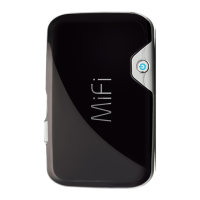
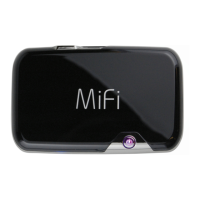
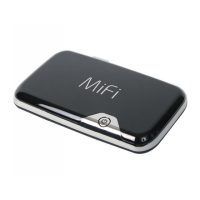
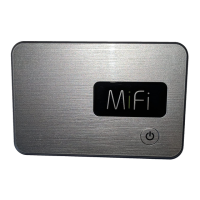
Description of the MiFi 2200 device and its capabilities.
Information on managing the device's power consumption.
Instructions for using the microUSB cable with the device.
Details the key features and benefits of the MiFi 2200 device.
Lists the necessary system requirements for using the MiFi 2200 device.
Explains the meaning of different LED indicators on the MiFi device.
Provides guidelines for handling and maintaining the MiFi 2200 device.
Details how to manage device power and automatic shutdown settings.
Provides instructions and safety guidelines for battery use and care.
Guides on initial setup and first-time use of the MiFi 2200 device.
Instructions on how to connect the device to a Wi-Fi network.
Step-by-step guide for inserting and charging the device battery.
Instructions on how to power the MiFi 2200 device on and off.
Fundamentals of accessing and navigating MiFi device settings.
Description of the main Home Page in device settings.
Information on managing the device's administrative password.
Overview of the Wi-Fi configuration menu options.
Details on configuring security options for the device.
Introduction to advanced configuration options for the device.
Step-by-step instructions to open the MiFi device settings interface.
Description of the primary screen seen after logging into device settings.
Details the menu bar's function and displayed information.
Information provided in the Internet Connection section of the Home Page.
Information presented in the Wi-Fi section of the device settings.
Steps to change the device's administrative password for enhanced security.
Details on configuring secure profiles or setting up temporary hotspots.
Guidance on selecting between Secure, Temporary Hotspot, or Open profiles.
Instructions for setting up security protocols like WEP, WPA/WPA2.
Steps to configure security settings and network keys for Wi-Fi profiles.
Procedure to create a temporary hotspot for multiple connections.
How to enable or disable MAC filtering and manage trusted client lists.
Methods to locate the MAC address of connected devices.
Steps to add MAC addresses to the trusted client list for filtering.
Provides information about the current wireless network status.
Details on the current Wi-Fi network, including profile and security.
Lists devices currently connected to the MiFi device's Wi-Fi network.
View a log of Wi-Fi connection events and activities.
Access to WWAN network connection status and diagnostic tools.
Tools for viewing connection status and device information.
Information about the internet connection and traffic counters.
Details on connection status, technology type, and roaming.
Information about the device's manufacturer, model, and firmware.
Records network connection events and their timestamps.
Displays information about the internet connection and traffic counters.
Information about the current internet connection parameters.
Displays data usage statistics, including lifetime and session counts.
Displays a log of outgoing traffic with details like IP, port, and protocol.
Access to configuration for backup, router settings, and power management.
Enables SSID broadcast, auto-connect, DHCP, VPN passthrough, and system log.
Configuration for SSID broadcasting and network visibility.
Enabling auto-connection for the 3G modem.
Settings for DHCP server and VPN passthrough.
Configuration for language, date/time format, and system log.
Details on DHCP server and VPN passthrough settings.
Configuration for language, date/time format, and system log.
Instructions for backing up the device's configuration file to a computer.
Steps to restore a device configuration file from a computer.
Enables control over application access to the internet via ports.
Allows selection of standard applications for internet access.
Allows setup of custom applications and port filtering rules.
Allows designated users or applications to reach specified servers.
Allows setting device shutdown time and LED control for power saving.
View and change local IP address, subnet mask, and MAC address.
View real-time system information, logs, and restart/reset options.
General tips to solve common problems encountered with the MiFi device.
Addresses frequent issues like no service or device power problems.
Procedure for resetting the device to factory default settings.
Where to find additional help and support for the MiFi device.
Steps to resolve issues when unable to connect in Wi-Fi mode.
Troubleshooting steps when the device's network is not visible.
Instructions on how to disconnect the device from the current network.
How to find out the number of users currently connected to the device.
How to check the battery status of the MiFi device.
Information on backing up the device's configuration settings.
Instructions on how to properly turn off the MiFi device.
Information about the default administrative login password.
Steps to resolve issues connecting to an office VPN.
Detailed technical specifications of the MiFi 2200 device.
Information regarding regulatory compliance and certifications.
Warnings and precautions related to device usage and potential hazards.
Details on the product's warranty terms and conditions.
General technical details including name, model, weight, and dimensions.
Information on CDMA technology, bands, transmit, and receive frequencies.
Details operating and storage temperature, drop, and vibration stability.
Covers CE marking and FCC compliance statements for the device.
Indicates compliance with European Union regulatory requirements.
FCC statement regarding device testing, limits, and interference.
Notices to consumers regarding modifications and RF exposure guidelines.
General warnings about using the device in potentially hazardous environments.
Locations where device operation may be restricted or prohibited.
Precautions for operating the device in areas with explosive atmospheres.
Warnings about operating near medical or life support equipment.
Guidelines for device usage during air travel and on aircraft.
Precautions for operating the device while driving a vehicle.
Information on SAR levels and safety guidelines for battery use and disposal.
Essential guidelines for safe battery handling, charging, and disposal.
Detailed instructions for responsible battery usage to prevent hazards.
 General
| Device Type | Mobile Hotspot |
|---|---|
| Wi-Fi Standard | 802.11b/g |
| Max Theoretical Downlink Speed | 3.1 Mbps |
| Maximum Wi-Fi Users | 5 |
| Battery Life | 4 hours |
| Battery Type | Lithium-ion |
| Display | LED Indicators |
| Wireless Technology | Wi-Fi |
| Security | WPA/WPA2 |
| Sim Card | None (CDMA - No SIM) |


 To Next Page

