5
Program 2: Settings for All Weekdays.
Time zone All days Temperature
Wake 7:00 – 23:00 22°C
Sleep 23:00 – 07:00 18°C
Program 3: Settings for Each Day of the Week separately.
Time zone Mon, Tue….. Temperature
Wake 5:00 – 8:30 22°C
Leave 8:30 – 15:00 18°C
Home 15:00 – 22:00 22°C
Sleep 22:00 – 5:00 18°C
D) Floor and room sensors
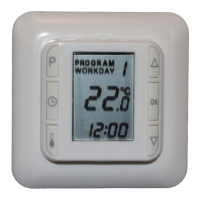
Two sensors, a oor sensor and a room sensor provide HC10B with feedback on
the current temperature in the room or the oor. The feedback from the sensors is
necessary to maintain the desired temperature in the room.
The sensors can be used separately or together.
P Floor sensor (FL)
P Room sensor (RO)
P Combined use of room and oor sensor (CO). In (CO) setting, the room sensor
controls the room temperature, while the oor temperature*) is simultaneously
monitored by the oor sensor. The HC10B monitor is set to a desired minimum
temperature and a desired maximum temperature. The factory settings are 27°C
and 15°C respectively.
(CO) should be selected when heating is installed under a timber floor.
*) Temperature measured by floor sensor.
E) HC10B backup battery
HC10B is equipped with a battery ensuring around 100 hours’ backup. If the
power has failed and the backup battery is active, the display will show OFF. If the
thermostat has been without power for more than around 100 hours, the backup
battery will be empty.
When the power returns again, HC10B will start up with the factory settings
Quickstart and 21°C.
Any changes made to the programs will be lost.
Programming the HC10B.
1) Important! Start here before you activate any night and day setback program
Set the day of the week and the clock.
L Press [P] and conrm with [OK]
Hours will ash
L Use [q] or [p] to set the hours.
L Press []
Minutes will ash
L Use [q] or [p] to set the minutes.
L Press []
Day will ash
L Use [q] or [p] to choose present day. i.e. Mon = Monday, Tue = Tuesday
L Conrm by pressing [OK].


 To Next Page
 Loading...