EasyManua.ls Logo

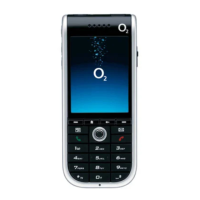
O2 Xda IQ - User Manual

O2 Xda IQ
12 pages
Print Icon
To Next Page IconTo Next Page
Loading...
A quick guide to your Xda
®
IQ
Copyright 01/06 O2 (UK) Limited
Services may be modifi ed, supplemented or withdrawn.
Terms and conditions apply.
See in-store leafl et or visit our O2 website for details.
O2 and Xda are registered trademarks and O2 Active
is a trademark of the O2 group of companies.
The Bluetooth ® word and logos are owned by the Bluetooth SIG, Inc.
Microsoft, Outlook, Windows, Windows Mobile, Windows Media
and ActiveSync are trademarks or registered trademarks of
Microsoft Corporation in the United States and/or other countries.
Java and all Java based trademarks and logo trademarks are registered
trademarks of Sun Microsystems, Inc in the US and other countries.
o2.co.uk/xda
o2.ie/xda (for Irish customers)
See what you can do
Correct at time of going to press (January 2006) O2C3105N LN 0106.
Registered Offi ce O2 (UK) Limited, 260 Bath Road, Slough, Berkshire, SL1 4DX.
Registered company number 1743099.
Question and Answer IconNeed help?

Do you have a question about the O2 Xda IQ and is the answer not in the manual?

O2 Xda IQ Specifications

General IconGeneral
BrandO2
ModelXda IQ
CategoryCell Phone
LanguageEnglish

Summary

Getting Started

Open Rear Cover

Instructions on how to remove the back cover of the Xda IQ device.

Insert SIM Card

Guide on properly inserting the SIM card into its designated slot.

Insert Battery and Cover

Steps to connect the battery and secure the device's back cover.

Charge Battery

Recommends charging the battery fully before first use and explains the charging indicator light.

Initial Setup and Power On

How to power on the Xda IQ and initiate the initial setup process.

Enter SIM PIN

Details on entering the SIM card's PIN code upon device startup.

Synchronise with PC

Explains how to connect and sync data between the Xda IQ and a Windows PC using ActiveSync.

Using Your Xda IQ

Work More Conveniently

Explains the device's capabilities for enhanced productivity and mobility.

Internet and Messaging

Covers sending emails, managing meetings, and composing text/picture messages.

Connectivity Options

Explains GPRS, Wireless LAN, and Bluetooth for internet access and wireless peripherals.

Help and Troubleshooting

Online Support

Provides email addresses for technical support inquiries.

Contacting Service Providers

Advises contacting service providers for general questions and account issues.

General Questions and Answers

Software Compatibility

Addresses software compatibility for applications on Windows Mobile 5.0.

Calls During Internet Use

Explains call handling during Internet use and GPRS/Wi-Fi connections.

Roaming Indicator

Explains the meaning of the white triangle icon indicating roaming.

Close Applications

How to close running applications using the End call key.

Related product manuals