
 Need help?
Do you have a question about the OBDPROG MT401 and is the answer not in the manual?
Highlights the device's multi-language support, fast ARM chip, TF card updates, and modern design.
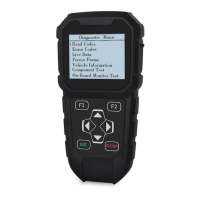
Introduces the main unit and accessories, detailing their functions.
Lists the device's physical dimensions, CPU, power supply, and screen specifications.
Explains how to access and configure various device functions and system settings.
Guides users on selecting different functions based on their specific requirements.
Details how to adjust system parameters such as language, units, and data logging.
Instructions for selecting the preferred language for the device interface.
Describes how to switch between metric and imperial (inch) measurement units.
Explains the use of the data logging function to record test processes.
Details how to select different font styles for the display.
Provides system details including serial number, hardware, and software versions.
Guides through performing self-tests for the screen, keyboard, and hardware.
Guides on downloading and installing the diagnostic software update tool.
Details the step-by-step process for updating the device's software using the tool.
The OBDPROG MT401 is a versatile and user-friendly device designed for automotive diagnosis and key programming, making these tasks easier, more practical, and economical for professionals and enthusiasts alike. Its core function revolves around providing comprehensive support for various vehicle maintenance operations, particularly mileage adjustment and OBDII diagnostics. The device is engineered to be a reliable companion in the automotive industry, integrating modern design with advanced electronic information technologies.
One of the primary usage features of the OBDPROG MT401 is its multi-language environment, which allows it to be applied in different countries and regions without language barriers. This global applicability enhances its utility for a diverse user base. The main unit of the device is powered by an ARM high-speed chip, ensuring fast, stable, and anti-jamming performance during operation. This robust processing capability is crucial for accurate and efficient diagnostic and programming tasks. Users will appreciate the convenience of updating the device via a TF card at any moment, which keeps the software current with the latest vehicle models and functionalities. The device's high-definition true color screen further enhances the user experience by providing clear and vibrant visual feedback, making navigation and data interpretation straightforward.
The OBDPROG MT401 offers a range of functions accessible through its intuitive interface. Upon powering on, users can press "ENTER" to access the function settings, which are categorized into "VEHICLES," "SET," "INFO," and "SELFTEST." The "VEHICLES" section is where users can perform mileage adjustments and OBDII diagnostics, which are core functions of the device. The availability of specific software numbers and functions may vary depending on the product configuration, and users are advised to contact their distributor for detailed information regarding their specific device's capabilities.
Under the "SET" menu, users can customize various system settings to suit their preferences and operational needs. One key setting is "Language Selection," where the device supports English, allowing users to select and confirm their preferred language. Another useful setting is "Metric/Inch," which enables users to switch between metric and imperial units for measurements, catering to different regional standards. The "Data Logging" feature is particularly valuable for troubleshooting. If any problems arise during testing, users can activate the "Data Logging" function to record the test process. This recorded data can then be sent to the manufacturer for analysis, facilitating efficient problem resolution. It's important to note that users need to select "ON" for data logging every time they wish to record data before testing a car. Additionally, the "Font setting" allows users to select different font sizes according to their requirements, enhancing readability.
The "INFO" section provides essential system information about the device. This includes the product serial number, hardware version, software version, issuing date, and security code, along with the manufacturer's website. This information is crucial for support, warranty claims, and tracking device specifics.
For maintenance and verification, the "SELFTEST" feature is indispensable. This self-diagnostic tool includes tests for screen display, keyboard functionality, and hardware integrity. If the device fails to display sufficient pictures on the screen, if the keyboard is unresponsive, or if the hardware self-test does not pass, it indicates a potential issue, and the device should be returned to the manufacturer for service. This self-test capability empowers users to quickly identify and address potential hardware or display problems, ensuring the device remains in optimal working condition.
Updating the software for the OBDPROG MT401 is a straightforward process. Users need to download the update tool and diagnostic software from the official website, www.obdprog.com. After installing the update tool on a computer, users can launch it and follow a series of steps to update the device. The process involves opening the update tool, clicking on the source menu to choose the desired program for update, selecting all the software packages, and then initiating the update. The update tool guides the user through the process, ensuring that the computer can read the SD/TF card, selecting the directory of the upgrade package, and confirming the upgrade. Once the upgrade is complete, users are advised to safely exit the SD/TF card from the computer and then unplug the card reader to prevent any data loss. For any new update software or questions during the updating process, users are encouraged to contact their distributor for assistance. This structured update process ensures that the device always has the latest software, providing access to new features, vehicle models, and bug fixes, thereby extending its lifespan and utility.
 General
| Languages | English, German, Spanish, French, Portuguese, Italian |
|---|---|
| Compatibility | OBDII/EOBD |
| Connection | OBDII |
| Functions | Read/Clear DTC, Read Data Stream |
| Screen | 2.8 inch TFT color screen |

 To Next Page