EasyManua.ls Logo

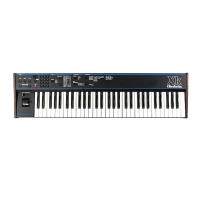
Oberheim XK - LEVERS; CONTINUOUS CONTROLLER (slider); Pitch and Modulation Levers; Programming the Mod Lever Negative Direction

Oberheim XK
41 pages
Print Icon
To Next Page IconTo Next Page
To Previous Page IconTo Previous Page
Loading...
LEVERS/CQNTIMUQUS
CONTROLLER
(slideri
The
lever
closest
the
the
keyboard
is
the
Pitch
Bend
Lever.
Pulling
the
lever
towards
you
causes
the
Pitch
on
the
remote
instrument(s)
to
go
up,
pushing
the
lever
towards
the
back
of
the
Xk
causes
I
.f™
t0
Q0
down"
The
range
of
the
lever
fs
not
adjustable
in
the Xk.
This
is
to
conform
with
the
MID11.0
spec.
Adjust
the
range
of
the
lever
on
the
Remote
Instrument.
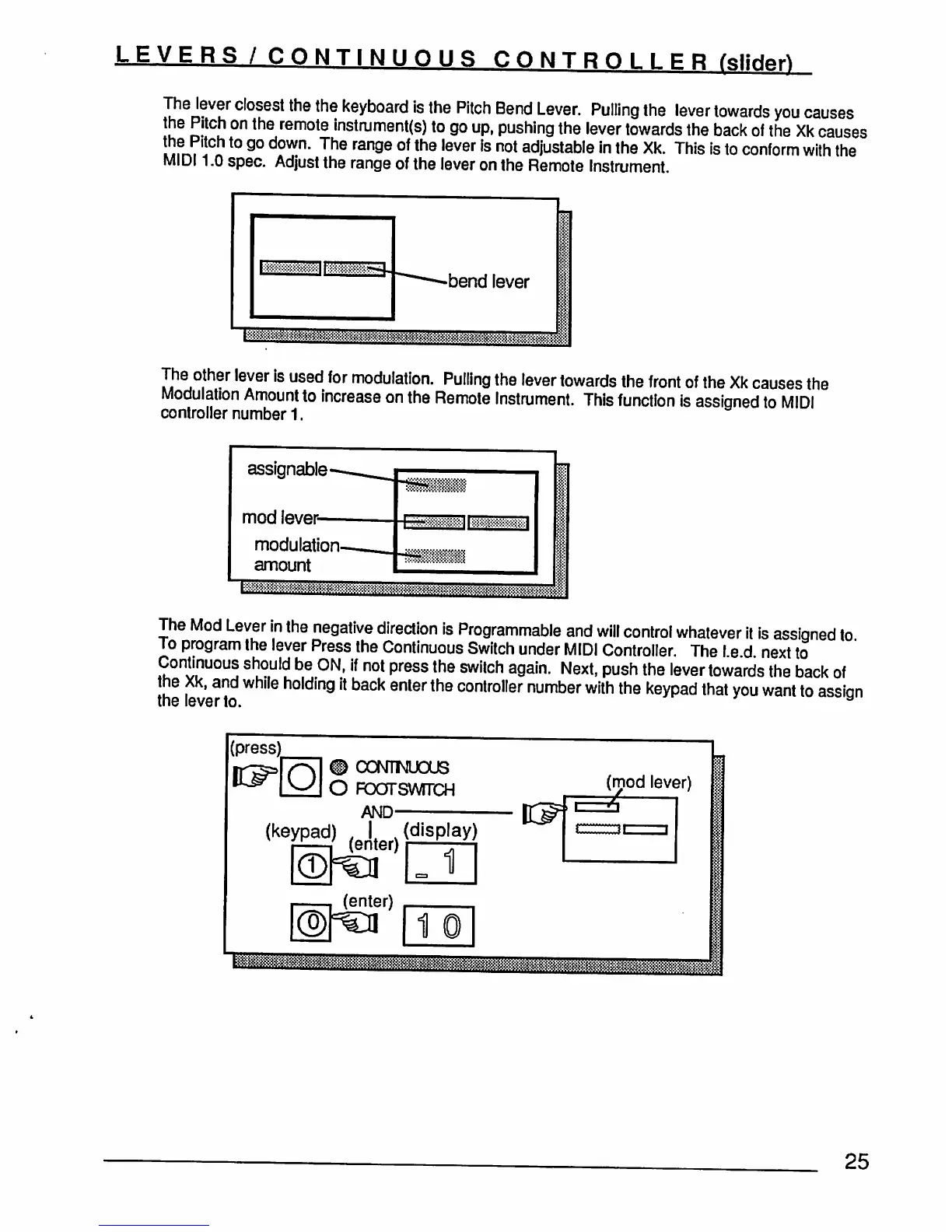
The
other
lever
is
used
for
modulation.
Pulling
the
lever
towards
the
front
of
the
Xk
causes
the
Modulation
Amount
to
increase
on
the
Remote
Instrument.
This
function
is
assigned
to
MIDI
controller
number
1.
assignable-
mod
lever-
modulation-
amount
The
Mod
Lever
in
the
negative
direction
is
Programmable
and
will
control
whatever
it
is
assigned
to
To
program
the
lever
Press
the
Continuous
Switch
under
MIDI
Controller.
The
I
e
d
next
to
Continuous
should
be
ON,
if
not
press
the
switch
again.
Next,
push
the
lever
towards
the
back
of
the
Xk,
and
while
holding
it
back
enter
the
controller
number
with
the
keypad
that
you
want
to
assian
the
lever
to.
a
(press)
®
CONTINUOUS
O
FoarswrrcH
AND
(mod
lever)
(enter)
25