13
Helpful tips and usage notes
1. Consider (screen)casting your VR experience to a computer, which you
can connect to a larger display. Casting lets other people see/hear
whatever the headset-wearer sees/hears in real-time. It’s a local
experience
Note: The computer and the headset need to be connected to the same Wi-
Fi network.
1.1. On the computer, open a web browser and go to oculus.com/casting.
1.2. Log in using the same Facebook/Meta account as the headset.
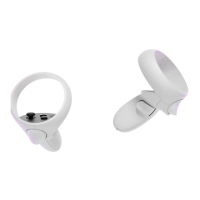
1.3. On the Right controller, press the Oculus button to open the toolbar.
1.4. In the headset, select the Share menu from the toolbar and then
select the Cast action.
1.5. On the computer, select Next.
1.6. Select Done.
1.7. (Optional) On the computer, enable full-screen mode and/or the
headset microphone.
2. Consider recording your VR experience using the
R
e
c
or
d
function.
2.1. On the Right controller, press the Oculus button to open the toolbar.
2.2. Select the Shar
i
n
g
-
>
R
e
c
or
d
Vid
eo -
>
Start
R
e
c
or
di
n
g
.



 To Next Page