Recording to a DISC
1. Please switch the system to DISC Mode.
2. Press SOURCE on the remote controller to select
a signal source.
3. Press QUALITY to select a record quality.
4. Select a recording mode (+VR or MPEG4).
Currently, the recording mode is the same as that
of disc by default.
5. Press DISC REC key to start recording, and REC
message will appear on OSD.
6. Pressing PLAY/PAUSE key will pause the recording
and you can press it again or press DISC REC to
continue.
7. Press STOP to stop the recording. REC STOP
will appear on OSD.
Note: Circumscribe the Television type of outer signal
sourcing to be comply with this machine, otherwise,
will cause not matching in television type and no
recording.
Recording to a USB device
You can record video/audio files to a USB device.
1. Please switch the system to USB Mode.
2. Press SOURCE on the remote controller to select
a signal source.
3. Press QUALITY to select a record quality.
4. Press DISC REC to start recording, and REC
message will appear on OSD.
5. Pressing PLAY/PAUSE key will pause the recording
and you can press it again or press DISC REC to
continue.
6. Press STOP to stop the recording. REC STOP
will appear on OSD.
Copying to a USB Device
Editing Files in a USB Device
This system supports four edit operations to the files
in a USB device: Rename, Delete, Delete ALL and
Copy.
The system capacitates copying files from HDD/DISC
into a USB device and saving them to corresponding
folders according to
their formats: AVI, MP3, JPEG, etc.
1. DISC USB
(1) DISC COPY function is available only under the
DVD mode.
(2) Select the file to be copied and then press the
EDIT key on a remote control.
(3) Choose Copy from the pop-up window, and OSD
will display the interface.
(4) Select USB as the destination and then specify a
directory on the USB device for the copied files.
(5) After copy finishes, a same file will appear under
the corresponding folders on the USB device.
2. HDD USB
(1) Select the file to be copied and then press the
EDIT key on a remote controller. Note that this
operation is available only when the system is
under the HDD mode.
(2) Choose Copy from the pop-up window, and the
interface will display.
(3) After copy finishes, a same file will appear under
the corresponding folder on the USB device.
17
OPERATIONAL WITH RECORDING
Title List
Enter
Select
Play Play
Video
MPEG4
Audio Picture
(C:/)
Left Capacity:
476588M
001/001
TITLE00001
01/13 23:27
00:00:04 HQ
001~006
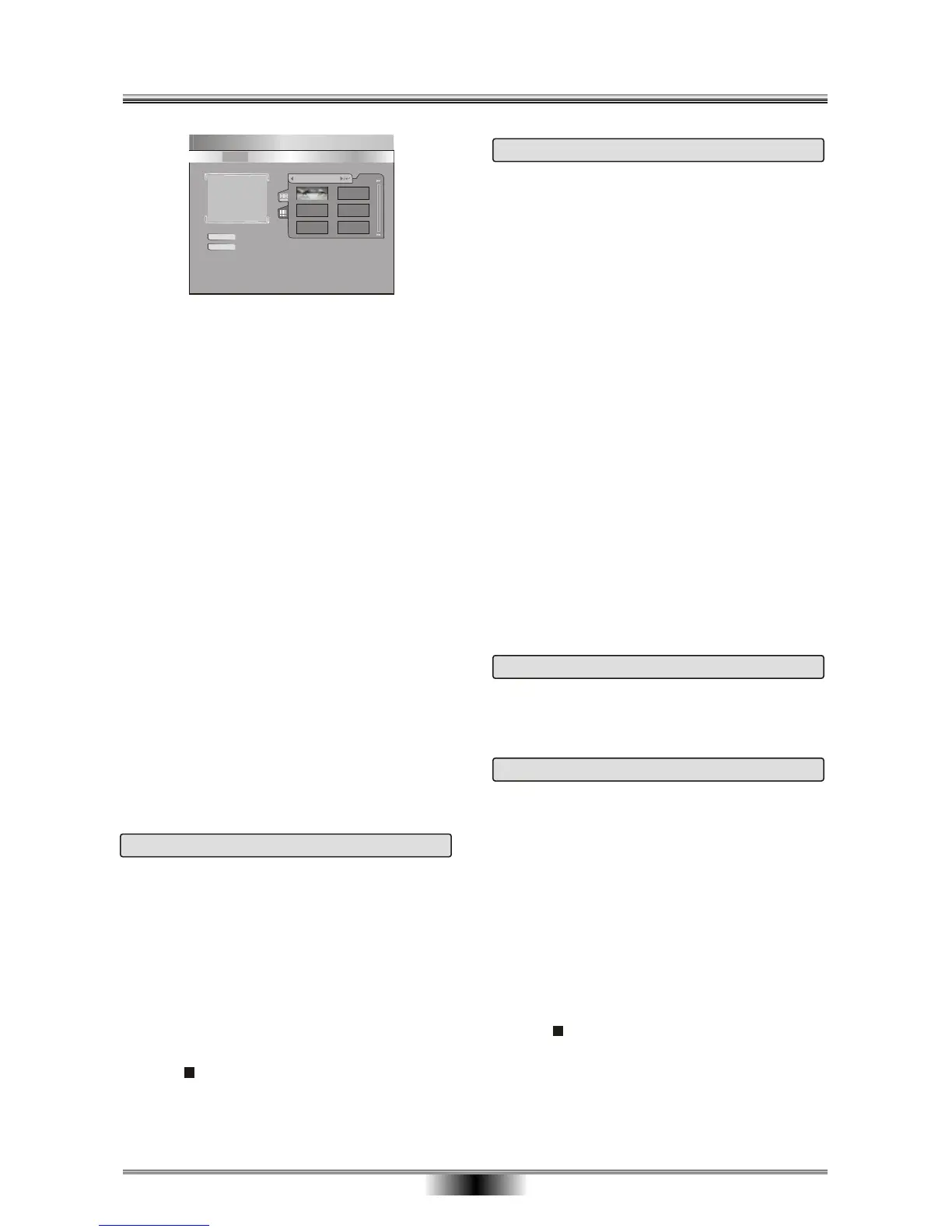
In the same way we can display MPEG4, Audio and
Picture files. But for Audio, only text information can
be listed for preview.
Note:
If the files in current folder cannot be listed in one
page, you can switch pages by pressing the PREV
or NEXT key.
Editing Files in an HDD:
This system supports four edit operations to the files
on an HDD: Rename, Delete, Delete ALL and Copy.
Rename
Select a file and press the EDIT key, and select
Rename option,
Highlight OK and then press ENTER to finish this
operation.
elect a
file and press the EDIT key, and select Delete option
This option brings up the on-screen
keyboard, you can type in the title name for the title.
Use the CURSOR to highlight the desired key,
Delete
If a title is not protected or locked, you can s
to delete it. You will be prompted to confirm the
operation.


 To Next Page
 Loading...