Editing Files in a Disc
The recorder supports two formats of discs:
DVD+VR format disc
MPEG4 format disc
When the disc is in MPEG4 format, you can edit the
files in it such as: Rename, Delete, Delete All and
Copy.
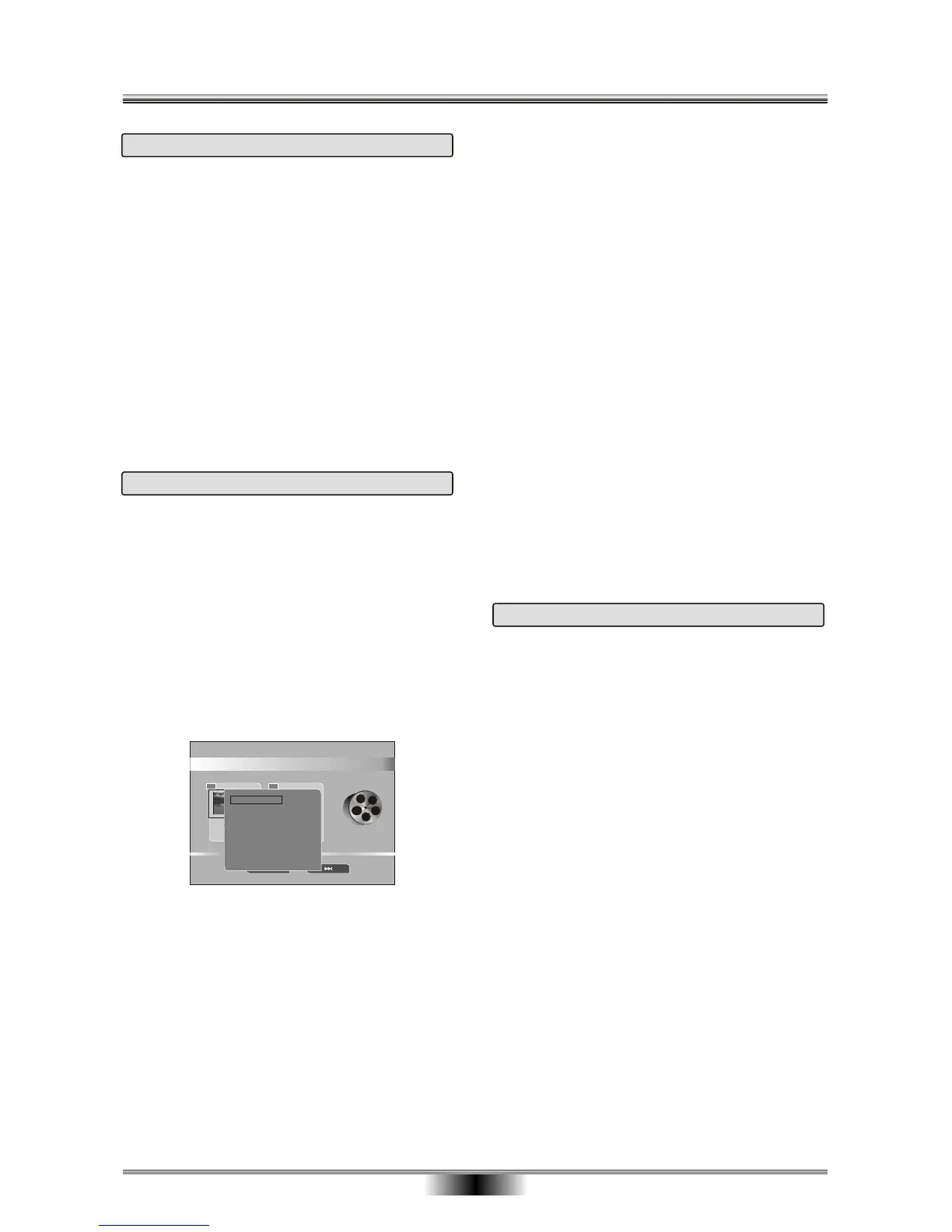
In the Title List Interface, When the disc is in +VR
format, you can edit the files in it such as rename,
protect, delete, merge next title, Delete ALL chapter
Mark, Play Full Title and Dubbing.
18
OPERATIONAL WITH RECORDING
Dubbing to a Disc
The system capacitates dubbing files from HDD
(Video only) to a +VR format disc.
Dubbing files into a +VR disc :
(1) The HDD DUBBING function is available only
under the HDD mode.
(2) Select the file to be dubbed and then press the
EDIT key on the Remote Control. Choose Dubbing
from the pop-up window, and the interface will
appear.
(3) Press ENTER key to start dubbing.
(4) After dubbing finishes, a DUBBING OK banner
will prompt on OSD and a same file will appear
under the +VR folder on the disc.
Protect
Select the Protect command from the menu and then
press ENTER to protect the file. The protected file
can not be delete.
Delete
Select the Delete command from the menu, it cans
delete the select file.
Merge Next Title
Select the Merge Next Title command on the menu,
it cans combine with two titles.
Delete Chapter Mark
During a program playback, select the Delete Chapter
Mark item on the pop-up menu to delete chapter mark .
Note: Selecting the Delete All Chapter Mark item will
delete all the existing chapter marks.
Play Full Title
Select the Play Full Title command on the menu,
it cans play all title.
CD Ripping to HDD/USB
Also, the system is enhanced by a CD Ripping function.
In the DVD mode, during a CD playback, the playing
chapter can be compressed to HDD or a USB device
with mp3 format synchronously.
Following are the steps of ripping a CD file to HDD/USB:
(1) In the DVD mode, during a CD playback, press
DISC DEC the remote, and the following dialog will
come for you to select a ripping target medium.
(2) Press CURSOR and ENTER to select the target
Bitrate, mode or speed. And then select the START
option to begin to ripping function.
(3) If you press STOP, the system will stop ripping.
(4) When the file is played completely, you will see
“ CD RIPPING 100%” banner on the screen and the
system will stop ripping automatically.
(5) After that, the file on CD is recorded as an mp3
file in HDD/USB. You can see it in the HDD/USB
mode.
Title List
TITLE
01
2000/01/13
23:40:01
00:00:04 HQ
TITLE
02
2000/01/13
23:40:01
00:00:04 HQ
Rename
Protect
Delete
Merge Next Title
Delete All Chapter Mark
Play Full Title
Dubbing
Rename
Select Rename from the menu and then press ENTER
to enter the Text Input interface. Input text by UP/
DOWN/LEFT/RIGHT and ENTER keys, and then
press OK button to finish the rename operation.


 To Next Page
 Loading...