13
Q U I C K S T A R T G U I D E | O L I V E 4 H D
5 Internet Radio
Internet radio will appear as a separate category in the
main menu if the Olive 4HD is connected to the internet.
Stations are categorized into genre, region and public &
info. To add a station to your FAVORITES you have to play
the station, then press the SELECT Button and choose
OK in the pop-up window.
You can also add your own radio station. Select ADD
NEW STATION, enter the station name and then the web
address. The stream must be in .pls, .mp3 or .m3u format.
6 Remote Control
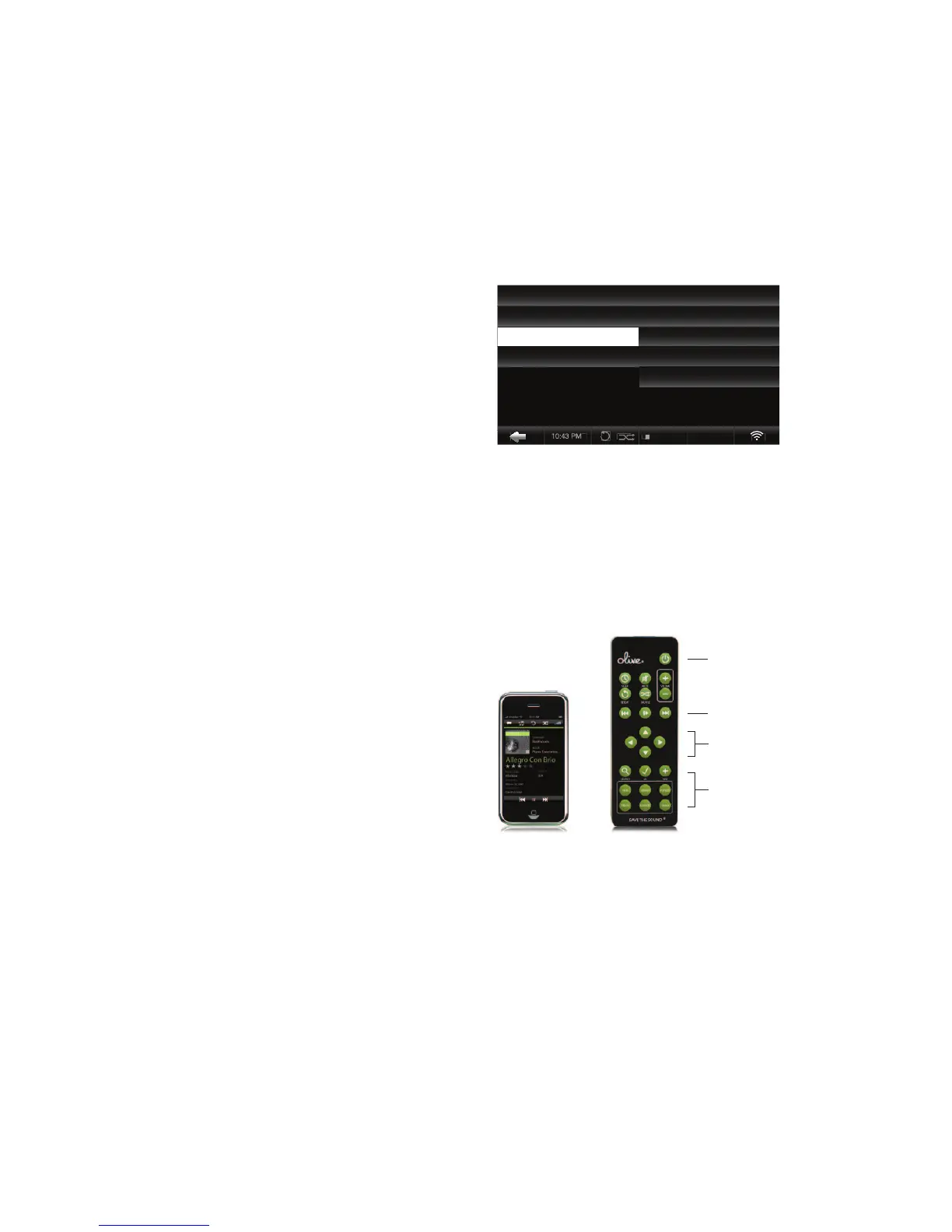
Your Olive 4HD comes with a standard infrared remote
control to allow you to control key functions convenient-
ly from your couch. If you have an Apple
®
iPhone™ or
iPod™ Touch you can also use Olive’s free iMaestro re-
mote control application. Simply enter the App Store on
your iPhone™/iPod™ Touch, go to SEARCH and enter
“iMaestro.”
Navigation Buttons
Shortcut Buttons
Sleep/Wake Button
Player Buttons
10:25 PM


 To Next Page