EasyManua.ls Logo

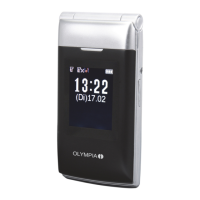
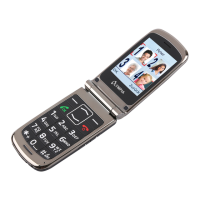
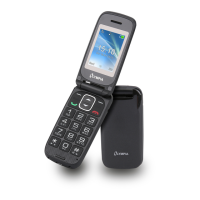
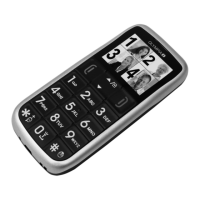
Olympia Vox Colour - User Manual

Olympia Vox Colour
28 pages
Print Icon
To Next Page IconTo Next Page
Loading...
R
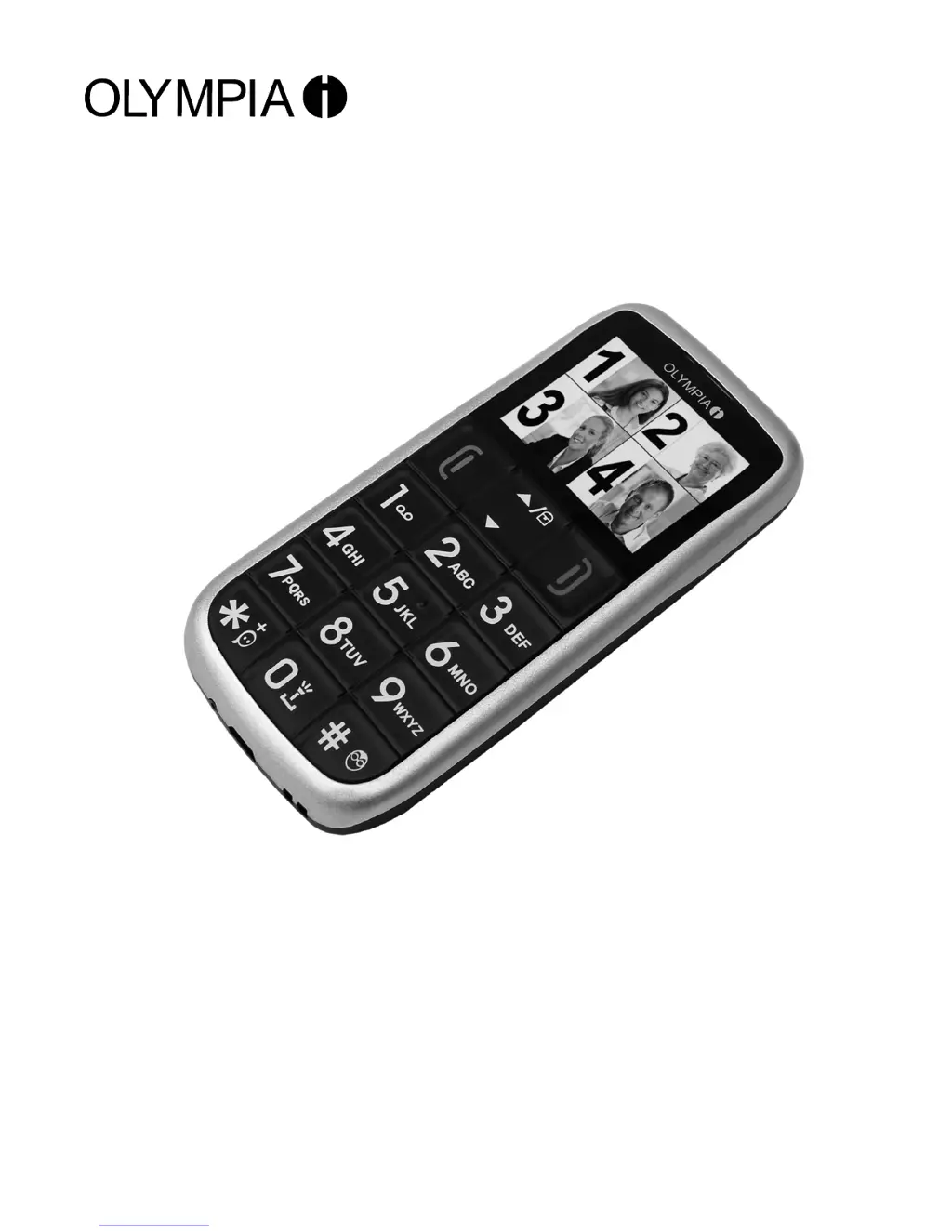
Convenient mobile phone with large keys
Vox Colour model
Olympia Business Systems Vertriebs GmbH
Zum Kraftwerk 1
45527 Hattingen
Operating instructions
06.05.2013 gb/gb

Questions and Answers

  • B
    Brooke BarnesAug 10, 2025
    How to fix 'Insert SIM' message on my Olympia Cell Phone?
    • R
      Rebekah GomezAug 10, 2025
      If the 'Insert SIM' message appears on your Olympia Cell Phone display, make sure that the SIM card has been installed correctly. If necessary, contact your mobile service provider.
  • T
    Teresa ColeAug 16, 2025
    How to fix an Olympia Cell Phone that won't turn on?
    • A
      Anna HensonAug 16, 2025
      If your Olympia Cell Phone won't switch on, it may be due to the absence of a battery. Ensure a battery is inserted. If the battery is already inserted, it might not be charged. In this case, charge the battery.
  • M
    Mrs. Hannah FosterAug 22, 2025
    Why does my Olympia Cell Phone battery drain so fast or not charge?
    • D
      Dawn SmithAug 22, 2025
      If the battery of your Olympia Cell Phone cannot be charged or depletes quickly, it could be defective and needs replacement. Also, ensure the phone is correctly placed in the charging unit, or the power adapter is properly connected. Clean the contact surfaces on both the phone and adapter using a soft, dry cloth. Then, charge the phone for 4 hours.
  • G
    gibbsjosephAug 28, 2025
    What to do if my Olympia Cell Phone shows no signal?
    • M
      Meagan BrooksAug 28, 2025
      If your Olympia Cell Phone displays no signal quality, it indicates a lack of network connection. Try moving to a different location. If the problem persists, contact your mobile service provider.
  • J
    Jonathan GibsonSep 3, 2025
    What to do if my Olympia Cell Phone screen is frozen?
    • F
      fostermatthewSep 3, 2025
      If your Olympia Cell Phone screen is frozen or unresponsive, remove the battery for 3 minutes and then try again.

Summary

Setting Up

Installing the SIM card

Instructions for inserting the SIM card into the phone for initial setup.

Charging the battery

Instructions for charging the phone's battery, including safety precautions.

Switching the phone on and off

Steps to power the phone on and off using the dedicated button.

Operating Elements

Getting Started

Function keys

Explanation of the functions assigned to specific keys in different modes.

Navigating in the menu

Guide on how to move through the phone's menu system using navigation keys.

Creating phone book entries - example

Step-by-step guide on adding new contacts to the phone book.

How to enter text and numbers

Explains various methods for text input on the phone keypad.

Phone Book

Making and Taking Calls

Speed dialling

How to set up and use speed dial keys for quick calling.

Dialling numbers from the call log

How to make calls using the history of dialled, received, and missed calls.

Dialling numbers from the phone book

Instructions on how to call contacts stored in the phone book.

Text Messages (SMS)

Writing a text message

Guide on composing and sending text messages.

Call Log

Phone Settings

Security Settings

SIM security

Settings related to SIM card protection, like PIN lock.

Phone security

Options for securing the phone itself, such as a phone lock password.

Restoring the Default Factory Settings

SOS (Emergency Call) Function

How to set up and use the emergency SOS call feature.

Organizer

Troubleshooting

Problems and solutions

Common issues with the phone and their respective solutions.

Olympia Vox Colour Specifications

General IconGeneral
BrandOlympia
ModelVox Colour
CategoryCell Phone
LanguageEnglish

Related product manuals