48
EN
4
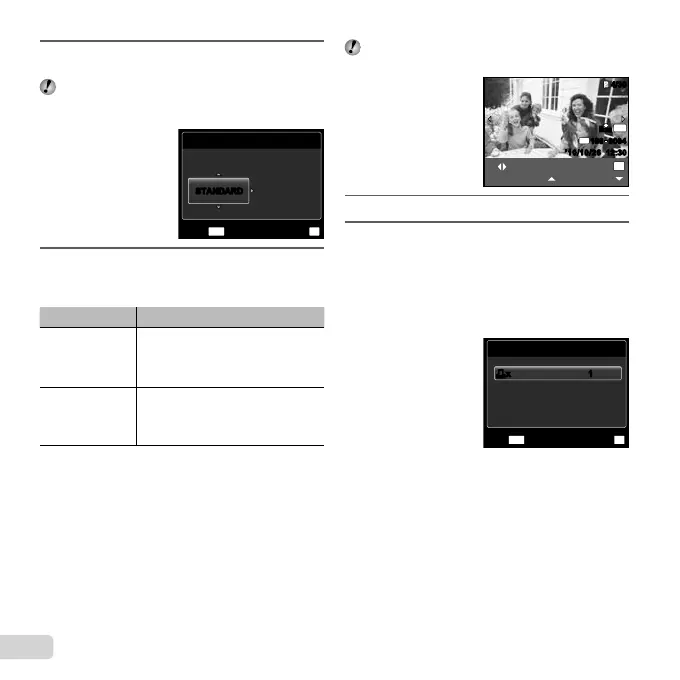
Use FG to select [SIZE] (Submenu 3), and
press I.
If the [PRINTPAPER] screen is not displayed, the
[SIZE], [BORDERLESS], and [PICS/SHEET] are set
to the printer’s standard.
PRINTPAPER
SIZE BORDERLESS
STANDARD
OK
SET
MENU
BACK
STANDARDSTANDARD
5
Use FG to select the [BORDERLESS]
or [PICS/SHEET] settings, and press the
H button.
Submenu 4 Application
OFF/ON
*1
The image is printed with a border
around it ([OFF]).
The image is printed to fi ll the entire
paper ([ON]).
(The number of
images per sheet
varies depending
on the printer.)
The number of images per sheet
([PICS/SHEET]) is selectable only
when [MULTI PRINT] is selected
in Step 3.
*1
The available settings for [BORDERLESS] vary
depending on the printer.
If [STANDARD] is selected in Steps 4 and 5, the
image is printed at the printer’s standard settings.
N
ORM
OK
SINGLE PRINT
PRINT
4/304/30
MORE
12:30’10/10/26’10/10/26 12:30
N
ORM
14
M
FILE
100 0004100 0004
6
Use HI to select an image.
7
Press F to make a print reservation for the
current image. Press G to make the detailed
printer settings for the current image.
To make the detailed printer settings
To make the detailed printer settings
1 Use FGHI to select the setting, and press the
H button.
PRINT INFO
FILE NAME
P
DATE
WITHOUT
WITHOUT
MENU
OK
SETEXIT
<x<x 11





 To Next Page