EasyManua.ls Logo

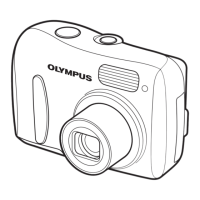
Olympus Ferrari digital model 2004 - User Manual

Olympus Ferrari digital model 2004
2 pages
Print Icon
To Next Page IconTo Next Page
Loading...
REC VIEW
SHUTTER SOUND
ENGLISH
ON
SCREEN
SETUP
1
1
EXIT SELECT
GO
BACK
OK
FLASH MODE
OFF
AUTO
RESET
P
P
EXIT SELECT
GO
BACK
OK
SH
3M
SCENE SELECT
Lift up the cover and push down
firmly on the section of the cover
to close. Closing the battery/card
compartment cover locks the latch.
Gently push the latch backwards to lift it .
When you take your finger off the latch, the
latch drops back on its own . After the
latch drops back, insert the battery .
Slide the battery/card compartment
cover in the direction of the arrow
. The cover unlocks and opens in
the direction of the arrow .
a.
UNPACKING THE BOX CONTENTS
PREPARE THE CAMERA FOR USE
Before you begin using your Olympus digital camera…
TURNING ON THE CAMERA
Loading the battery
Names of parts
a.
Power on/off
c.
Inserting the card
b.
Charging the battery
Printed in Japan
Monitor
Power on T Turns on the monitor.
Power off T Turns off the monitor.
1
Lens cap
Remove this when taking
pictures.
Mode switch
: Select this for still pictures shooting.
: Select this for movie shooting.
: Select this for playback.
2
POWER switch
Turns the camera on and off.
* Check the date/time settings
when the camera is turned on.
3
b.
Menu & operation (date and time setting)
1) Display the menu.
The current setting is displayed.
Indicates there are more menu items
following SHUTTER SOUND.
Select the date format: [Y-M-D (Year/Month/Day)],
[M-D-Y (Month/Day/Year)], [D-M-Y (Day/Month/Year)].
The operation guide is displayed.
2) Select SETUP.
3) Select from the SETUP menu.
4) Set the date/time.
Set the date.
The “year” is highlighted. The first two digits of the
year are fixed.
Repeat the procedure until the date and
time are completely set.
The time is displayed in the 24-hour format.
For example, 2 p.m. will be displayed as 14:00.
5) With the cursor on SET, press MENU/OK.
The clock starts after completing step 5 .
The following instructions show the procedure used when the
date and time settings are set to Y-M-D.
Currently selected item
1
1
2
3
6
7
4
5
2
Insert the battery with the
OLYMPUS logo face up.
Battery/Card
compartment cover
Shutter button
Control dial
Flash
Microphone
Lens
Cradle connector
Connector end
Cradle
(provided)
DC-IN jack
A/V OUT jack
USB connector
Tripod socket
Battery/Card compartment
cover
Self-timer lamp
Strap eyelet
BACK/NEXT button
Mode switch
( / / )
POWER switch
Monitor
MENU/OK button
Speaker
Zoom button
(W /T )
Latch
To the AC wall outlet
AC plug
Monitor
AC adapter (provided)
Notch
Cradle (provided)
DC-IN jack
blinks during charging.
Unloading the battery
Release the latch . With the
battery held down, tilt the camera
carefully so that the battery does
not drop from the camera.
Remove the battery .
Insert the card while keeping it
straight.
When the card is inserted
all the way, it stops with a click.
5
4
5
Removing the card
Push the card all the way to
unlock it, then let it return
slowly. Hold the card straight
and pull it out.
5
3
7
6
4
3
4
3
http://www.olympus.com/
QuickStart Guide
Olympus Europa GmbH
Wendenstrasse 14-18,
20097 Hamburg, Germany
http://www.olympus-europa.com
OLYMPUS AMERICA INC.
Two Corporate Center Drive, Melville,
NY 11747-3157, U.S.A.
http://www.olympusamerica.com/support
START HERE
It is strongly recommended that you follow these
step-by-step numbered instructions to set up and
quickly begin using your new Digital Camera.
For more detailed instructions on advanced features,
please refer to the Reference Manual
*1
.
*1 Reference Manual is provided on CD-ROM in some
areas.
Gather your digital camera and the parts as shown in the illustration. You’ll need these to complete the steps for the camera set-up
procedures that follow.
The following items are also included in this package: lens cap, lens cap string, camera case (with camera cleaning cloth), warranty card and registration card (not
pvovided in some areas).
*1
Reference Manual is provided on CD-ROM in some areas.
*2 The instruction manual included on the CAMEDIA Master 4.2 CD-ROM is provided in English only.
Digital camera
Strap
AC adapter (D-7AC)
Lithium-ion battery (LI-20B)
Reference Manual
*1
CAMEDIA Master CD-ROM
*2
/
Software installation guide
xD-Picture Card/Instructions
USB cable
AV cable
Cradle
Open the battery/card
compartment cover.
Release the latch
to insert the battery.
Close the battery/
card compartment
cover.
Rotate to
select
MENU/OK
Press to confirm
P
SETUP
AF MODE
OFF
SPOT
EXIT SELECT
GO
BACK
OK
FORMAT
Rotate to
select
Rotate to
select
MENU/OK
Press to confirm
Rotate to
select
MENU/OK
Press to confirm
VIDEO OUT
SETUP
’04.01.01
00:00
PAL
EXIT SELECT
GO
BACK
OK
Y
M D
01
00 00
012004
SET
CANCEL SELECT
GO
BACK
OK
Rotate to
select
MENU/OK
Press to confirm
Rotate to
select
MENU/OK
Press to confirm
MENU/OK
Press to confirm
01
00 00
01
SET
CANCEL SELECT
GO
BACK
OK
07 30
SET
12 00
CANCEL SELECT
GO
BACK
OK
07 30
SET
12 15
CANCEL
GO
BACK
OK
DIGITAL MODEL 2004
3
4
5
1
2
MENU/OK
Press
VT926801


Other manuals for Olympus Ferrari digital model 2004

Questions and Answers

  • B
    Beverly SanchezAug 21, 2025
    Why won't my Olympus Ferrari digital model 2004 turn on?
    • E
      Eduardo CopelandAug 21, 2025
      Your Olympus Digital Camera might not be turning on because the power is off (the camera automatically turns off if not used for a while, so press the power button), the battery is drained (charge the battery), the battery is too cold (warm it in your pocket), or the camera is connected to a PC (disconnect it).
  • J
    James WilliamsSep 3, 2025
    What to do if my Olympus Ferrari digital model 2004 doesn't take a picture when I press the shutter button?
    • C
      Cindy GonzalezSep 3, 2025
      If your Olympus Digital Camera isn't taking pictures, it could be due to several reasons: the battery may be drained (charge it), the camera might be in playback mode (set the mode switch to a shooting position), the flash hasn't finished charging (wait until the flash mark stops blinking), the card is full (erase images or insert a new card), the battery ran out during shooting (charge the battery and wait for card access mark to turn off), or the memory gauge is full (wait until there is room).
  • A
    anthony25Sep 1, 2025
    Why is part of my Olympus Ferrari digital model 2004 Digital Camera image too dark?
    • S
      Steve MilesSep 1, 2025
      Part of your Olympus Digital Camera image may be too dark if your finger or the strap is blocking the lens (hold the camera correctly).
  • D
    Dana ReynoldsAug 30, 2025
    What causes blurry photos with my Olympus Ferrari digital model 2004 Digital Camera?
    • K
      Kerry MercerAug 31, 2025
      If your Olympus Digital Camera is taking blurry photos, it could be due to a subject unsuited to AF (use focus lock), the flash being off in low light (select a different flash mode, use a tripod), camera movement when pressing the shutter (hold the camera steady), the subject being too close (use MACRO or SUPER MACRO), or a dirty lens (clean the lens).
  • C
    Christian AdamsAug 29, 2025
    Why does the battery on my Olympus Ferrari digital model 2004 Digital Camera drain so fast?
    • R
      Rebecca RochaAug 29, 2025
      The battery life of your Olympus Digital Camera may be short because you are using the camera in a cold environment (keep the camera warm), or the remaining battery power is not indicated correctly (charge the battery).
  • R
    rodney92Aug 27, 2025
    Why are my Olympus Digital Camera pictures too bright?
    • M
      Mrs. Jennifer DyerAug 27, 2025
      Your Olympus Digital Camera pictures may be too bright if the flash was set to fill-in mode (select a different flash mode), or the center of the subject was too dark (adjust the exposure compensation).
  • J
    Jennifer McintoshAug 26, 2025
    How to fix out of focus pictures on my Olympus Digital Camera?
    • P
      Phyllis CabreraAug 27, 2025
      If your Olympus Digital Camera pictures are out of focus, it could be because autofocus isn't working (use focus lock), the subject is too close (use MACRO or SUPER MACRO), or the lens is dirty (clean the lens).
  • L
    Linda KeyAug 25, 2025
    Why are my Olympus Digital Camera pictures too dark?
    • R
      Raven LiuAug 25, 2025
      Pictures from your Olympus Digital Camera may be too dark because your finger blocked the flash (hold the camera correctly), the subject is out of the flash's range (shoot within range), the flash is off (select a different mode), the subject is small and backlit (use fill-in flash or SPOT metering), you are shooting bright subjects like snow (use BEACH & SNOW scene mode or adjust exposure compensation), or the center of the subject was too bright (adjust exposure compensation).
  • J
    jeffrey67Aug 23, 2025
    Why can't I erase images on my Olympus Digital Camera?
    • G
      Gerald HayesAug 23, 2025
      You might not be able to erase images on your Olympus Digital Camera because the images are protected (set protection to OFF), or the images are registered in the albums (perform UNDO ENTRY).

Summary

START HERE

UNPACKING THE BOX CONTENTS

Lists all items included in the camera package for initial setup.

PREPARE THE CAMERA FOR USE

Guides on loading the battery, charging, and inserting the card.

Loading the battery

Instructions on how to open the compartment, release the latch, and insert the battery.

Charging the battery

Steps to connect the camera to the AC adapter and charge the battery.

Inserting the card

How to correctly insert the memory card into the camera.

Names of parts

Identifies key components and buttons on the camera.

TURNING ON THE CAMERA

Instructions for powering the camera on and off and setting the date/time.

Power on;off

Steps to turn the camera on and off using the power switch.

Menu & operation (date and time setting)

Guide to accessing the setup menu to configure date and time settings.

TAKING PICTURES

Turning on the camera in the shooting mode

Steps to power on the camera and prepare for taking photos.

Zooming

How to use the zoom function to adjust magnification before shooting.

Taking the picture

Process for focusing, half-pressing the shutter, and fully pressing to capture an image.

Using the situation-related shooting modes

Guide to selecting specific scene modes for different shooting conditions.

VIEWING AND ERASING IMAGES

Turning on the camera in the play mode

Steps to power on the camera for image playback.

Selecting images

How to navigate through stored images using playback controls.

Erasing pictures [ERASE]

Instructions on how to delete unwanted images from the camera.

CONNECTING THE CAMERA TO A COMPUTER

Connecting the camera to the computer

Physical connection steps via USB cable and cradle.

Olympus Ferrari digital model 2004 Specifications

General IconGeneral
ModelFerrari Digital Model 2004
CategoryDigital Camera
Release Year2004
Megapixels3.2 MP
Optical Zoom3x
Digital Zoom4x
LCD Screen Size1.5 inches
Supported Flash MemoryxD-Picture Card
Storage MediaxD-Picture Card
Camera typeDigital Camera
Battery Type2x AA batteries
Weight165 g (without battery)

Related product manuals