EasyManua.ls Logo

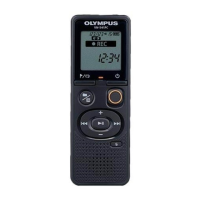
Olympus VN-540PC - User Manual

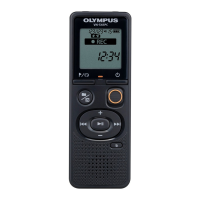
Olympus VN-540PC
43 pages
Print Icon
To Next Page IconTo Next Page
Loading...
Thank you for purchasing an Olympus digital voice recorder.
Please read these instructions for information about using the product correctly and safely.
Keep the instructions handy for future reference.
• To ensure successful recording, we recommend that you test the record function and volume
before use.
• If there are additions and/or modifications of functions due to firmware update, contents may
differ. For the latest information, please visit Olympus website.
Getting started
Recording
Playback
Editing
Use with a PC
Other information
1
2
3
4
5
6
VN-541PC
VN-540PC
DIGITAL VOICE
RECORDER
USER MANUAL
EN

Questions and Answers

  • A
    Alicia SchmidtAug 16, 2025
    Why is Olympus VN-540PC playback inaudible?
    • V
      Victoria LaraAug 16, 2025
      If the playback on your Olympus Voice Recorder is inaudible, check if earphones are connected to the jack; disconnect them to output the playback through the built-in speaker. Also, the volume might be set to [00]; adjust the volume to a suitable level.
  • A
    andrewslaurenAug 19, 2025
    What to do if Olympus Voice Recorder has noise during playback?
    • S
      Sherry PhamAug 19, 2025
      If you are experiencing noise during playback on your Olympus Voice Recorder, it could be due to objects brushing against the voice recorder while recording; try your best not to touch the voice recorder during recording. Alternatively, the voice recorder might have been placed near a mobile phone or fluorescent light during recording or playback; redo the operation with the voice recorder in a different location.
  • D
    Dr. Brian Gibson MDAug 22, 2025
    What to do if Olympus VN-540PC Voice Recorder has missing audio file?
    • Z
      Zachary CampbellAug 22, 2025
      If you can't find an audio file on your Olympus Voice Recorder, it may have been recorded in a different folder; select another folder to locate the file.
  • P
    Penny BrownAug 26, 2025
    Why is Olympus VN-540PC display blank?
    • A
      Andrea FullerAug 26, 2025
      The display might be blank because the batteries are not inserted properly. Ensure the positive and negative terminals of the batteries are correctly placed. Alternatively, the remaining battery power could be low, so try replacing the batteries. Finally, check if the power is OFF and turn it ON.
  • V
    Valerie HahnAug 28, 2025
    What to do if Olympus VN-540PC is not recording?
    • S
      Steven CantuAug 29, 2025
      If your Olympus Voice Recorder is not recording, it might be due to a lack of memory. Erase unnecessary files to free up space. Another reason could be that the maximum number of recordable files (199) has been reached, so deleting files will also solve this.
  • K
    klopezAug 31, 2025
    Why is Olympus VN-540PC unable to operate?
    • L
      Laura CrossAug 31, 2025
      If your Olympus Voice Recorder is not operating, the battery power might be low, so replace the batteries. Also, check if the power is OFF and turn it ON. Another possibility is that the voice recorder is in HOLD mode; release HOLD mode to enable operation.
  • C
    Christopher JohnsSep 3, 2025
    How to fix noise when monitoring a recording on Olympus VN-540PC?
    • S
      Samantha WarrenSep 3, 2025
      If you experience noise when monitoring a recording on your Olympus Voice Recorder, it may be due to feedback. Connecting a speaker with a built-in amplifier may cause feedback during recording, so using earphones to monitor recording is recommended. You may also adjust the recording setup such as by moving the earphones and microphone farther apart, or ensuring the microphone is not facing the earphones.
  • A
    armstrongkevinSep 6, 2025
    How to fix fast (or slow) playback speed on Olympus VN-540PC?
    • D
      Donna TorresSep 6, 2025
      If the playback speed on your Olympus Voice Recorder is too fast or slow, the playback speed function might be set to anything other than [x1.0]. Set the playback speed function setting to [x1.0].
  • R
    Roger MillerSep 9, 2025
    Why is Olympus VN-540PC Voice Recorder unable to write index marks/temp marks?
    • O
      Olivia CummingsSep 9, 2025
      If you are unable to write index marks or temp marks on your Olympus Voice Recorder, the maximum number of marks (99 for VN-541PC/16 for VN-540PC) may have been reached; erase unnecessary marks. Also, the file may be locked; unlock the file. The file could also be a read-only file; unlock the file, or undo the read-only setting on a PC.
  • R
    Rachael JonesSep 12, 2025
    What does format error mean on Olympus Voice Recorder?
    • L
      Leslie SimmonsSep 12, 2025
      If your Olympus Voice Recorder displays a format error, a formatting problem occurred. Format the memory again.

Summary

Getting started

Inserting the batteries

How to insert batteries into the voice recorder.

Turning the power ON

Steps to power on the digital voice recorder.

Preventing accidental operation

Recording

Basic recording procedure

Step-by-step guide to start and stop recording.

Playback

Basic playback procedure

Steps to select and play recorded files.

Editing

Preventing accidental file erasure (File Lock)

Locking files to prevent accidental deletion.

Erasing files

Deleting single files or all files in a folder.

Formatting the internal memory

Erasing all data and resetting the recorder's storage.

Use with a PC

PC connection;disconnection

Steps for connecting and safely disconnecting from a PC.

Other information

Troubleshooting

Solutions for common problems and error messages.

Safety precautions

Important safety guidelines for using the voice recorder.

Olympus VN-540PC Specifications

General IconGeneral
Product colorBlack
WMA bit rates5 - 32 Kbit/s
Frequency range40 - 44100 Hz
Recording modesLong Play (LP)
Built-in microphoneYes
Maximum recording time1570 h
InterfaceUSB
Headphone outputs1
USB connector typeMicro-USB
USB 2.0 ports quantityUSB 2.0 ports have a data transmission speed of 480 Mbps, and are backwards compatible with USB 1.1 ports. You can connect all kinds of peripheral devices to them.
Internal memory4 GB
Number of folders messages3
Number of messages per folder199
Display diagonal1.39 \
Output power200 mW
Built-in speaker(s)No
Battery life (max)52 h
Battery technologyAlkaline
Compatible battery sizesAAA
Number of batteries supported2
Mac operating systems supportedMac OS X 10.11 El Capitan, Mac OS X 10.5 Leopard, Mac OS X 10.6 Snow Leopard, Mac OS X 10.7 Lion, Mac OS X 10.8 Mountain Lion, Mac OS X 10.9 Mavericks
Windows operating systems supportedWindows 10, Windows 7, Windows 8, Windows 8.1
Weight and Dimensions IconWeight and Dimensions
Depth20 mm
Width37.5 mm
Height108 mm
Weight67 g
Dimensions (WxDxH)37.5 x 20 x 108 mm

Related product manuals