Need help?
Do you have a question about the omnicharge Omni 20+ and is the answer not in the manual?
Calibrate the Omnicharge battery for accurate readings by fully discharging and then fully charging the device.
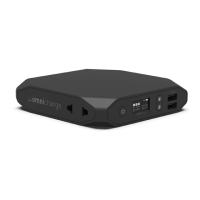
The primary AC power output port.
Used for powering the device on/off and navigating menus.
Controls the USB ports.
Button to control the AC outlet.
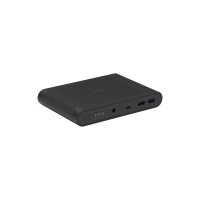
USB port compatible with QC 3.0 for fast charging.
Standard USB-A port for charging devices.
Barrel port for DC power input and output.
USB-C port for input and output charging.
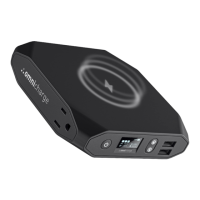
Surface for wireless charging of compatible devices.
Details on powering the device on/off and controlling AC/USB outputs.
Functions for navigating and selecting options within the menu.
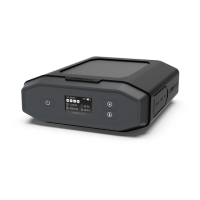
Visual indicators for device status and modes.
Displays the wattage being received by the device.
Shows the wattage being delivered by the device.
Displays the current temperature of the battery.
Shows the voltage output for DC ports.
Indicates the remaining charge of the battery.
Indicates when the AC outlet is activated.
Indicates when HVDC output is activated.
Indicates when the 60W USB-C output is activated.
Indicates when adjustable DC output is activated.
Indicates when USB ports are turned on.
Shows that the Omnicharge is currently receiving charge.
Indicates charging at maximum power.
Shows that the device is charging from a solar source.
Indicates charging is shut off due to low battery temperature.
Shows that wireless charging is active.
Indicates output cut-off during pass-through charging.
Indicates output limit or cut-off due to excessive power draw.
Indicates output limit or cut-off due to high battery temperature.
Indicates input charging circuit shut-off due to excessive voltage.
Configure DC output voltage and amperage.
Select between 120V AC and 150V HVDC output modes.
Choose whether USB-A ports are on or off by default.
Set the auto shut-off time for the screen display.
Configure the power auto shut-off time.
Select display unit for temperature (Celsius or Fahrenheit).
Turn the button indicator lights on or off.
View model name, capacity, firmware, and serial number.
Select between 120V AC or 150V HVDC output for the AC outlet.
Examples of devices that can be powered by the AC outlet.
Set custom voltage and amperage for DC output, up to 5A.
Connect devices using DC cables for charging.
Charge various USB-C devices with up to 60W output.
Recharge the Omnicharge using a USB-C wall charger (45W input).
Configure the default state of USB-A ports.
Charge the Omnicharge using the DC barrel port (4.5V-36V input).
 General
| AC Output | 100W |
|---|---|
| USB-A Output | 18W |
| Wireless Charging | 10W |
| Battery Type | Lithium-ion |
| Fast Charging | Yes |
| Pass-through Charging | Yes |
| Ports | USB-C, USB-A, DC |
| Battery Capacity | 20000 mAh (72Wh) |

 To Next Page