8
Omnipod 5 App screens are for educational purposes only. Consult your healthcare
professional before using these features and for personalized recommendations.
2
88
Omnipod 5 App Setup
Before you set up your Omnipod 5 System, choose whether you want
to use the Omnipod 5 App on the provided Controller or a compatible
personal smartphone. Connectivity to cellular data or Wi-Fi is important
when using the Omnipod 5 System. With either device, make sure to
connect to your home or work Wi-Fi network. For a list of compatible
smartphones, go to omnipod.com/compatibility.
Initial pump therapy settings, provided by your healthcare provider, are
needed to set up your Omnipod 5 App.
Set Up Your Omnipod 5 App
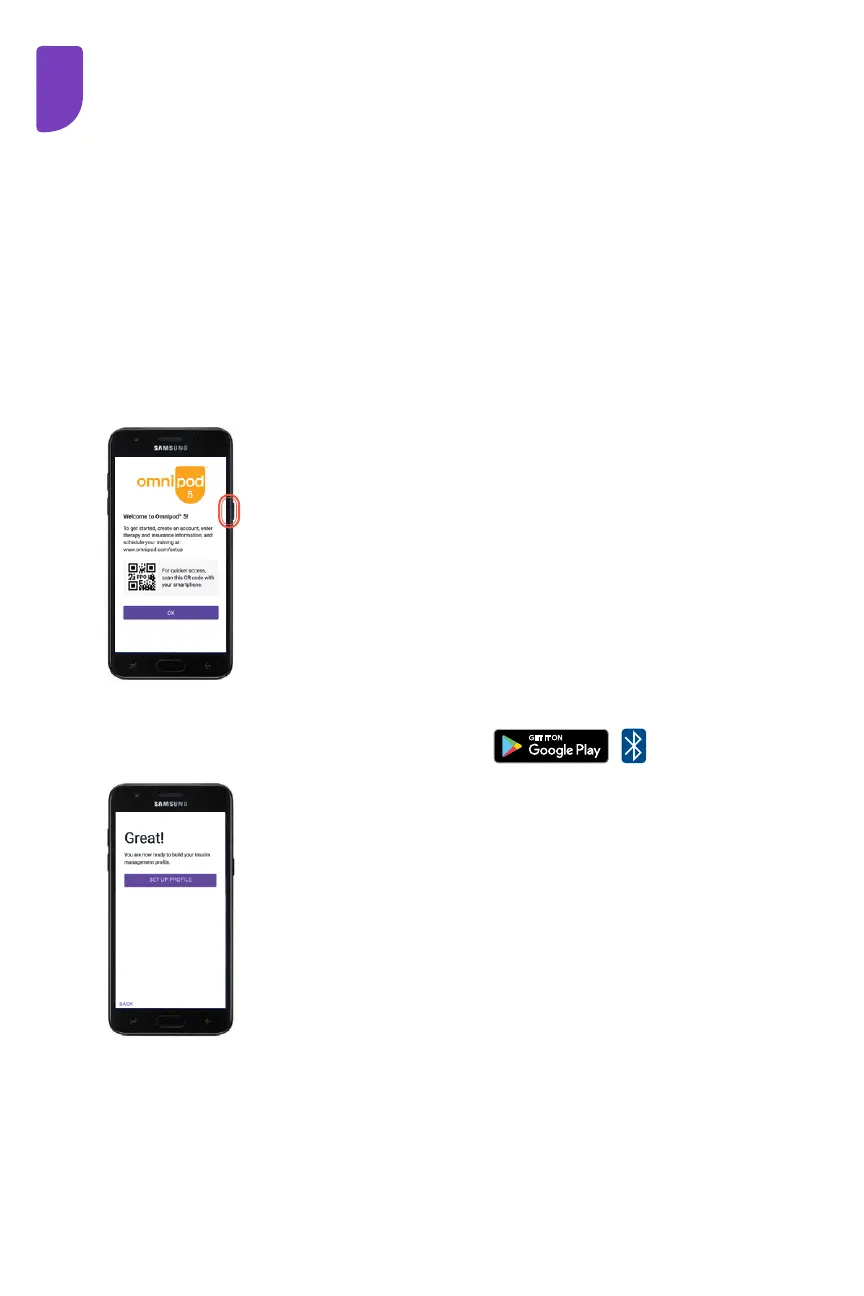
The Omnipod 5 App will guide you through setup. Make
sure to read each screen and carefully enter information.
An Omnipod ID is needed for setup. You will be
prompted to sign in or be directed to create a new ID.
Setup is complete after entering your personalized
initial pump therapy settings (provided by your
healthcare provider).
If using the
provided
Controller as
your Controller:
• Hold down the
Power button
to turn it on
If using your compatible
personal smartphone:
• Download the Omnipod 5 App
on Google Play
• Ensure Bluetooth
®
is turned
ON on your compatible
smartphone
• In order to use Omnipod 5 App
on a compatible smartphone,
you must rst log into the
Omnipod 5 App on the
provided controller
OR
Dexcom G6 not included
You can set up & start your Dexcom G6 before or after setting up
your Omnipod 5 App. Please consult the Dexcom G6 User Guide for
more information.



 To Next Page