Chapter 3 Power On and Off the On-Lap Monitor
Section 1 Power On and Off the On-Lap
1. From Off state to On state: Press Power Button to activate On/Off.
2. First time use: When Micro USB to USB touch signal and power connect
to USB port on computer or 5V DC Charger, On-Lap will automatically
start and detect video signal to automatically display video. (Connection
method shall refer to Chapter 2 Section 2)
Section 2 Monitor Display Setting
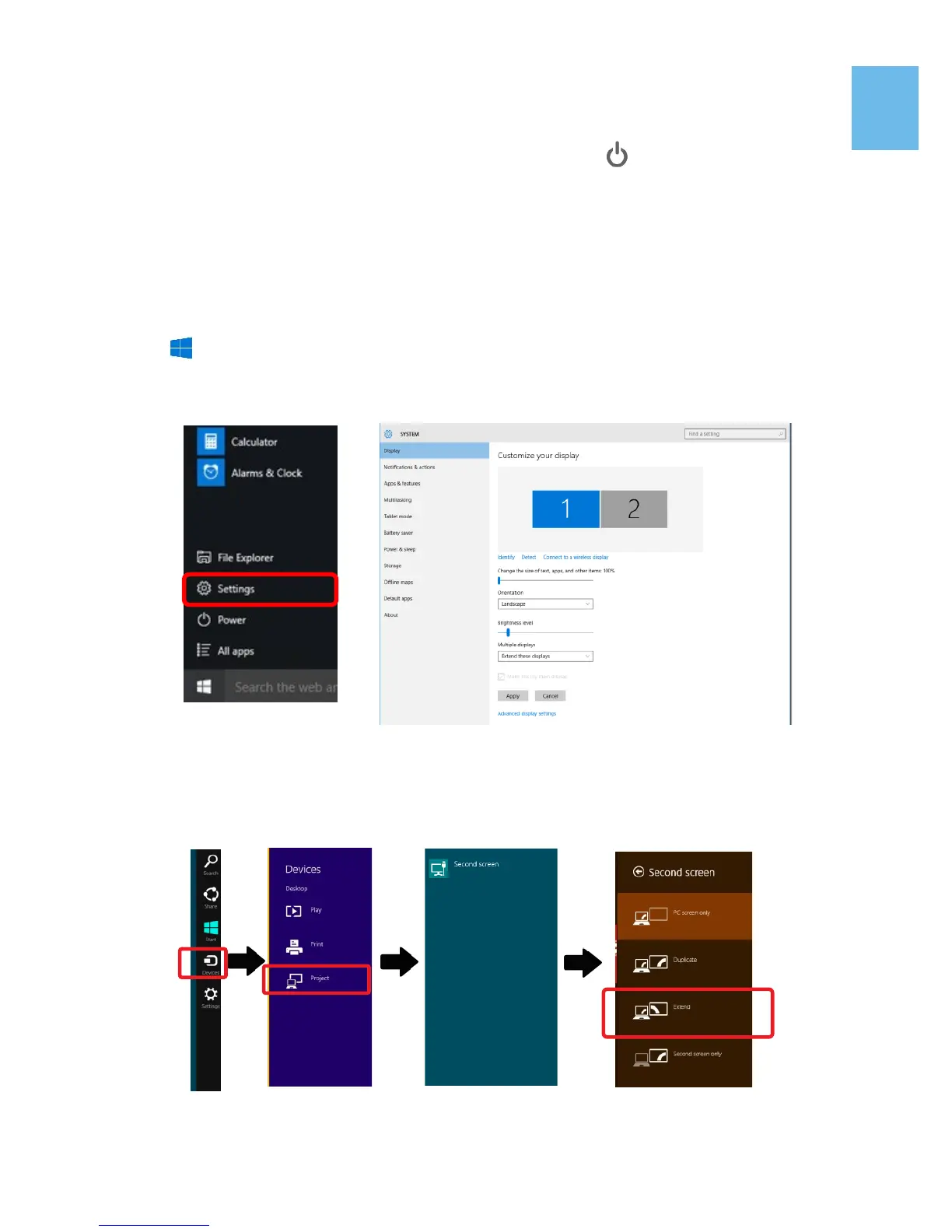
1. Set Extended Display Mode-Windows 10 System
Press
and choose “Settings”> select”System”>select“Display”.
Then choose”Extend these displays” at Multiple displays.
Refer to 3.Set Extended Display Mode-Windows 7 System for resolution.
2. Set Extended Display Mode-Windows 8.1 System
Select directly from right side of screen [Devices] ->select [Project]->select
[2
nd
Monitor] -> select [Extend Mode]
For screen resolution setting please refer to the followings.
8


 To Next Page