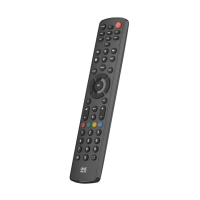
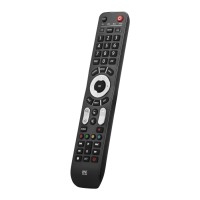
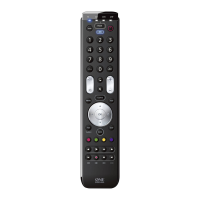
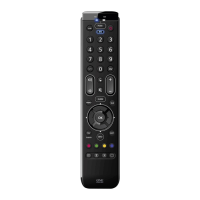
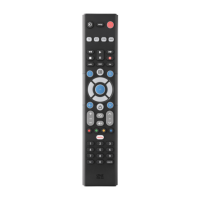
The One For All Essence 4 Device Universal Remote Control (URC1241) is designed to manage up to four audio-video devices, including TVs, set-top boxes (STBs), and soundbars. This remote offers a range of features for easy setup and control, making it a versatile addition to any home entertainment system.
Function Description:
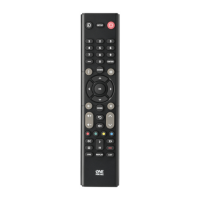
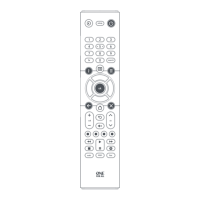
The remote features a comprehensive set of buttons for controlling various aspects of your devices:
- Power: Turns your devices on and off.
- Setup: Used to configure the Essence remote itself.
- Input: Selects the input source on your devices.
- Device Keys (TV, OTT, STB, AUD): These keys allow you to select which device the Essence 4 currently controls. For example, pressing the TV key will make the remote control your television. To switch to another device, simply press the corresponding device key.
- TV: Controls all televisions, including LED, LCD, Plasma, and OLED models.
- OTT (Over-The-Top): Manages streaming devices like Apple TV, Roku Box, and Foxtel Now. It also supports Xbox 360 and Xbox One.
- STB (Set-Top Box): Controls various set-top boxes, including Satellite, Cable, and Freeview.
- AUD (Audio): Manages audio devices such as soundbars, AV receivers, and Hi-Fi systems.
- Playback Keys (Play, Pause, Stop, Rewind, Fast Forward): Control the playback of movies, music, and TV content.
- Subt. (Subtitles): Displays subtitles.
- Apps: Brings up the Applications menu on smart devices, such as Smart TVs or streaming boxes.
- List: Displays a list of recorded programs.
- Info: Shows information about the current program or channel.
- Guide: Accesses the TV Guide.
- Menu: Provides access to the installation menu of the current device.
- Menu Directions (Up, Down, Left, Right) and OK: Controls navigation within the current device's menu.
- Back: Moves one step back in the menu.
- Home: Displays the Home Menu.
- Exit: Exits the current menu.
- Volume Up/Down: Controls the volume of the current device. These keys can also be configured to always control a single device using the Volume Lock feature.
- Last Channel: Switches to the last viewed channel.
- Mute: Mutes the volume of the current device. Similar to volume keys, this can be set to always control one specific device via the Volume Lock feature.
- Channel Up/Down: Changes channels on the current device.
- RGYB Keys (Red, Green, Yellow, Blue): Quick access buttons for the menu of the current device.
- Netflix: Direct access to Netflix.
- Digits (0-9): Selects channels on the current device. On audio devices, these keys select individual inputs.
- TV: Returns to live TV.
- Search: Searches for media content.
Usage Features:
The Essence 4 remote offers multiple setup methods to ensure compatibility with a wide range of devices:
- Pre-programmed Control: The remote is pre-programmed to control some of the most popular devices right out of the box. Users can simply insert batteries, press the relevant device key, and test a few functions to see if it works. Examples of pre-programmed devices include Samsung TVs, Roku Streaming Boxes, Sky Q Boxes, and Onkyo Receivers.
- SimpleSet Setup: This is the easiest method for common brands and devices. If your device's brand is shown in the SimpleSet diagram pointing to a key, you can use this system.
- Turn on your device (not on standby) and point the Essence remote towards it. If setting up a streaming device, ensure a movie or TV show is playing.
- Press the desired Device key (e.g., TV).
- Hold down the Setup key until the LED under the Device key blinks twice.
- Hold down the digit corresponding to your brand and device (e.g., 7 for a Samsung TV).
- For most devices (except OTT), the remote sends the Power key every 3 seconds. For streaming boxes, it sends the Play/Pause function.
- Release the digit as soon as your device reacts by turning off or pausing (streaming box only).
- The LED will blink twice, indicating successful setup. If some keys don't work as expected, repeat the process from step 2; the remote will try the next code in memory.
- Setup by Code: If your device brand is not listed in SimpleSet, you can set it up by trying individual codes from the Code List. Codes are organized by brand, device, and popularity.
- Turn on your device (not on standby) and point the Essence remote towards it.
- Press the desired Device key (e.g., TV).
- Hold down the Setup key until the LED under the Device key blinks twice.
- Enter the first 4-digit code listed for your brand (e.g., 1840 for LG).
- The LED will blink twice on the last digit of the code.
- Aim the remote at your device and press the Power key.
- If the device turns off, your remote is ready. If not, repeat steps 2-6 with the next code in the list. If your original remote lacks a Power key, try testing with another key like Play or Pause for streaming boxes.
- Learning Function: The Essence remote can learn any function from another working infrared remote control. This is useful for adding missing keys or customizing functions.
- Ensure all original remotes have working batteries and are placed 2-5 cm from the Essence remote, pointing towards it.
- Press the Device key for the device you want to learn functions onto.
- Hold down the Setup key until the LED under the Device key blinks twice.
- Press 975; the LED will blink twice.
- Press and release the key on the Essence remote you want to learn (e.g., TV Power key); the LED will flash rapidly.
- Press and release the corresponding key on the original remote (e.g., Power). The LED will blink twice to confirm successful learning.
- Repeat for all desired keys. You can learn from multiple remotes, but each key on the Essence remote can only learn one function.
- Hold down the Setup key until the LED blinks twice to exit learning mode.
- Hint: If the LED shows one long blink at step 5, the function was not learned correctly. Try holding down the key on the original remote instead of pressing and releasing if a function cannot be learned.
- Deleting a Learned Function: To revert a learned key to its original state:
- Press the Device key for the device with the learned function.
- Hold down the Setup key until the LED blinks twice.
- Press 976; the LED will blink twice.
- Press the key you want to reset twice. The LED will blink twice, and the learned function will be deleted.
- Volume Lock: This feature allows you to lock the Volume Up, Down, and Mute keys to always control a specific device (e.g., a soundbar or AV receiver), regardless of which device the remote is currently controlling.
- Hold down the Setup key until the LED blinks twice.
- Press 993; the LED will blink twice.
- Press the Device key for the device you want to control volume (e.g., AUD). The LED will blink twice.
- To unlock the volume:
- Hold down the Setup key until the LED blinks twice.
- Press 993; the LED will blink twice.
- Press Volume Down; the LED will blink four times, and volume lock will be disabled.
Important Technical Specifications:
- Batteries: Requires 2 x AAA / LR03 batteries. Alkaline batteries are recommended for optimal performance.
- Battery Insertion: Batteries should be inserted as shown in the manual, ensuring correct polarity.
- Risk of Explosion: There is a risk of explosion if batteries are replaced by an incorrect type. Always use quality alkaline batteries.
Maintenance Features:
- Troubleshooting: If keys do not work as expected after setup, the manual advises restarting the setup process from step 2 (for SimpleSet) or step 4 (for learning), as the remote will try the next available code or re-enter learning mode.
- Original Remote Issues: If one or more of your original remotes are not working, the Essence remote can still be set up using SimpleSet or Code Set Up.

 Need help?
 General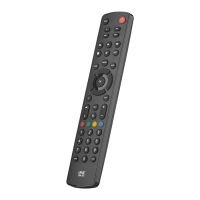

 To Next Page