January 16, 2020_V1 January 16, 2020_V1
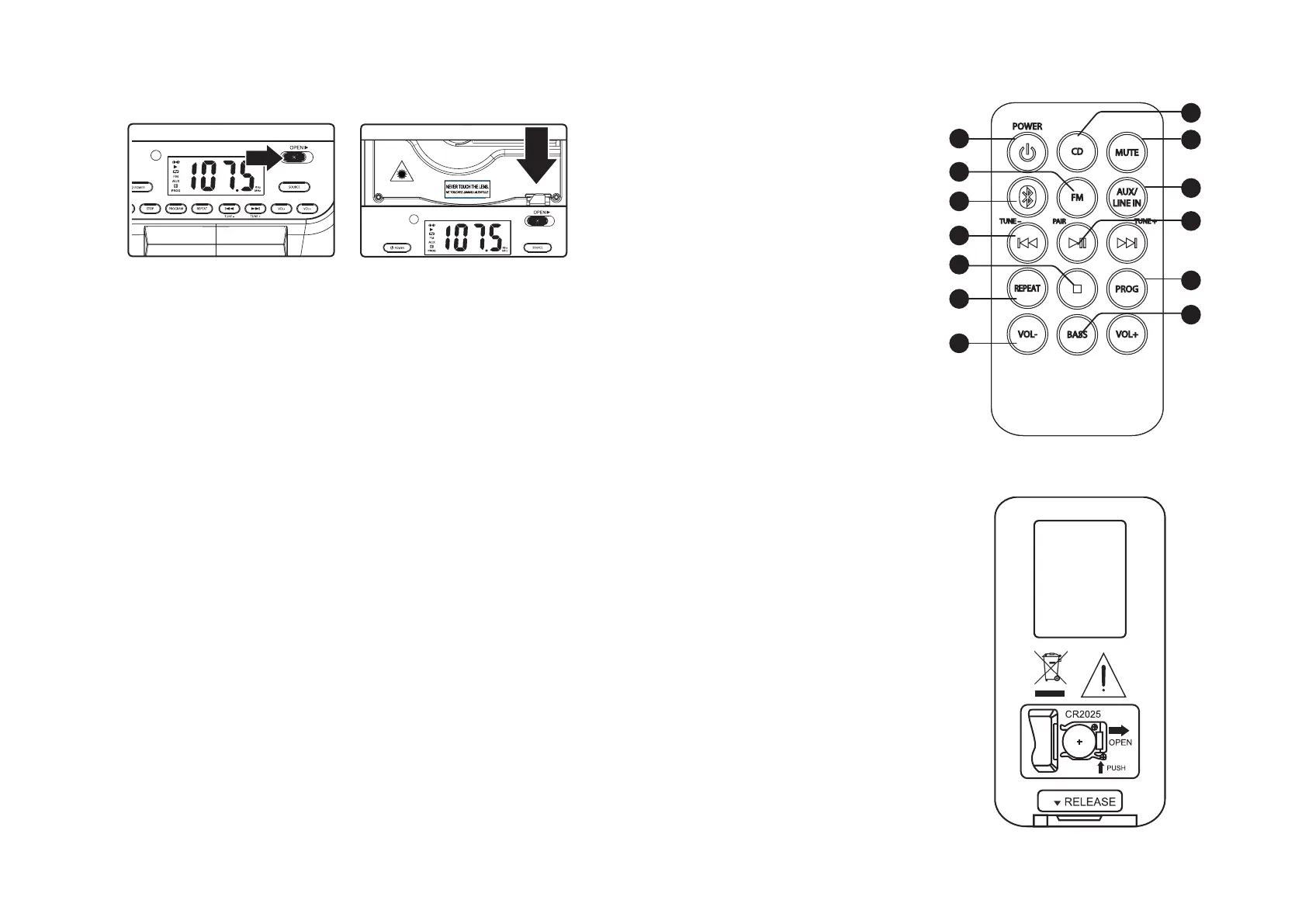
Remote
1. Power: Press to power the unit on or
o.
2. CD: Press to switch to CD Mode.
3. Mute: Press to mute volume.
4. FM: Press to switch to FM Radio Mode.
5. Bluetooth: Press to switch to
Bluetooth Mode.
6. Aux/Line In: Press to switch to a
connected audio system or device.
7. Play/Pause/Pair: Press to play or
pause audio (CD/BLUETOOTH
MODES).
Press and hold to begin pairing to a
Bluetooth device.
8. Skip/Tune: Press to skip audio tracks
(CD/BLUETOOTH MODES).
Press and hold to scan FM radio
frequencies (FM MODE).
Press to fine tune the frequency
adjustment (FM MODE).
9. Stop: Press to stop audio playback
(CD/BLUETOOTH MODES).
10. Prog: Press to begin programming
a CD.
11. Repeat: Press to change playback
modes from Standard play, Repeat,
or Shue.
12. Bass: Press to adjust bass level
13. Volume: Press to adjust the volume
level up or down.
1
8
8
8
8
8
8
8
8
8
4
5
Remote Battery
Requires 1 CR2025 button cell battery (included). Follow
the figure on the back of the remote to replace the
battery.
Open the Disc door
Close the Disc door
FM Radio
1. Adjust the position of the FM wire antenna to adjust radio reception.
2. Press the Power button to turn the unit on.
3. Press the Source button to switch to FM Radio Mode.
4. Press and hold the Skip/Tune buttons to scan FM frequencies. Press the Skip/Tune buttons to fine
tune the frequency adjustment.
Programming Radio Stations
1. With the speaker on and in FM Mode, press and hold the Program/Prog button on the unit or the
remote. The display will start blinking a preset number (Ex: P01).
2. Use the Skip/Tune buttons to select a preset number you wish to save, then press the Program/
Prog button again to save the frequency to that preset number. Up to 20 stations may be preset.
3. To select dierent presets, press the Program/Prog button, then use the Skip/Tune buttons to
select a preset.
Programming a CD
1. While playing a CD, press the Stop button.
2. Press the Program/Prog button on the unit or the remote.
3. Press the Skip/Search buttons to select a track from the loaded CD to play first.
4. Press the Program/Prog button again.
5. Repeat steps 3 and 4 to program tracks from the loaded CD to play in the order they are selected.
6. Press the Play/Pause button to begin playing the programmed CD.
7. Press the Stop button twice to cancel the program.
CD & Radio
Loading & Playing a CD
Note: This unit is not compatible with MP3 CDs.
1. Press the Source button to switch to CD Mode
2. Slide Open button right to open the Disc door.
3. Load a CD or CD-R/RW disc into the unit with the label side facing you.
4. Push the Disc door down until the Disc door is locked.
5. Press the Play/Pause button to begin playing the loaded CD. Press the Skip buttons to cycle
through dierent tracks. Press and hold the Skip buttons to search through an audio track.
1
4
5
8
9
11
13
12
10
7
6
3
8
2


 To Next Page
 Loading...