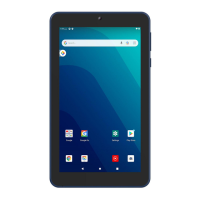
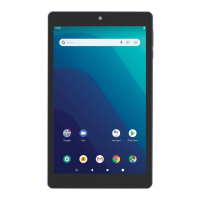
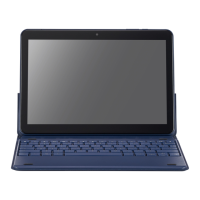
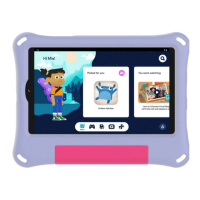
This document describes the onn. 10.1" Tablet, Model: 100026203, a portable electronic device designed for everyday tasks, entertainment, and productivity. It runs on Android™ 11 with Google Play, offering a familiar and versatile user experience.
Function Description:
The onn. 10.1" Tablet serves as a multi-purpose device, enabling users to stream music and movies, take photos, check emails, and engage with social media. Its quad-core processor ensures fast and responsive performance for various applications. The tablet is designed for on-the-go productivity and includes a utility app to enhance its functionality.
Important Technical Specifications:
- Model: 100026203
- Screen Size: 10.1 inches
- Operating System: Android™ 11 with Google Play
- Processor: Fast and responsive quad-core processor
- Internal Storage: 64GB
- Expandable Storage: Micro SD slot supporting up to 128GB of additional storage
- Connectivity: Bluetooth, Wi-Fi 802.11 a/b/g/n/ac
- Ports: USB Type C, Earphone jack, Micro SD Card Slot
- Camera: Rear camera, Front camera
- Audio: Speakers
- Charger Specifications:
- Size: 46x36x23mm
- Input: 100-240V~50/60Hz, 0.35A
- Output: 5.0V === 2.0A
- FCC ID: XMF-MID1035
- Certifications: ETL Listed 5014649, CONFORMS TO UL STD.62368-1, CERTIFIED TO CSA STD.C22.2 NO.62368-1
Usage Features:
- Getting Started:
- Charging: The tablet should be fully charged before first use. To charge, plug the USB cable into the AC adapter, connect the other end to the USB Type C input on the tablet, and then plug the AC adapter into a wall outlet. The battery icon will pulsate when charging. It is normal for the tablet to get warm during charging or intensive use.
- Power On/Off: Press and hold the Power button for 4-5 seconds until the onn. logo appears.
- Initial Setup: Select the desired language and tap START, then follow the on-screen instructions to configure the tablet.
- Unlocking: From the Start-up screen, slide a finger up to unlock the device and access the Home screen.
- Navigation and Interaction:
- Home Screen: Features a Status Bar, Search Box, and the Walmart App Suite. Icons for various applications like Calculator, Calendar, Camera, Chrome, Clock, Contacts, Drive, Duo, Files, Gmail, Google, Kids Space, Maps, Photos, Play Books, Play Movies & TV, Play Store, Sam's Club, Settings, Sound Recorder, Vudu, Walmart, YouTube, YT Kids, and YT Music are present.
- Basic Gestures:
- Tap: Select an item on the screen.
- Double-tap: Required for some items.
- Typing: Tap a text field to bring up the on-screen keyboard and enter information.
- Touch and Hold: Keep a finger on an item until it glows or activates an alternate menu.
- Drag: Touch and hold an image or object, then slide it to a new location.
- Slide: Move one or more fingers across the screen to navigate between "screens" or pages.
- Camera Usage:
- Tap the Camera Icon to open the camera app.
- Features include: Switch Cameras (Front/Rear), Settings, Recent Photo, and Take Photo.
- Settings:
- Access settings by tapping the Settings icon on the Home screen. This allows configuration of Wi-Fi, Bluetooth, and other preferences.
- Internet Connectivity:
- Requires a wireless router or access point with broadband internet.
- Supports Wi-Fi 802.11 a/b/g/n/ac connections.
- To connect: Go to Settings > Network & internet > Wi-Fi. Activate Wi-Fi, and the tablet will scan for available networks. Enter the network name (SSID) and password for secured networks. The tablet will remember these settings.
- Bluetooth Connectivity:
- Compatible with Bluetooth-capable devices.
- To pair: Turn on the Bluetooth device and make it discoverable. Go to Settings > Connected devices. Tap "Pair new device" to view available devices and follow on-screen instructions to initiate pairing.
- Google Assistant:
- Supports Google Assistant, accessible by saying "Hey Google" or "Ok Google" even when the screen is off or using other apps.
- Setup: Ensure Wi-Fi is connected and signed into a Google account. Tap Google App > More > Settings > Voice > Voice Match. Turn on "Access with Voice Match" using the slider, then tap Next > I Agree > Finish. Tap "Retrain voice model" and follow instructions to record voice by saying "Ok Google" and "Hey Google," then tap Next > I Agree > Finish.
- Google Play Updates:
- Updates automatically download when first signing into Google Play Store. The download icon appears in the status bar. Installing new apps while others are downloading may reduce performance.
- To view download progress, slide a finger down from the top edge of the screen.
Maintenance Features:
- Software Updates:
- Periodic system software updates are recommended for smooth operation, especially during initial setup. Notifications for updates may appear on the Lock screen.
- To access updates: Tap Settings > System > System Update.
- Note: A Wi-Fi connection is required to perform updates.
- Battery Management:
- Battery life varies based on display settings, open apps, and internet usage (e.g., streaming video).
- Charge the battery when the level icon shows low power (drained, red icon), the tablet powers off automatically, or on-screen keys stop working.
- Leave the tablet in a well-ventilated area while charging.
- Performance Optimization:
- Close unused applications running in the background to improve overall performance.
- While updates download in the background, tablet performance may be affected until completed.
- Physical Protection:
- It is suggested to use a tablet screen protector and tablet case to protect the device.
- Cleaning:
- Do not use alcohol, thinner, or benzene to clean the tablet surface. Use only cleaning products designed for computer tablet devices.
- Backup:
- It is strongly recommended to make a backup copy of the contents on the hard drive to prevent data loss in case of operational failure.
- Warranty:
- Walmart provides a one-year limited warranty against defects in material or workmanship from the original purchase date.
- The warranty covers replacement of defective parts or the unit itself (at Walmart's discretion) if deemed unrepairable.
- The customer is responsible for transportation costs and insurance for warranty service.
- Original packaging or like packaging is required for warranty processing.
- Damage due to insufficient packaging may void the warranty.
- A Return Merchandise Authorization (RMA) number is required before sending the unit for service.
- The warranty does not cover cracked screens, damaged USB or DC ports, cosmetic damage, lost/discarded parts, or damage from misuse, accident, neglect, acts of God (lightning, voltage surges), improper installation, or illegible serial numbers.
- Proof of purchase is required for warranty confirmation.
- For customer support, contact 1-888-516-2630 (7:00 AM - 9:00 PM).
- Safety Instructions:
- Avoid using the tablet in extremely hot, cold, dusty, damp, or wet environments.
- The tablet is not moisture/water-resistant; keep it away from water sources.
- Do not drop or forcibly place the tablet on hard surfaces, as this can damage the screen or internal components and void the warranty.
- Do not use the tablet while walking or driving.
- Limit earphone usage at high volume to prevent hearing impairment; adjust volume to a moderate level.
- Do not suddenly disconnect the tablet during data formatting, uploading, or downloading, as this can cause program errors.
- Static discharge is normal for electronic devices and can corrupt files or damage memory.
- Dismantling the tablet will void the manufacturer's warranty.
- Only use attachments/accessories specified or provided by the manufacturer (e.g., exclusive supply adapter, battery).
- The mains plug is the disconnect device and should remain readily operable.
- Do not expose the apparatus to rain or moisture, or to dripping or splashing liquids. Objects filled with liquids (e.g., vases) should not be placed on the apparatus.
- Refer to the exterior bottom enclosure for electrical and safety information.
- Use the device between 0°C and 35°C (32°F to 95°F). Extreme temperatures can affect battery life and device behavior.
- FCC Compliance:
- The device complies with Part 15 of the FCC Rules.
- Operation is subject to two conditions: (1) the device may not cause harmful interference, and (2) it must accept any interference received, including undesired operation.
- Changes or modifications not expressly approved by the responsible party could void the user's authority to operate the equipment.
- Shielded cables must be used to ensure compliance with Class B FCC limits.
- SAR Information: The device meets government requirements for exposure to radio waves. The SAR limit for USA (FCC) is 1.6 W/kg averaged over one gram of tissue. For body-worn operations, the device was tested with the back kept 0mm from the body. Accessories used should maintain a 0mm separation distance and should not contain metallic components.

 Need help?

 To Next Page
 General