EasyManua.ls Logo

Onn 100026191 - User Manual

Onn 100026191
23 pages
Print Icon
To Next Page IconTo Next Page
Loading...
Model: 100026191
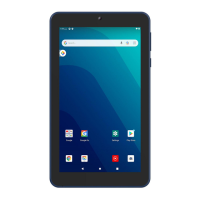
7” Tablet Gen 2
PRODUCT GUIDE
November , 2020_V1
We’d love to hear from you. Scan with your Walmart app and let us know what you think.
Question and Answer IconNeed help?

Do you have a question about the Onn 100026191 and is the answer not in the manual?

Summary

Introduction

In The Box

Getting to Know Your Tablet

Charging Your Tablet

Turning on your tablet

Starting Your Tablet

Home Screen At-a-Glance

Using the Camera

Settings

Touching and Typing

Connecting to the Internet

Connecting Bluetooth

Tablet Updates

Google Play Updates

Important Safety Instructions

Compliance Information

Specific Absorption Rate (SAR) information

Details SAR limits and compliance for radio wave exposure.

Walmart stores, Inc Limited Warranty

Your Responsibility

Outlines user obligations, backup recommendations, and warranty exclusions.

Certification Information

Overview

This document serves as a product guide for the onn. 7" Tablet Gen 2, model 100026191, running Android™ 10 (Go edition) with Google™ Play. It provides essential information for users to get the most out of their tablet, covering initial setup, basic operations, and important safety and compliance details.

Function Description

The onn. 7" Tablet Gen 2 is a portable computing device designed for everyday tasks, entertainment, and productivity. It features a fast and responsive quad-core processor, making it suitable for streaming music and movies, taking photos, checking emails, and engaging with social media. The tablet offers 16GB of internal storage, which can be expanded up to 128GB using a Micro SD card. It also includes Bluetooth connectivity for pairing with compatible devices and provides on-the-go productivity services and a utility app. The tablet's primary function is to provide a versatile and accessible platform for digital content consumption and creation.

Usage Features

The tablet is designed for ease of use, starting with its initial setup. Users are guided through selecting their desired language and configuring the tablet via on-screen instructions after pressing and holding the power button for 4-5 seconds until the onn. logo appears. Once configured, the tablet can be unlocked by sliding a finger up on the start-up screen, leading to the Home screen where all applications and features are accessible.

The Home screen provides a clear overview of the tablet's status and navigation options, including a Status Bar for notifications, a Search Box for finding apps or information, and the Walmart App Suite for quick access to related services. Navigation is intuitive with "Go Back," "Home," and "Recents" buttons for managing open applications and returning to previous screens.

The tablet's camera function allows users to capture photos and videos. The camera interface includes options to switch between front and rear cameras, access settings, view recent photos, and take new pictures.

Settings are a central hub for customizing the tablet experience. Users can configure Wi-Fi and Bluetooth connections, manage other preferences, and access system information. Connecting to the internet is straightforward, requiring a wireless router or access point. The tablet scans for available Wi-Fi networks, and for secured networks, users will need to enter a password. Once connected, the tablet remembers these settings for future use.

Bluetooth connectivity enables the tablet to pair with a variety of compatible devices, such as speakers, printers, keyboards, and headphones. The pairing process involves turning on the Bluetooth device, opening the tablet's "Connected devices" settings, and tapping "Pair new device" to view and select available devices.

Interacting with the tablet involves various touch gestures:

  • Tapping: A single tap selects an item on the screen. Some items may require a "double-tap."
  • Typing: Tapping a text field brings up the on-screen keyboard, allowing users to input information.
  • Touch and Hold: Keeping a finger on an item until it glows or activates an alternate menu.
  • Drag: Moving an app or object by touching and holding it, then sliding it to a new destination.
  • Slide: Used for navigating between multiple "screens" or pages, by sliding one or more fingers across the display.

Maintenance Features

To ensure optimal performance and longevity of the tablet, several maintenance recommendations are provided:

  • Initial Charging: It is recommended to fully charge the tablet before its first use. The charging process involves plugging the USB cable into the AC adapter, connecting the other end to the USB Type C input on the tablet, and then plugging the AC adapter into a wall outlet. The battery icon will pulsate when the tablet is charging.
  • Software Updates: Periodic system software updates are crucial for smooth operation. Users may receive notifications for available updates on the Lock screen. Updates can also be accessed through Settings > System > Advanced > About Tablet > Wireless Update. A Wi-Fi connection is required to perform updates.
  • Google Play Updates: When signing into the Google Play Store for the first time, updates will automatically download. The download icon in the status bar indicates ongoing downloads. It's noted that installing new applications while multiple apps are downloading can affect tablet speed and performance. After all updates are installed, the tablet will resume normal operating performance. Users can view download progress by sliding their finger down from the top edge of the screen.
  • Application Management: Closing unused applications is important as apps running in the background can affect overall performance.
  • Battery Consumption: Play times on a fully charged battery vary based on display settings, open apps, and internet usage (e.g., streaming video).
  • Temperature Management: It is normal for the tablet to get warm during charging, intense gaming, or video streaming. It's advised to leave the tablet in a well-ventilated area while charging. The device should be used where the ambient temperature is between 0°C and 35°C (32°F to 95°F). Extreme cold or hot conditions can temporarily or permanently affect battery life and device behavior.
  • Physical Protection: Using a tablet screen protector and case is suggested to protect the device from physical damage.
  • Cleaning: Do not use alcohol, thinner, or benzene to clean the tablet's surface. Only use cleaning products designed for computer tablet devices.
  • Data Integrity: Avoid suddenly disconnecting the tablet during data formatting, uploading, or downloading, as this can lead to program errors or system freezing.
  • Backup: It is strongly recommended to make a backup copy of the contents on the hard drive to prevent data loss in case of operational failure.
  • Warranty: Dismantling the tablet will void the manufacturer's warranty. The warranty covers defects in material or workmanship for one year from the original purchase date, with replacements provided by Walmart. Proof of purchase is required for warranty service. The warranty does not cover cracked screens, damaged ports, cosmetic damage, or damage due to misuse, accident, neglect, acts of God, improper installation, or illegible serial numbers.

The product guide emphasizes safe usage practices, including avoiding extreme environments, sources of water, dropping the tablet, and excessive earphone use at high volumes to prevent hearing impairment. It also provides contact information for customer support for warranty claims.

Onn 100026191 Specifications

General IconGeneral
RAM2 GB
Storage32 GB
Front Camera2 MP
Rear Camera5 MP
Resolution1280 x 800 pixels
Battery4000 mAh
Operating SystemAndroid
DisplayIPS
ProcessorQuad-Core
Screen Size8.0 inches

Related product manuals