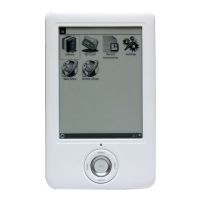
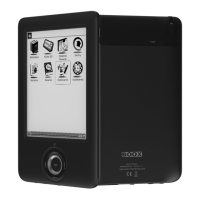
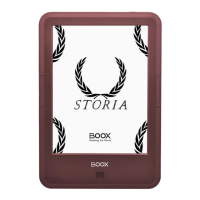
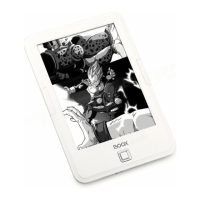
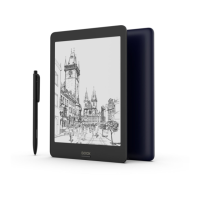
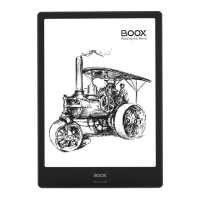
The BOOX Max3 is a state-of-the-art E-ink tablet designed by Onyx International, offering a paper-like reading experience with advanced features for both consumers and content providers. It operates on a 16-level grayscale e-ink screen, which is designed to reduce eye strain with passive lighting and a diffuse surface. The device supports hand-writing, allowing users to take notes and sketch ideas directly on the screen. Its low power consumption, typical of e-ink technology, ensures that a full charge can last for several weeks. The BOOX Max3 is an open and flexible platform, supporting custom formats and digital rights management solutions for content partners.
Key Technical Specifications:
- Model: Max3
- Processor: Octa 2.0 GHz
- RAM: 4G LPDDR3
- Operating System: Android 9
- Storage: 64G
- Screen: E-ink display with Regal refresh
- Screen Size: 13.3 inch
- Resolution: 2200*1650
- Touch: Stylus + Capacitive touch
- Front Light: Not supported
- Wireless Connectivity: WIFI (2.4G+5G) + Bluetooth (4.1)
- Battery: 4300 mAh
- Buttons: Back button (Finger Identification supported)
- USB Port: Type-C (supports USB OTG)
- Other Features: Dual Mic, Dual Speaker, Micro HDMI (Secondary monitor supported)
- Dimensions: 309.8x227.8x6.8mm
- Weight: ≤490 g (battery included)
- Operating Temperature: 0°C- 50°C
- Supported Book Formats: PDF, EPUB, TXT, DJVU, HTML, FB2, DOC, MOBI, CHM, etc.
- Supported Image Formats: PNG, JPG, BMP
- Supported Audio Formats: WAV, MP3
- Apps: Third-party APP installation is supported
- Browser: Supported
- Language: Multi-language supported
- File Directory: Supported
- Dictionary: Supported
- TTS: Supported
- Refreshment Mode: Four levels of refresh mode supported
- DRM: Supported
- Firmware Update: Locally update and OTA update are available
- Certification: CE, Rohs
Usage Features:
Main Interface: The device's main interface comprises a status bar, content area, and function area. Double-clicking icons in the function area allows users to return to the main page of a specific module. The status bar displays essential information such as time, notifications, refresh mode, Wi-Fi connection, and battery usage. It also provides access to the notification interface, which includes Android navigation buttons (Back, Home, Overview), function management (Wi-Fi, Bluetooth, Rotation, Refresh Mode, Finger Touch), volume adjustment, and notifications from third-party apps. Multi-tasking is supported, allowing users to view running applications and clear them to optimize device speed.
Library: The library displays E-book documents in supported formats from internal storage, with book cover thumbnails shown by default. Books are sorted by creation time. Users can search, create sub-libraries, multi-select, filter & sort, and rebuild the library. The library display can be switched between a thumbnail view and a storage-based structure. Sub-libraries can be managed, renamed, or deleted, with books moved to the main library upon deletion. E-book attributes, including name, author, format, size, reading progress, and book details (for Shop books), can be viewed by long-pressing the cover. Books purchased from the Shop allow direct access to their detail page.
Reading: Tapping an E-book cover opens the document in full-screen mode. The status bar can be pulled down, and the menu bar can be accessed by tapping the center of the screen, offering options for document switching and other functions.
- Word Menu: Long-pressing a word brings up a dictionary dialog for look-ups, supporting English word recognition. Users can download and install dictionary files, placing them in the
root directory\dicts\xxx path.
- Text Selection: Users can long-press and drag to select text, choosing to highlight, underline, or add annotations. Highlight colors can be black or grey.
- Bottom Menu Bar (PDF format): Includes Table of Content (TOC), Progress, Format, Navigation Mode, and Scribble.
- TOC: Supports three-layer hierarchy for navigation, bookmarking, annotation, and scribble viewing.
- Annotation: Highlighted, underlined, or annotated content is listed for searching, editing, and deleting. Annotations can be exported as TXT files.
- Scribble: Handwriting and sidenotes can be viewed, searched, and deleted. Scribbles can be exported as PNG files.
- Progress: Displays chapter name, page progress, last/next chapter, page number, slideshow, undo, and redo. Users can jump to specific pages.
- Format: Available for PDF/DJVU/CBR/CBZ documents, offering Display, Contrast, and Reflow options.
- Display: Includes Layout (single/double page), Orientation (four options), Zoom (in/out, partial, pinch-to-zoom), Crop (auto-crop by margin), and Margin adjustment.
- Contrast: Features Watermark, Sharpen, Image Contrast, Text Contrast, and Embolden, with some functions specific to scanned documents.
- Reflow: Available for PDF/DJVU/CBR/CBZ, allowing customization of Line Spacing, Margin, Text Direction, Font Size, Columns, and Skew Correction.
- Navigation: Offers Reset, Comic Mode (divides screen into four subpages, reading order upper right – upper left – bottom right – bottom left), Article Mode (divides screen into four subpages, reading order upper left – bottom left – upper right – bottom right), and More Settings (Crop, Split, Subpage Order).
- Split Screen: Allows opening the current document, two different documents, or a document and a note simultaneously. This feature is available in landscape mode, with the second document/note appearing on the right side. Scribbles, highlights, annotations, and bookmarks are synchronized across split views.
- Bottom Menu (other formats): Includes TOC, Format, Progress, and Split screen for EPUB/TXT/MOBI/AZW3, etc.
- Format: Settings for Font Face (supports custom fonts), Display, and Spacing. Font size, face, contrast, bold, and spacing settings apply to newly opened documents.
- Screenshot: Capture the screen in PNG format by diagonally tapping two corners. Screenshots can be saved locally or shared via QR code (WeChat and browser scanning supported).
Reader’s Settings: Includes Global Settings, Touch Settings, TTS Settings, Export Settings, Screenshot Settings, and Version Name.
- Global Settings: Options to enable page close reminder, system status bar, reader status bar, multiple documents, file borderline, virtual buttons in zoom state, hyperlink, bookmark position, pinch to scale, and apply settings to all documents.
- Touch Settings: Six default touch modes and three customizable modes for different screen areas.
- TTS Settings: Default Baidu TTS (supports English) requires network connection for first use. Third-party TTS systems are supported.
- Export Settings: Default storage path is
Storage\Note. Exported files can also be saved to the source file's directory.
Shop: Offers free E-books from the internet (for non-Chinese languages). Books are categorized for easy browsing. Book details can be viewed, and full editions can be downloaded to the Library.
Note: The Note list includes general notes and associated notes (auto-created by screen split). Users can create new files and folders.
- More Options: Backup & Recover (for handwritten documents, locally or to Cloud), Order, and Settings. Recovery overwrites current data, so caution is advised.
- Note's Settings: General settings for Stylus Calibration, Account Sync and Backup, AI recognition, Note password settings, Show Erasing Trace, Auto-turn on Wi-Fi to sync Notes, Auto-generate PDF documents after exiting Note, and Auto refresh after lifting stylus. Note files can be auto-uploaded to bound third-party accounts with PDF or PNG attachments.
- Note Password Settings: Protects files on the device with fingerprint or specific passwords. Passwords are file-specific and do not encrypt files for external use.
- Scribble Interface: Files are saved automatically or manually. Users can jump to specific pages. Toolbar includes Write, Erase, Select, Text Input, AI Recognition, Search, Undo/Redo, Page navigation, More options, Save, Add/Delete pages, Refresh, Disable Touch, Template, and Thumbnail.
- Custom Toolbar: Users can add, remove, and adjust tools on the toolbar.
- Write and Erase: Brush and eraser functions with sub-menus. "Erase all" does not require switching back to the brush.
- Color: Black, gray, and white strokes are shown in authentic colors; other colors appear black on the device but in original colors when exported.
- Select: Circle an area to zoom, move, duplicate, or remove selected content.
- Text Input: Bluetooth keyboard input is supported. Input box can be moved. Font, line spacing, bolding, underline, italic, copy, and delete options are available.
- AI Recognition: Converts handwriting to text. English is supported, with other language packages available for download. Offers original recognition (converts text without changing position) and reflow recognition (reflows text after conversion, allowing manual space, newline, and font size adjustments).
- Template: Includes built-in, local (
Storage\note Template), and Cloud templates (Storag\noteTemplate\cloud). Built-in templates are used if local ones are deleted.
- Insert Image: Users can insert images from local storage, then remove, zoom, or duplicate them.
- Share: Share all note pages as PDF or current page as PNG.
Storage: Displays all files from internal storage, sorted alphabetically by default. Files can be viewed in thumbnail or list mode. Multiple selections are allowed. Users can create shortcuts for folders on the storage interface by long-pressing a folder.
OTG: Supports connecting USB drives via a Type-C cable. Note that OTG consumes more power. Supports Type-C earphones but not Type-C to 3.5mm adapter earphones.
Apps: All installed apps are displayed alphabetically. Long-pressing an app icon brings up options to delete or optimize. Pre-installed apps cannot be deleted.
- Navigation Ball: A customizable circular ball floating above apps, offering 5 customizable buttons for system operations, app switching, and app optimization. Settings require a device restart to apply.
- App Optimization: Auto-runs after third-party app installation. Parameters can be modified via the Navigation Ball or by fetching configurations from the Cloud. Optimization options include DPI, contrast, color filter, refresh mode, and animation filter.
Dictionary (App): Requires downloading dictionary packages for first-time use. Network connection is needed. Word pronunciation requires dictionary files with voice data; TTS is not currently supported. Users can install dictionaries by placing files in Storage\dicts\. Up to 5 preferred dictionaries can be selected. New words can be looked up in the search bar, and dictionaries can be switched. Looked-up words can be added to Vocabulary and organized into groups.
Wi-Fi Transfer: Allows transferring E-books to the device from a PC or Android phone over a uniform LAN using an IP address or QR code. E-books are stored in \WifiTransfer. Transfer history can be checked and deleted. Certain browsers may omit file suffixes, requiring alternative browsers for transfer.
Push: Transfers files from PC to the Boox device via send2boox.com. Files are auto-generated in EPUB format. First-time use requires logging into an ONYX account and binding the device. One account can bind multiple devices. The size limit for pushed files is 200MB. Push history allows re-downloading or deleting files.
App Store (E-ink): Provides free versions of common third-party apps. Compatibility is not fully verified, and paid app downloads are not supported.
Monitor (secondary monitor): The device can be used as a secondary monitor when connected to a laptop or desktop via an HDMI cable. If not connected, the app will prompt to check the cable. After connection, tapping the device activates the monitor, and resolution can be adjusted from the PC. In this mode, the device is for display only; touch input is disabled. Charging during use is recommended due to increased power consumption. A monitor menu can be accessed to adjust refresh mode (Text Mode, A2 Mode, X Mode) and contrast.
Settings: Displays model name, Android version, and firmware version. Tapping the device image provides access to an online user manual.
- About Device: Shows model name, Android version, MAC address, firmware version, Capacitive Touch Version, VCom, and other information. Factory Reset is available but will remove all user data, so backup is advised.
- Language Settings: Sets system language, keyboard, input method, and TTS. Supports Android keyboard by default, with options for third-party input apps. Handwriting input requires downloading language packages. Voice input (English, Mandarin, Cantonese, Sichuanese) is enabled by long-pressing the Space button on the ONYX keyboard.
- Password: Supports lock screen password (4-8 digit number) and fingerprint password (up to 5 fingerprints). Fingerprint password requires a lock screen password to be set first. Removing the lock screen password also deletes fingerprint data. Password reset is available via ONYX account (phone number or email login).
- Account: Manages system accounts, ONYX account, Google account, Exchange, and other accounts. ONYX account allows backup and sync of notes across devices. Phone number, email, and WeChat accounts can be bound, but WeChat cannot be unbound.
- Application: Allows enabling/disabling installation of unknown source Apks, USB debugging, Shop, and Google Play. Google Play Store activation requires going to Settings/Apps/Enable Google Play/GSF ID with a Google account, then rebooting and signing in.
Maintenance Features:
- Safety Guide: Emphasizes screen protection (fragile E-ink screen, avoid shock/squeezing/dropping), use of standard accessories only, keeping away from liquids (not waterproof), and not dismantling the device.
- Firmware Update: Users can check for local or online updates. Updates support pause and breakpoint download. Ensure battery is above 30% and sufficient storage is available.
- Feedback: Users can submit technical problems or advice. System information is collected for problem diagnosis, with user data kept confidential.
- How to install a dictionary: Download stardict/bgl/mdict format dictionaries and copy them to
Root Directory\dicts\.
- How to add fonts: Download fonts and copy them to
/fonts.
- How to update:
- Locally: Download
firmware update.upx from the official website, copy to the root directory of local storage, then go to Settings > About > System Update and select "check update from local storage."
- By OTA: Update firmware online via OTA (Settings > About > System Update) with Wi-Fi connected.
- How to change screen saver/power off: Long-press PNG images to set them as screen savers. Supports 3 standby images and 1 shutdown image.

 Need help?
 General

 To Next Page