8 9
Modes
Modes control when sensors send notications and the types of
notications that are sent.
For example, you may want your motion sensor to alert you to
movement when you are away, but not when you are home.
Modes can switch automatically based on the time of day or through
user location (geofencing). They can also be changed manually by
swiping left and right at the top of the dashboard screen.
Notications
There are several types of Home Security notications, including
a phone call, a text message, a voice announcement on your
Base Station, and more.
You can add one or more Contacts to your account, each of
whom will receive sensor notications based on your preferences,
by going to the More menu and tapping Contacts. You can update
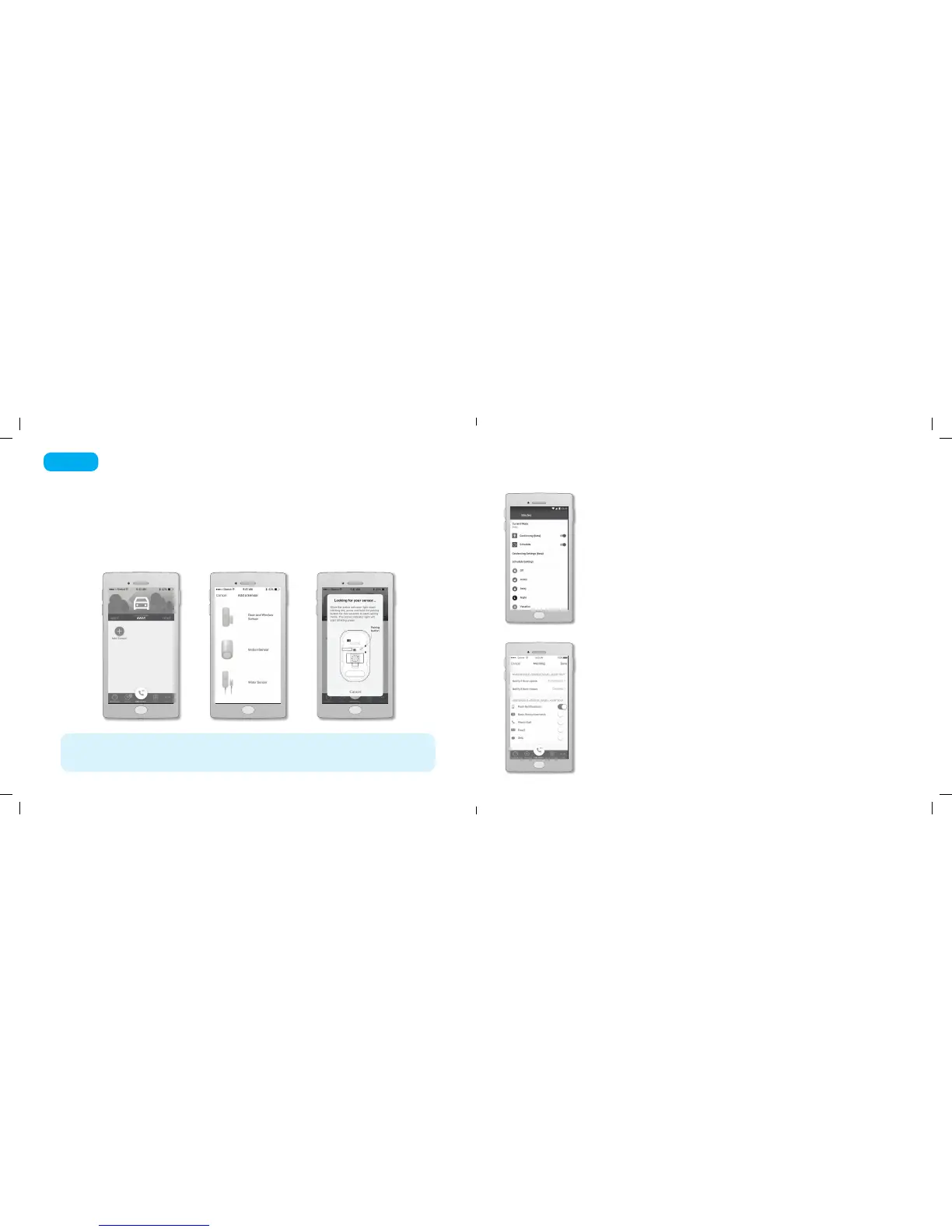
your notication settings by going to the app dashboard, tapping
the sensor you want to update, and tapping Notications.
Home Security Settings
NOTE Each sensor you purchase should include a Quick Start Guide that contains information
that will help with the installation process.
If you have already purchased one or more Ooma Home Security sensors, you can now pair them
with your Base Station.
Use the Account ID and password you created during the activation process to log into the app.
Tap Add Sensor on the main dashboard and select the type of sensor you wish to pair. Follow
the on-screen instructions to complete the pairing process. You may repeat this process for
each sensor you have purchased.
Pair Sensors with your Base Station and Configure
Step 4
Ooma-HomeSecQSG-700-0198-100-Oct2018-R4.indd 9-10 10/9/18 2:28 PM


 To Next Page
 Loading...