

EasyManua.ls Logo

ooma Home Telo - User Manual

ooma Home Telo
14 pages
Print Icon
To Next Page IconTo Next Page
Loading...
Quick Start Guide
700-0198-100
525 Almanor Ave | Suite 200 | Sunnyvale, CA 94085
Learn more at www.ooma.com or call 1
-
877
-
629
-
1284
© 2018 Ooma, Inc. All rights reserved. Patent Pending. Buttereye, Ooma, Ooma Base Station, Ooma Home Security, and the Ooma logo are trademarks or service marks
of Ooma, Inc. Other company and product names mentioned herein are trademarks of their respective companies. Mention of third-party products is for informational
purposes only and constitutes neither an endorsement nor a recommendation. Ooma assumes no responsibility with regard to the performance or use of these products.
Have a Question or Need Assistance?
Ooma has a wealth of available resources if you need assistance:
Support articles. Access our comprehensive knowledge base at support.ooma.com
User manuals. Access this guide and all other product manuals at ooma.com/userguide
Forums. Talk with your fellow Ooma customers and our support sta at forums.ooma.com
Live support. Still having trouble? Chat with a service representative at any time
at support.ooma.com
Speak with a support specialist. MF, 5am–5pm PST, or Sat/Sun 8am5pm PST
at 1-877-629-1284 (US and Canada)
Ooma-HomeSecQSG-700-0198-100-Oct2018-R4.indd 1-2 10/9/18 2:28 PM
Question and Answer IconNeed help?

Do you have a question about the ooma Home Telo and is the answer not in the manual?

Summary

Support and Assistance

Contacting Ooma Support

Provides Ooma support resources including knowledge base, user guides, forums, and live chat for assistance.

Welcome to Ooma Home Security

Package Contents

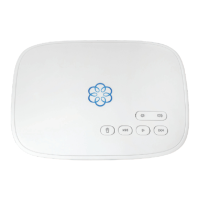
Lists the items included in the Ooma Telo Base Station package.

Getting Started: App and Activation

Step 1: Download the Ooma Home Security App

Instructions for downloading and installing the Ooma Home Security mobile application.

Step 2: Activate Your Ooma Base Station

Guides through activating the Ooma Telo Base Station using the mobile app and providing necessary information.

Connecting Your Ooma Base Station

Step 3: Connect Base Station to Router and Power On

Details on connecting the Base Station to your router via Ethernet and powering it up.

Configuring Ooma Home Security

Step 4: Pair Sensors and Configure Settings

Instructions for pairing Ooma sensors with the Base Station and setting up system modes and notifications.

Ooma Home Security Sensor Overview

Available Sensors

Provides a brief overview of various Ooma Home Security sensors like Motion, Door/Window, Water, and Garage Door sensors.

Ooma Home Telephone Service Upgrade

Home Phone Service Options

Information on upgrading to Ooma's internet-based home phone service and its features.

Quick Reference and Troubleshooting

System Status Indicators

Explains the meaning of different Ooma Telo Base Station LED status lights.

Common Troubleshooting Issues

Addresses common problems like offline status, sensor disconnections, and blinking red logos with solutions.
Summary

Support and Assistance

Contacting Ooma Support

Provides Ooma support resources including knowledge base, user guides, forums, and live chat for assistance.

Welcome to Ooma Home Security

Package Contents

Lists the items included in the Ooma Telo Base Station package.

Getting Started: App and Activation

Step 1: Download the Ooma Home Security App

Instructions for downloading and installing the Ooma Home Security mobile application.

Step 2: Activate Your Ooma Base Station

Guides through activating the Ooma Telo Base Station using the mobile app and providing necessary information.

Connecting Your Ooma Base Station

Step 3: Connect Base Station to Router and Power On

Details on connecting the Base Station to your router via Ethernet and powering it up.

Configuring Ooma Home Security

Step 4: Pair Sensors and Configure Settings

Instructions for pairing Ooma sensors with the Base Station and setting up system modes and notifications.

Ooma Home Security Sensor Overview

Available Sensors

Provides a brief overview of various Ooma Home Security sensors like Motion, Door/Window, Water, and Garage Door sensors.

Ooma Home Telephone Service Upgrade

Home Phone Service Options

Information on upgrading to Ooma's internet-based home phone service and its features.

Quick Reference and Troubleshooting

System Status Indicators

Explains the meaning of different Ooma Telo Base Station LED status lights.

Common Troubleshooting Issues

Addresses common problems like offline status, sensor disconnections, and blinking red logos with solutions.

ooma Home Telo Specifications

General IconGeneral
Brandooma
ModelHome Telo
CategorySwitch
LanguageEnglish