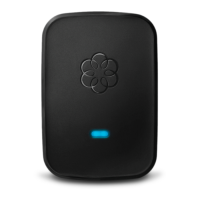
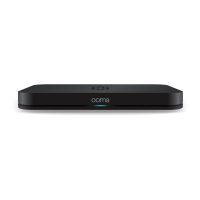
Unplug the Ethernet cable from your modem and plug it into the HOME NETWORK port. The
other end of this cable should be connected to the ethernet port on your computer.
What do I do if I want to put my Ooma Telo Base Station or
Phone Genie somewhere that’s not near my modem or
router?
Sometimes a household’s Internet is set up in such a way that it would be inconvenient to put
your Ooma Telo Base Station or Phone Genie in the same place as your modem or router.
Fortunately, Telo Base Station or Phone Genie setup options are flexible, allowing you to put
your Ooma Telo Base Station or Phone Genie in a location that’s right for your household: If
your home is wired with Ethernet connections in multiple rooms (you can plug an Ethernet cable
into a wall jack and get Internet), you can hook your Ooma Telo Base Station or Phone Genie up
in any Internet-connected room. Simply follow Option 2B in the Quick Start Guide and
remember that the connection from the Telo Base Station or Phone Genie to your router will
actually be a connection from your Telo Base Station or Phone Genie to the Ethernet jack in your
wall.
If your home is not wired with Ethernet connections in each room
If your home is not wired with Ethernet connections in each room, there’s still a way to put your
Ooma Telo Base Station or Phone Genie in exactly the location you’d love to have it! In order to
accomplish this, you may need to use a HomePlug setup in order to use your Ooma Telo Base
Station or Phone Genie.
Reference: For more information about setting up your Ooma Telo Base Station or Phone Genie
with HomePlug, you may wish to review the Using HomePlug with Ooma article.
I don’t hear a dialtone when I pick up the phone
If you don’t hear a dialtone when you pick up the phone, the color of your Ooma logo. If it is
flashing red, that means your Ooma is not working yet. Please continue reading below for
additional troubleshooting information.
If your Ooma logo is a solid blue color, your Ooma service is up, but you may have hooked up
your telephone incorrectly. Check to make sure that your phone is correctly plugged into the
PHONE port on the back of your Ooma Telo Base Station or Phone Genie.
The Ooma light on my Telo Base Station or Phone Genie is
blinking red
The Ooma logo on the front of the Ooma Telo Base Station or Phone Genie will flash red when
the device is not able to connect to the Ooma service. This may happen upon first use if the


 To Next Page
 Loading...