EasyManua.ls Logo

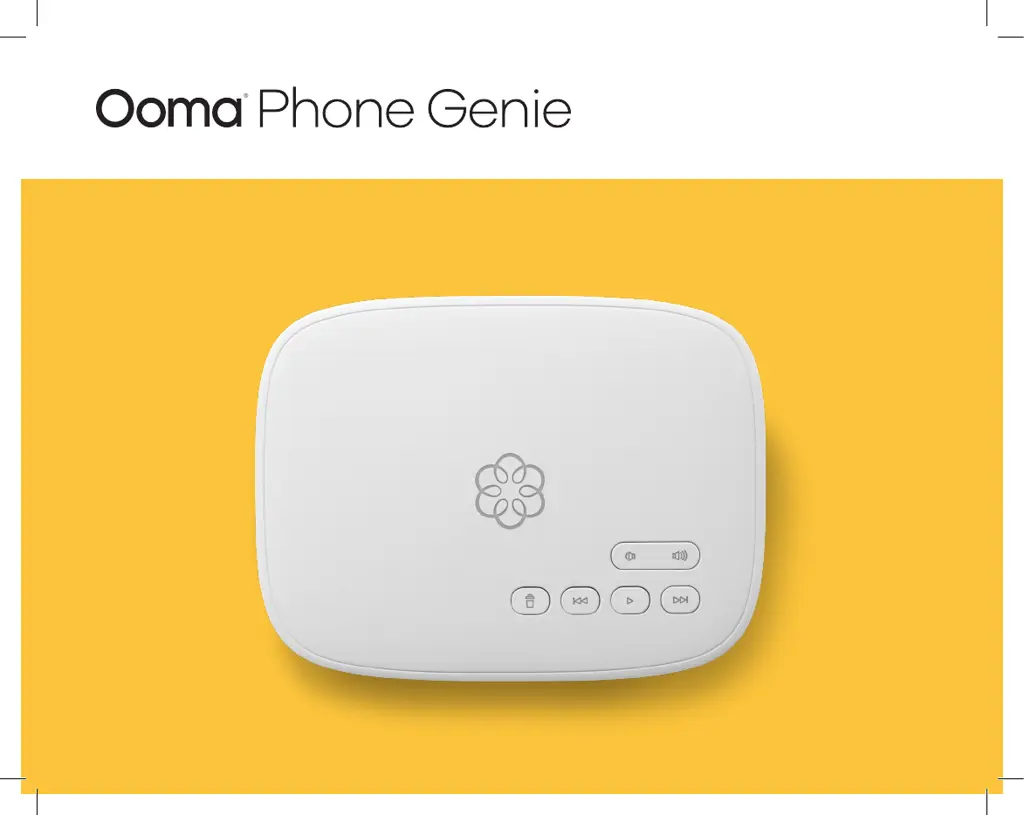
ooma Phone Genie - User Manual

ooma Phone Genie
16 pages
Print Icon
To Next Page IconTo Next Page
Loading...
Quick Start Guide

Questions and Answers

Summary

Getting Started

Step 1: Activate Online

Device Activation Process

Guide to activating the Ooma Phone Genie online via web browser.

Activation Wizard Steps

Details the guided steps for setting up the Ooma service.

Step 2: Connect To Your Router

Router Connection Instructions

Connects the Ooma Phone Genie to the router using an Ethernet cable.

Step 3: Connect Your Phone

Phone Connection Instructions

Plugs a phone into the PHONE port of the Ooma Phone Genie.

Step 4: Power On

Powering Up The Device

Instructions for plugging in the AC adapter and booting the device.

Voicemail Setup

My Ooma Online Control Panel

Alternative Setup Options

Modem-Router Setup

Recommended setup for best voice quality, placing device between modem and router.

Connecting Phone Jacks

Linking to Home Phone Jacks

Connects the Ooma Phone Genie to multiple phone jacks throughout the home.

Troubleshooting Guide

Red Light Status Issues

Resolving problems indicated by a blinking red system light.

No Light or Power Issues

Troubleshooting steps when the device has no power.

Dialtone and Connection Problems

Fixing issues with no dialtone or incoming call ringing.

Message Playback and Voice Quality

Resolving problems with hearing messages or poor voice quality.

Ooma Usage Guide

Emergency 911 Dialing

Procedures and safety advice for emergency calls.

Call Blocking and Filtering

911 Notification Setup

Quick Reference Guide

Status Lights and Button Functions

System Status Light Interpretations

Meaning of various system status light colors and patterns.

Summary

Getting Started

Step 1: Activate Online

Device Activation Process

Guide to activating the Ooma Phone Genie online via web browser.

Activation Wizard Steps

Details the guided steps for setting up the Ooma service.

Step 2: Connect To Your Router

Router Connection Instructions

Connects the Ooma Phone Genie to the router using an Ethernet cable.

Step 3: Connect Your Phone

Phone Connection Instructions

Plugs a phone into the PHONE port of the Ooma Phone Genie.

Step 4: Power On

Powering Up The Device

Instructions for plugging in the AC adapter and booting the device.

Voicemail Setup

My Ooma Online Control Panel

Alternative Setup Options

Modem-Router Setup

Recommended setup for best voice quality, placing device between modem and router.

Connecting Phone Jacks

Linking to Home Phone Jacks

Connects the Ooma Phone Genie to multiple phone jacks throughout the home.

Troubleshooting Guide

Red Light Status Issues

Resolving problems indicated by a blinking red system light.

No Light or Power Issues

Troubleshooting steps when the device has no power.

Dialtone and Connection Problems

Fixing issues with no dialtone or incoming call ringing.

Message Playback and Voice Quality

Resolving problems with hearing messages or poor voice quality.

Ooma Usage Guide

Emergency 911 Dialing

Procedures and safety advice for emergency calls.

Call Blocking and Filtering

911 Notification Setup

Quick Reference Guide

Status Lights and Button Functions

System Status Light Interpretations

Meaning of various system status light colors and patterns.

ooma Phone Genie Specifications

General IconGeneral
TypeVoIP Adapter
Connectivity TechnologyWired
VoIP ProtocolsSIP
Power SupplyAC Adapter
Weight0.5 lbs
PortsEthernet
FeaturesCall waiting, Voicemail

Related product manuals