18
How to Text Message and View Messages
Here you can select to write a message, see your message inbox, draft
m
essages, outbox messages, sent messages, message templates an
essage settings. Select any of these functions by scrolling up or down to eac
unction and click the “OK” key to select that function
1. Click the Menu Key to open the menu (Or use the up arrow to ope
messages)
2. Click the “OK” key to open messages
3. Select write a message by clicking the “OK” key on write messages
4. Type your message using the key pad. (See below for more info)
5. Click the select key on “send to” to select who you want to send it to,
6. Then click select on “Enter recipient” (manually put in phone number) o
add who to send it to via the phone book, scroll down and select “ad
from Phonebook”
7. Once selected click options then click send
ow to use the Key pad for writing a message:
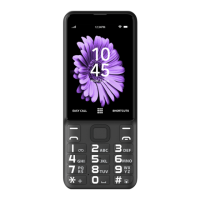
o insert the text, you will use the number keys. In the text message mod
hese keys are used to write the characters, each key contains more than on
haracter. To change characters using the same button press quickly to scrol
hrough the selection until the character that you want appears. To add the nex
haracter, wait until the cursor moves.
o change the entry methods, you need to press the [#] Hash button. This wil
hange from capital letters, to numbers to non-capital letters.
ress the [*] Star button to enter the Select symbol interface, and then use th
p, down, left and right keys to select a symbol by clicking the “OK” key t
he screen will show a text message box of any new messages.
o view these messages simply follow the steps above to open the tex
croll down to inbox and select inbox with the “OK” key to view new messages.
croll up or down to select which message you wish to view. Then clic
options” > “View” to read that message. You are also able to reply, forward o





 To Next Page