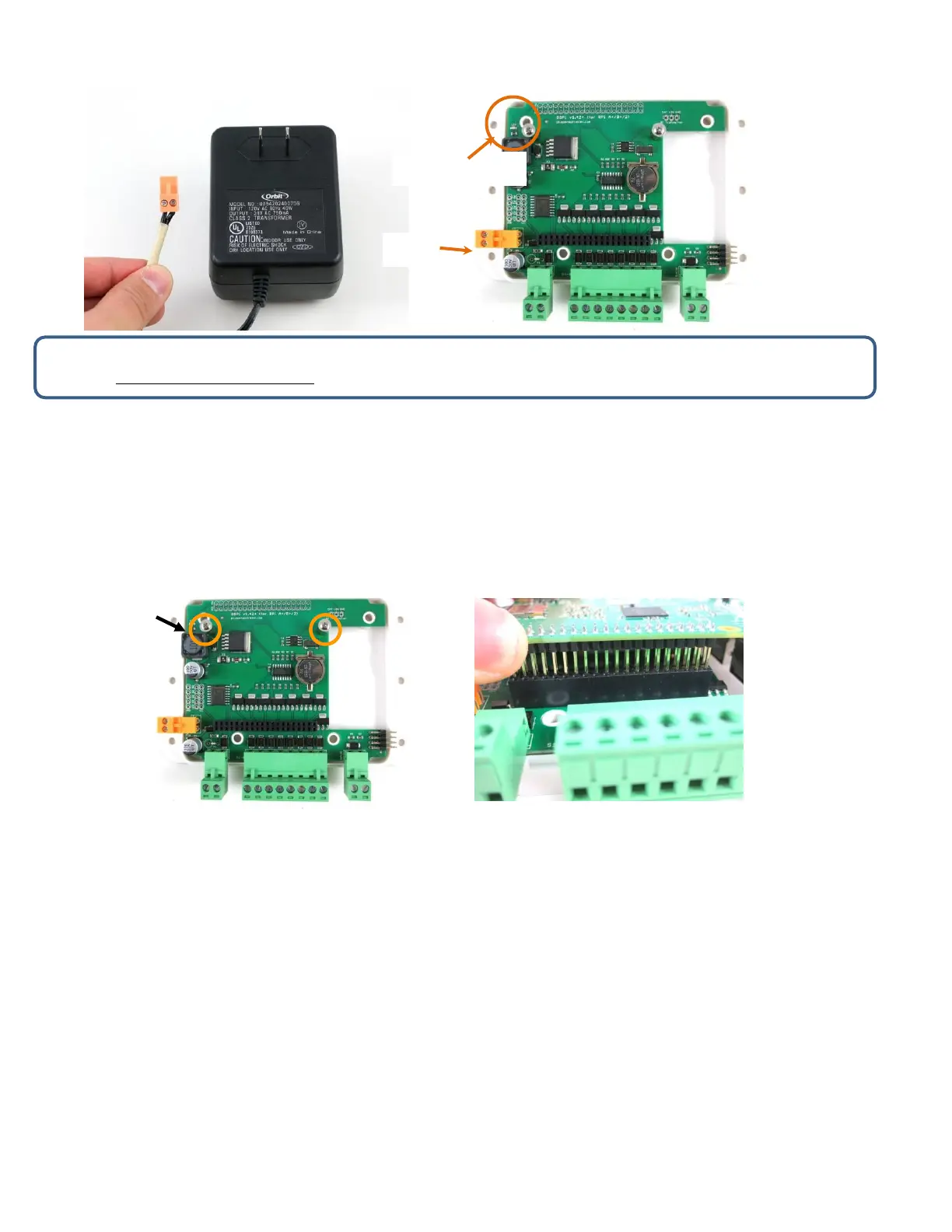
Warning: if the LED doesn’t light up, please unplug the power immediately. If you can’t figure out the problem, send an
email to support@opensprinkler.com.
2. Attach RPi to OSPi
OSPi has two support pillars (one next to the square-shaped inductor, one under the RF transmitter pins) that match the
screw holes on RPi (except RPi 0 which doesn't have these screw holes). First, install the support pillars to the OSPi
board; then, plug RPi into OSPi through the 2x20 pin headers, with SD card slot facing the left, and USB and Ethernet jack
facing the right. Double check the orientation and make sure all pins are aligned. The two screw holes should also
match the support pillars. Insert RPi all the way to the end. The USB and Ethernet connector should go through the
cutouts on the PCB.
3. Web Connectivity
OSPi fits a nano-size USB WiFi dongle. You can insert the dongle into any of the available RPi USB ports. If you prefer
wired connection, note that there is no special cutout for the Ethernet cable, you can take out one side panel of the laser-
cut acrylic enclosure, or alternatively use a Dremel to make a cutout yourself, in order to allow Ethernet cable to pass
through.
If you use RPi 3 and notice dropped performance of built-in WiFi, you probably need to use a separate USB power
adapter to power it directly from its microUSB port. You can take out one of the side panels to allow the microUSB cable
to pass through.



 To Next Page