LCD and Button Functions
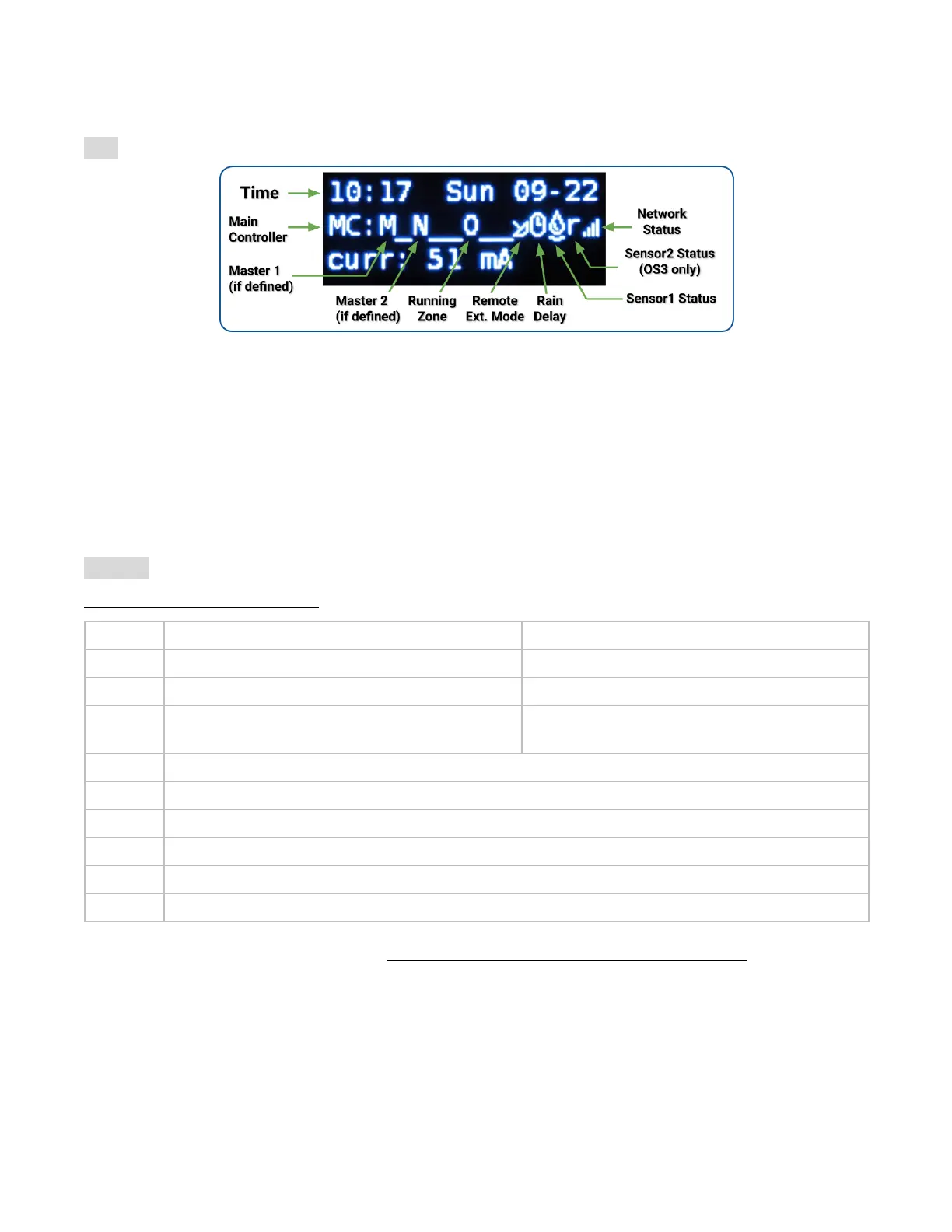
LCD (the illustration below is captured on OpenSprinkler 3.0's LCD)
● Master Zone 1 (if defined) is marked by M; and Master Zone 2 (if defined) is marked by N.
● By default the LCD displays the first 8 zones. If you have any expanded zones, click B3 (see below) to switch
to another group of 8 zones. Each running/open zone is displayed with a three-letter animation: . o O
● If the controller is configured to Remote Extension mode, a radar icon will be shown.
● If a manually triggered rain delay is active, a clock icon will be shown.
● If Sensor1 (available on all versions) is defined, a letter will be shown: r for rain sensor, s for soil sensor, p for
program switch, f for flow sensor. When the sensor is detected to be active, the letter will be capitalized. In
addition, a rain icon will be shown for the rain sensor, and a soil icon will be shown for the soil sensor.
● If Sensor2 (available only on OS3.x) is defined, the display is similar to Sensor1.
Buttons
After the controller is powered on, the buttons are assigned the following functions:
Press and Hold (i.e. Long Press)
Display device IP address
Stop all zones immediately
Display device MAC address
Toggle between the main controller (MC)
and each expansion board (E1, E2, E3 etc).
Manually start an existing program or a test program.
Display gateway (router) IP (i.e. press and hold B1, then press B2, similar to how you press Ctrl+C etc.)
Display external (WAN) IP.
Display timestamp of the last weather server response
For OpenSprinkler v3: reset controller to AP mode (for re-configuring WiFi).
(for internal testing only) Start a very quick (2 seconds each zone) test program.
Display the last system reboot timestamp and reboot reason.
Pressing and holding the following buttons while the OpenSprinkler Logo is displayed at reboot:
If B1 is pressed and held while the logo is displayed at reboot: enter Factory Reset.
If B2 is pressed and held while the logo is displayed at reboot: enter internal test mode (for OS v3 only)
If B3 is pressed and held while the logo is displayed at reboot: enter Setup Options.
OpenSprinkler Firmware 2.1.9 User Manual 7



 To Next Page