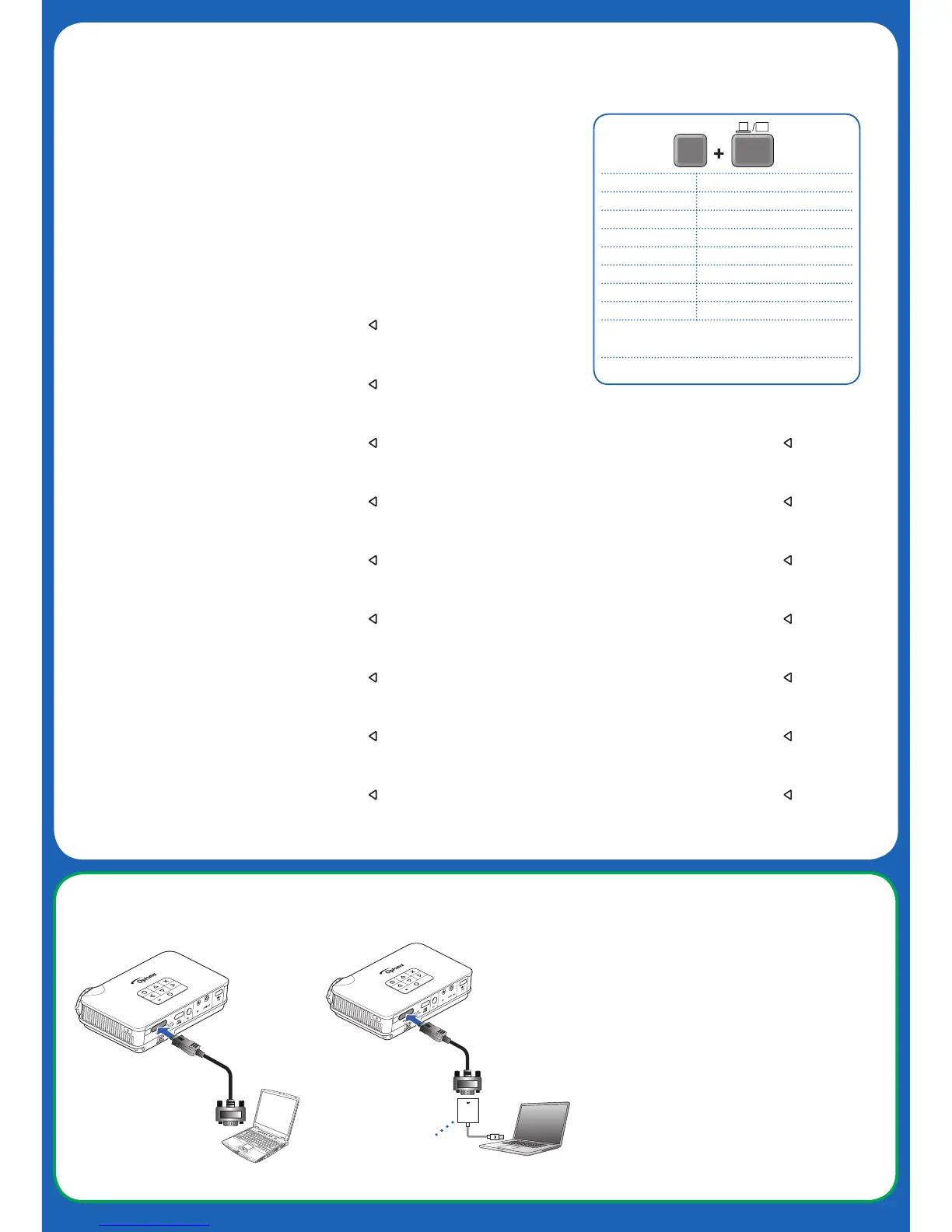
PC
in
in
Mac
Mini DisplayPort to VGA Adapter
Mini DisplayPort to VGA adapter (optional) is sold at Apple stores
Mini DisplayPort to VGA adapter (optional) is sold at Apple stores
Mini DisplayPort to VGA adapter (optional) is sold at Apple stores
Mini DisplayPort to VGA adapter (optional) is sold at Apple stores
Mini DisplayPort to VGA adapter (optional) is sold at Apple stores
Mini DisplayPort to VGA adapter (optional) is sold at Apple stores
Mini DisplayPort to VGA adapter (optional) is sold at Apple stores
Mini DisplayPort to VGA adapter (optional) is sold at Apple stores
Mini DisplayPort to VGA adapter (optional) is sold at Apple stores
Mini DisplayPort to VGA adapter (optional) is sold at Apple stores
Mini DisplayPort to VGA adapter (optional) is sold at Apple stores
Mini DisplayPort to VGA adapter (optional) is sold at Apple stores
Mini DisplayPort to VGA adapter (optional) is sold at Apple stores
Mini DisplayPort to VGA adapter (optional) is sold at Apple stores
Mini DisplayPort to VGA adapter (optional) is sold at Apple stores
Mini DisplayPort to VGA adapter (optional) is sold at Apple stores
6.Display Using External Source
Display Using External Source
Display Using External Source
Display Using External Source
Display Using External Source
Display Using External Source
Display Using External Source
Display Using External Source
Display Using External Source
Acer [Fn] + [F5]
Asus [Fn] + [F8]
Dell [Fn] + [F8]
Gateway [Fn] + [F4]
HP/Compaq [Fn] + [F4]
IBM/Lenovo [Fn] + [F7]
NEC [Fn] + [F3]
Toshiba [Fn] + [F5]
Mac Apple: System Preferences » Display »
Arrangement » Mirror display
iPhone/iPad/iPod: Enable TV out
Fn F7
CRT/LCD
Display Using External Source
Display Using External Source
Display Using External Source
Display Using External Source
Display Using External Source
Display Using External Source
Display Using External Source
1. Connect to one of the external sources below, such as HDMI, VGA, etc.
2. The projector detects source automatically. Otherwise, press to select source.
Note: If nothing appears on screen, see table.
1. Connect to one of the external sources below, such as HDMI, VGA, etc.
2. The projector detects source automatically. Otherwise, press to select source.
Note: If nothing appears on screen, see table.
1. Connect to one of the external sources below, such as HDMI, VGA, etc.
2. The projector detects source automatically. Otherwise, press to select source.
Note: If nothing appears on screen, see table.
1. Connect to one of the external sources below, such as HDMI, VGA, etc.
2. The projector detects source automatically. Otherwise, press to select source.
Note: If nothing appears on screen, see table.
1. Connect to one of the external sources below, such as HDMI, VGA, etc.
2. The projector detects source automatically. Otherwise, press to select source.
Note: If nothing appears on screen, see table.
1. Connect to one of the external sources below, such as HDMI, VGA, etc.
2. The projector detects source automatically. Otherwise, press to select source.
Note: If nothing appears on screen, see table.
1. Connect to one of the external sources below, such as HDMI, VGA, etc.
2. The projector detects source automatically. Otherwise, press to select source.
Note: If nothing appears on screen, see table.
1. Connect to one of the external sources below, such as HDMI, VGA, etc.
2. The projector detects source automatically. Otherwise, press to select source.
Note: If nothing appears on screen, see table.
1. Connect to one of the external sources below, such as HDMI, VGA, etc.
2. The projector detects source automatically. Otherwise, press to select source.
Note: If nothing appears on screen, see table.
1. Connect to one of the external sources below, such as HDMI, VGA, etc.
2. The projector detects source automatically. Otherwise, press to select source.
Note: If nothing appears on screen, see table.
1. Connect to one of the external sources below, such as HDMI, VGA, etc.
2. The projector detects source automatically. Otherwise, press to select source.
Note: If nothing appears on screen, see table.
1. Connect to one of the external sources below, such as HDMI, VGA, etc.
2. The projector detects source automatically. Otherwise, press to select source.
Note: If nothing appears on screen, see table.
1. Connect to one of the external sources below, such as HDMI, VGA, etc.
2. The projector detects source automatically. Otherwise, press to select source.
Note: If nothing appears on screen, see table.
1. Connect to one of the external sources below, such as HDMI, VGA, etc.
2. The projector detects source automatically. Otherwise, press to select source.
Note: If nothing appears on screen, see table.
1. Connect to one of the external sources below, such as HDMI, VGA, etc.
2. The projector detects source automatically. Otherwise, press to select source.
Note: If nothing appears on screen, see table.
1. Connect to one of the external sources below, such as HDMI, VGA, etc.
2. The projector detects source automatically. Otherwise, press to select source.
Note: If nothing appears on screen, see table.


 To Next Page
 Loading...