EN-65
Displaying pictures with a USB storage
device
The projector is built-in an application which can display packaged images
on a USB storage device. It can eliminate the need for a computer source.
The projector supports the following image formats:
Progressive JPEG files are not supported.
Some JPEG files may not be displayed clearly.
To display the images on a USB storage device:
1. Plug the USB storage device into the FLASH DRIVE socket.
2. The projector automatically displays the main screen. Or your can
manually select Flash drive from the source selection bar.
3. Press “Enter” to display the content of your USB storage device.
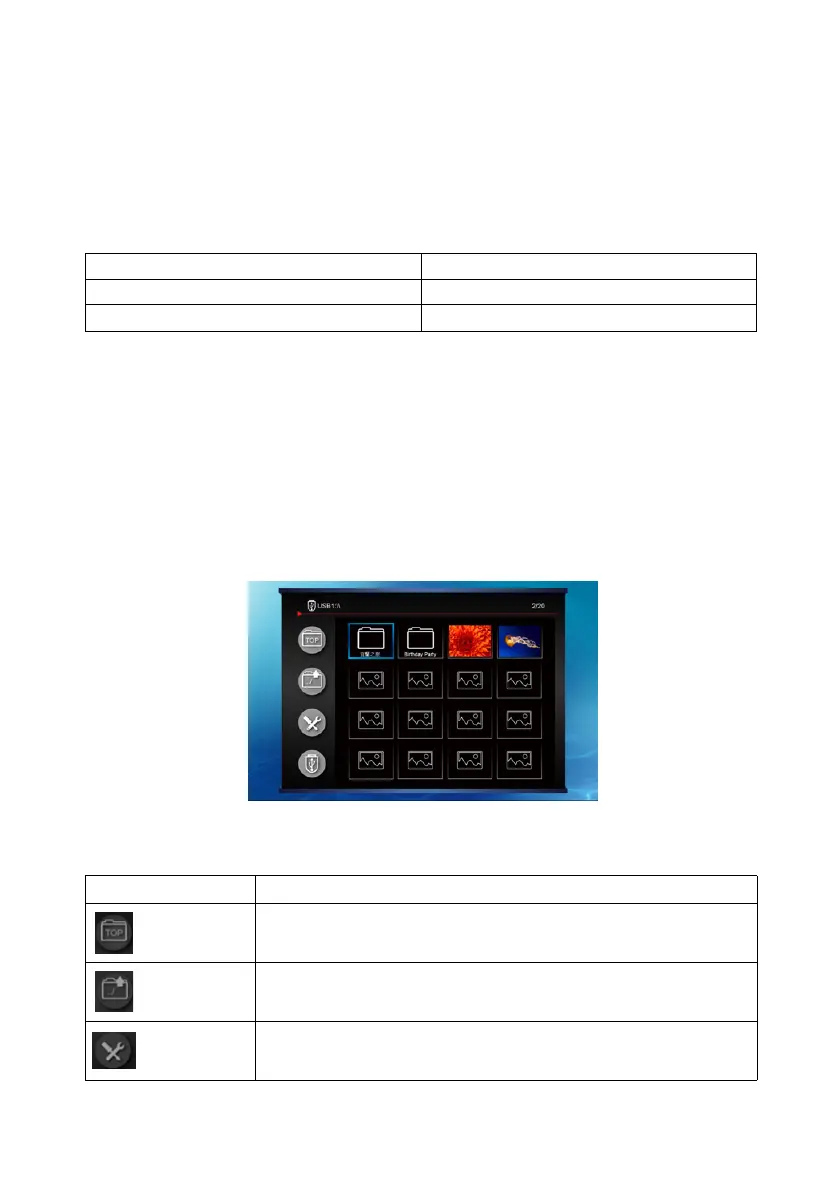
4. When only one USB is plugged, folders and supported files are
represented in thumbnail mode.
To scroll through the thumbnails, use the four directional arrow keys.
To open a folder/file, press “Enter”.
File format Maximum pixel size
JPEG 8000 x 8000
GIF/TIFF/PNG/BMP 1280 x 800
Icon Description
Go to the top level of the selected USB
Go to previous level of folder
Setup function



 To Next Page