Need help?
Do you have a question about the Optus X Tap 2 and is the answer not in the manual?
Introduction to the OPTUS X Tap 2 and its benefits for the OPTUS Network.
Guide to selecting a prepaid plan during SIM activation; visit optus.com.au/prepaidplans.
Information on premium SMS barring, emergency calls, ID verification, and privacy policy.
Step-by-step instructions for inserting the nano-SIM and optional microSDXC card.
How to charge the phone's battery using approved chargers and USB cables.
Instructions for turning the phone on, off, and restarting using the Power key.
How to turn on the display and unlock the screen from sleep mode.
Essential safety precautions and warnings for phone usage, driving, and health.
Copyright, disclaimers, trade marks, and terms of use.
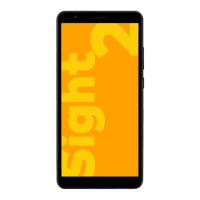
The Optus X Tap 2 is a smartphone designed for use on the Optus Network, offering a user-friendly experience with various features for communication and daily tasks. This guide provides essential information for setting up, using, and maintaining the device.
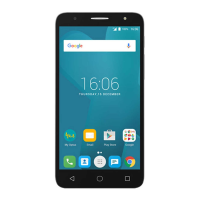
The front of the device features an earpiece, front camera, proximity and light sensor, and an indicator light. The display is a touch screen interface. On the side, there are volume keys and a power key. The bottom of the device includes a microphone and a charging/micro-USB jack. The top houses a headset jack. The back of the phone includes back cameras with flash, an NFC area, and a speaker.
To begin using the Optus X Tap 2, you'll need to install a nano-SIM card. The phone supports nano-SIM cards and an optional microSDXC card for expanded storage. To install these, locate the card tray on the side of the phone. Insert the tip of the provided tray eject tool into the small hole on the card tray. Gently pull out the tray, place the nano-SIM card and the microSDXC card (if desired) onto the tray as shown in the diagram, and then carefully slide the tray back into the phone until it clicks into place. It's important to use only standard nano-SIM cards and avoid cutting a larger SIM card, as this can damage the phone. The SIM card can be installed or removed even when the phone is turned on.
When activating your SIM, you will be prompted to choose a Prepaid plan. Optus offers a range of plans to suit different usage needs, and you can change your plan if your initial choice doesn't fit. Detailed information on Prepaid plans, terms, and conditions can be found on the Optus website.
For managing premium SMS and MMS services, you can request barring through the Optus website. Emergency calls to 000 are free and do not require credit. Identity verification may be required using the government's Document Verification Service (DVS), so ensure your ID is current and valid. Optus also provides information on its privacy policy and standard agreements online.
Before initial use, or if the battery is low, the phone should be fully charged. Connect the adapter to the charging jack, ensuring it is inserted in the correct direction. Then, connect the charger to a standard AC power outlet. The indicator light may show the charging status. Once the battery is fully charged, disconnect the charger. It is crucial to use only Optus-approved chargers and USB cables to prevent damage to the phone or battery explosion. The battery is not removable; attempting to remove it may cause fire or explosion. If the battery is extremely low, the phone might not power on immediately even when charging. In such cases, charge it for at least 20 minutes before attempting to power it on again. If issues persist, contact customer service.
To power on the phone, press and hold the Power key until the screen illuminates. To power off, press and hold the Power key to open the options menu, then select the power off option. If the screen freezes or becomes unresponsive, you can force a restart by pressing and holding the Power key for over 10 seconds.
The phone automatically enters sleep mode after a period of inactivity to save power and lock the keys, preventing accidental operations. To wake up the phone, press the Power key to turn on the screen, then swipe up on the screen. If you have set up security features like face verification, fingerprint, an unlock pattern, PIN, or password, you will need to use the corresponding method to unlock your screen.
Adhering to safety guidelines is essential for the proper functioning and longevity of your Optus X Tap 2.
The content of this guide is copyrighted by OPTUS Pty Ltd. All rights reserved. No part of this publication may be reproduced without prior written permission from OPTUS. Optus reserves the right to modify specifications or correct print errors without prior notice. For the most up-to-date information, including self-service options and supported product models, visit the Optus website. This Quick Start Guide is a condensed version; the full user guide can be downloaded from the Optus website.
Optus disclaims liability for faults and damage caused by unauthorized modifications of the software. Images and screenshots in this guide may differ from the actual product or software.
 General
| RAM | 2 GB |
|---|---|
| Storage | 32 GB |
| Front Camera | 5 MP |
| Rear Camera | 13 MP |
| SIM | Nano-SIM |
| Network | 4G |

 To Next Page