EasyManua.ls Logo

Orderman COLUMBUS 300 User Manual

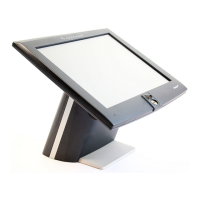
Orderman COLUMBUS 300
2 pages
To Next Page IconTo Next Page
Page #1 background imageLoading...
Page #1 background image
&
1
3
4


 


2
Art. 501-180
+6
GETTING STARTED
COLUMBUS 300
COLUMBUS 500
COLUMBUS 700R
and access to SSD and RAM
PASSWORDS | INTERFACES | DRIVERS
Password/Username Windows Images
(POSReady2009/ POSReady7, Windows7 Professional)
Username: User01 Password: user01 (Respect case sensitivity)
Password Recovery Tool
Password: Orderman1234 (Respect case sensitivity)
Interfaces and Com Boards
lift cover unscrew screws fold downconnect power
ENGLISH
QUICK INSTALLATION GUIDE
for Installation of Columbus 300, 500 and 700R
START BACK-UP AND RECOVERY
1. On/Off
2. Back-up and Recovery (press 3 sec.
during boot screen)
Driver Updates
http://partner.orderman.com/downloads
Magnetic stripe reader
3 Track encrypted MSR with payment guard. Use OPOS or Virtual Serial
Bus via your POS application.
Customer display (VFD 2x20)
Select COM1 Board and choose 38.400 bit/s via your POS application.
COLUMBUS 300
2in1 waiter lock = Com6
Ordercard = Com5
Single RS485 or Router = N/A
Upgrade your Columbus with
Care or Care Gold and enjoy
a no-hastle warranty up to 6 years.
GET MORE CARE
sales@orderman.com
support@orderman.com
+43 662 65 05 61 0
CONTACT INFORMATIONS:
COLUMBUS 500 & COLUMBUS 700R
2in1 waiter lock = Com9
Ordercard = Com7
Single RS485 or Router = Com8
ADAPTER CABLES | ORDER NUMBER
Columbus RJ45 to DB9M
RJ45 to RS232 serial printer
700mm
300mm
700mm
1.850mm
CB10730
CB10734
CB10752
CB10722
CONTACT INFORMATION |Orderman GmbH · Bachstraße 59 · A- 5023 Salzburg · Austria · Tel: +43 662 650561 - 0 · Fax: +43 662 650561 - 20 · Email: support@orderman.com · www.orderman.com
Question and Answer IconNeed help?

Do you have a question about the Orderman COLUMBUS 300 and is the answer not in the manual?

Orderman COLUMBUS 300 Specifications

General IconGeneral
BrandOrderman
ModelCOLUMBUS 300
CategoryTouch terminals
LanguageEnglish

Summary

Getting Started with Columbus Devices

Columbus Model Overview and Access

Details on Columbus 300, 500, 700R models, including access to SSD and RAM.

Back-up and Recovery Procedure

Steps for powering on and initiating the back-up and recovery process.

Default Passwords and Driver Access

Default username/password for Windows images and password recovery tool.

Interfaces and Peripherals

COM Port Configuration

Mapping of COM ports for interfaces like waiter lock and ordercard on Columbus models.

Magnetic Stripe Reader and Customer Display

Instructions for connecting and using the magnetic stripe reader and customer display.

Software Updates and Support

Driver Update Information

URL provided for downloading the latest device drivers.

Customer Support and Warranty

Contact details for support, sales, and information on extended warranty options.

Accessory Cables and Ordering

List of available adapter cables with their respective order numbers.

Device Pinout Diagrams

Columbus 300 Port Pin Assignments

Detailed pinout for DB9 and RJ45 ports on the Columbus 300 model.

Columbus 500 Port Pin Assignments

Detailed pinout for DB25 and RJ45 ports on the Columbus 500 model.

Columbus 700R Port Pin Assignments

Detailed pinout for RJ45 and RJ12 ports on the Columbus 700R model.

Related product manuals