EasyManua.ls Logo

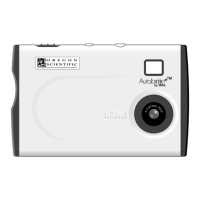
Oregon Scientific DS6310 - User Manual

Oregon Scientific DS6310
17 pages
Print Icon
To Next Page IconTo Next Page
Loading...
ULTRA SLIM DIGITAL CAMERA (DS6310)
USER MANUAL
CONTENTS
Contents ................................................................................................ 1
1 Brief Description ............................................................................... 3
Package Contents....................................................................................................3
2 Before Using Your Camera .............................................................. 3
Holding the Camera Correctly .................................................................................3
Test Photos..............................................................................................................3
Identifying the Parts – Front / Back View.................................................................3
3 Using Your Digital Camera............................................................... 4
Charging the Batteries .............................................................................................4
Lithium-Polymer Battery Tips...................................................................................4
Turning on the Camera ............................................................................................5
Turning on the LCD..................................................................................................5
Understanding LCD Icons........................................................................................5
Mode Selection ........................................................................................................5
Picture-taking Mode .................................................................................................5
Picture-taking Mode Menus .....................................................................................5
Playback Mode ........................................................................................................7
Playback Mode Menus.............................................................................................7
USB Mode................................................................................................................7
USB Mode Activity ...................................................................................................7
Using Secure Digital (SD) Memory Cards ...............................................................7
Changing Resolution................................................................................................8
Turning the Sound On / Off......................................................................................8
Taking Pictures ........................................................................................................8
Low Light Lock-out...................................................................................................9
Deleting an Image....................................................................................................9
Formatting Internal Flash Memory or SD Card........................................................9
4 Installing the Software...................................................................... 9
System Requirements..............................................................................................9
PhotoImpression 5.0 Installation............................................................................10
5 Connecting the Digital Camera to Your PC .................................. 11
6 Troubleshooting.............................................................................. 12
7 Specifications.................................................................................. 13
8 Safety Notes .................................................................................... 14
Warnings ................................................................................................................14
Notes on Copyright ................................................................................................15
Liquid Crystal .........................................................................................................15
Handling Your Digital Camera Safely ....................................................................15
Places to Avoid ......................................................................................................15
Note on Condensation ...........................................................................................15
Cleaning your Camera ...........................................................................................15
Checked Baggage .................................................................................................16
9 About Oregon Scientific ................................................................. 16

Questions and Answers

  • J
    Jessica RosalesAug 12, 2025
    Why PC does not recognize Oregon Scientific digital camera?
    • C
      Christina Edwards DVMAug 12, 2025
      If your PC doesn't recognize the Oregon Scientific digital camera, check the USB cable connection to ensure both ends are properly connected. Interference from other USB devices can also cause this, so try disconnecting them. As an additional step, connect the camera to the PC with the USB cable and select [My Computer] – [Control Panel] – [System] – [Device Manager]. In the [Device Manager] window delete [Compose USB device] or [Unknown device] in [Other devices]. Then disconnect the camera and install the software before reconnecting the camera to the PC.
  • B
    Brooke ZhangAug 16, 2025
    What to do if flash does not go off as expected on Oregon Scientific digital camera?
    • K
      Kevin RojasAug 16, 2025
      If the flash on your Oregon Scientific digital camera isn't working as expected, it might be because the flash hasn't finished charging. Wait until the green LED is steady. Alternatively, the flash may have been turned off. Ensure the flash setting is set to 'Automatic' or 'On'.
  • M
    martinwrightAug 20, 2025
    What to do if Oregon Scientific DS6310 Digital Camera malfunctions during use?
    • J
      John PhillipsAug 20, 2025
      If your Oregon Scientific Digital Camera malfunctions during use, it might be due to electrostatic discharge interfering with the camera's operation. Turn off the camera and then turn it back on. If the camera is connected to a PC, disconnect it from the USB cord, then turn the camera off and on again.
  • J
    jean62Aug 25, 2025
    How to fix blurred or dark images on Oregon Scientific DS6310 Digital Camera?
    • T
      Timothy BowersAug 25, 2025
      If your images appear blurred or dark on your Oregon Scientific digital camera, it could be due to several reasons. The camera or subject might have been moving when the shot was taken, so hold the camera firmly. The subject may be too close; try moving away from the subject. Alternatively, the lens might be dirty. Clean the lens with a soft cloth.
  • R
    Raymond PowellAug 28, 2025
    Why cannot take pictures when the shutter button is pressed on Oregon Scientific DS6310?
    • U
      ulewisAug 28, 2025
      If you cannot take pictures when pressing the shutter button on your Oregon Scientific digital camera, ensure that the camera is turned on. Also, check if there is sufficient space on the SD card or internal memory. If not, delete unwanted files or insert a new SD card.
  • L
    lwrightAug 31, 2025
    Why Oregon Scientific digital camera will not focus?
    • K
      Karen MonroeSep 1, 2025
      If your Oregon Scientific digital camera will not focus, the subject might not be in the center of the lens viewfinder or LCD. Move the subject to the center of the lens viewfinder or LCD.
  • M
    mark27Sep 4, 2025
    How to fix everything on the LCD flashes and “7” or “8” is displayed on Oregon Scientific digital camera?
    • D
      David DelacruzSep 4, 2025
      If everything on the LCD flashes and '7' or '8' is displayed on your Oregon Scientific digital camera, it indicates a camera firmware defect. If the “Camera firmware is out of sync. Update recommended. Update firmware?” message appears when you connect the camera to your PC with the USB cable, click the [Yes] button to update your firmware.
  • B
    Brittany LaneSep 7, 2025
    How to fix LCD does not light on Oregon Scientific DS6310 Digital Camera?
    • K
      Kathy ArmstrongSep 8, 2025
      If the LCD on your Oregon Scientific digital camera does not light, and you turned the power off with the LCD off, the LCD screen is still set to OFF the next time the power is turned on. Press the LCD button once to turn on the LCD.

Summary

Before Using Your Camera

Using Your Digital Camera

Charging the Batteries

Instructions for charging the camera's internal battery via USB.

Camera Operation Details

Mode Selection and Picture-Taking

Describes operational modes and readiness for taking pictures.

Picture-Taking Mode Functions

Playback and USB Connectivity

Playback Mode and Menus

How to review, delete images, and format the SD card.

USB Mode and SD Card Usage

Connects camera to PC, transfers data, and uses memory cards.

Image Settings and Taking Pictures

Taking Pictures and Safety

Guide to capturing images and safety warnings during use.

Advanced Features and Maintenance

Deleting and Formatting

Procedures for deleting images and formatting memory.

4 Installing the Software

PhotoImpression 5.0 Installation

Detailed steps for installing the included photo software.

5 Connecting the Digital Camera to Your PC

Connecting Camera and Transferring Photos

Steps to connect the camera to a computer and transfer images.

6 Troubleshooting

No Power and Picture Issues

Addresses no power, blurred/dark images, and flash problems.

PC Connectivity and Camera Malfunctions

8 Safety Notes

Oregon Scientific DS6310 Specifications

General IconGeneral
Digital Zoom4x
Display TypeLCD
Display Size1.5"
Resolution2048 x 1536
Sensor TypeCMOS
Video Resolution320 x 240
Battery2 x AA
Supported Flash MemoryMMC, SD

Related product manuals