The OREI USB3.0 to Dual HDMI Adapter is a versatile device designed to connect your USB-A or USB-C enabled computer to two HDMI displays, supporting both Windows and Mac OS. This adapter allows for various display modes including Mirror, Extend, Rotate, and Clamshell, enhancing your productivity and viewing experience.
Function Description:
The primary function of this adapter is to convert a single USB 3.0 (USB-A or USB-C) port into two HDMI outputs. This enables users to extend or duplicate their laptop or computer screen across multiple displays. It is particularly useful for setups requiring additional screen real estate for multitasking, presentations, or entertainment. The adapter handles video decoding in multiple formats, including H.264, H.263, MP4, MP2, DivX, AVS, and JPEG, ensuring broad compatibility with various media types.
Important Technical Specifications:
- Input Ports: USB-C Male or USB 3.0 Male x 1
- Output Ports: HDMI x 2
- Data Transmission Rate (Max): 5Gbps
- Data Transmission Standard: USB 3.0 (USB 3.1 GEN 1)
- Supported Resolutions:
- Dual Display Output: One display at 4K@30Hz and another at 1080p@60Hz.
- Windows (Mirror Mode): 1920x1080@60Hz on both 1080p and 4K ports.
- Windows (Extend Mode): 1920x1080@60Hz on the 1080p port and 3840x2160@30Hz on the 4K port.
- Mac OS (Mirror Mode): 1920x1080@60Hz on both 1080p and 4K ports.
- Mac OS (Extend Mode): 1920x1080@60Hz on the 1080p port and 3840x2160@30Hz on the 4K port.
- Detailed Resolution Support (1080p Port): Includes 1920x1080@60Hz, 1680x1050@60Hz, 1600x1200@60Hz, 1600x900@60Hz, 1440x1050@60Hz, 1440x900@60Hz, 1280x1024@60Hz, 1280x800@60Hz, 1280x720@60Hz, 1152x864@60Hz, 1024x768@60Hz, 800x600@60Hz, 720x480@60Hz, 640x480@60Hz.
- Detailed Resolution Support (4K Port): Includes 3840x2160@30Hz, 2560x1440@60Hz, 1920x1080@60Hz, 1680x1050@60Hz, 1600x1200@60Hz, 1600x900@60Hz, 1440x1050@60Hz, 1440x900@60Hz, 1280x1024@60Hz, 1280x800@60Hz, 1280x720@60Hz, 1152x864@60Hz, 1024x768@60Hz, 800x600@60Hz, 720x480@60Hz, 640x480@60Hz.
- Mac OS Specific Resolutions: 1920x1080@30Hz (1080p port), 1920x1080@30Hz (4K port).
- Compatible OS: Windows 7/8/8.1/10/11 and above, Mac OS 10.10.x and above, Android 7.1 and above (Android devices only support mirroring mode with resolutions up to 1080P).
- System Requirements:
- CPU Processor: Core i5 and above.
- RAM: 4GB and above.
- Monitor: Supports 4K resolution.
- Operating Temperature: 0°C to 60°C
- Storage Humidity: 5% to 90% RH non-condensation
- Power Supply: USB3.0 USB-C from PC or notebook
- Power Consumption (Max): 5W
- Unit Certifications: FCC, CE, ROHS
- Dimensions (LxWxH): 3.94 x 1.97 x 0.53 inches (100 x 50 x 13.5mm)
- Net Weight: 78g
- Material: ABS
- User Manual: English Version
Usage Features:
The OREI USB3.0 to Dual HDMI Adapter is designed for ease of use and broad compatibility.
- Dual Display Output: Connects to two HDMI displays simultaneously, with one supporting up to 4K@30Hz and the other up to 1080p@60Hz.
- Wide Compatibility: Works with USB-C, USB-A, Thunderbolt 3/4, and USB 4 standard ports, making it suitable for a wide range of modern laptops and computers.
- Multiple Display Modes: Supports Mirror mode to duplicate your screen, Extend mode to expand your desktop across multiple displays, and Rotate mode (Windows only) for flexible screen orientation. Clamshell mode is also supported for M1/M2 Mac devices.
- Multi-Display Support: Allows extending your PC screen to up to 8 displays on Windows and up to 6 displays on Mac OS (with multiple adapters).
- Driver Installation: Requires a one-time driver installation from the manufacturer's website (siliconmotion.com) to ensure proper functionality. The process involves unzipping the driver file, running the installer, and rebooting the computer.
- Display Mode Setting (Windows): Easily configure display settings by right-clicking the desktop, selecting "Display settings," and then choosing the desired resolution and display mode (Duplicate, Extend, Disconnect).
- Display Mode Setting (Mac OS): Access display settings via "System Preferences" and "Displays" to adjust resolution and switch between mirror or extend modes.
- Important Notes for Mac OS: Mac-based devices do not support rotation mode. M1/M2 Mac supports clamshell mode, while Intel Mac does not. The device requires a USB-C™/USB3.0 equipped device that supports USB 3.0 data transmission. It does not support playback of HDCP-protected content from services like Netflix and Hulu.
Maintenance Features:
To ensure optimal performance and longevity of the device, several safety and troubleshooting guidelines are provided.
- Surge Protection: It is highly recommended to use surge protection systems to protect the device from electrical spikes, surges, electric shock, and lightning strikes, which can damage sensitive electrical components.
- Environmental Care:
- Avoid exposing the product to water, moisture, or high-humidity environments.
- Do not expose to direct sunlight or high temperatures.
- Keep away from heat sources such as radiators, heat registers, stoves, or other heat-producing apparatus.
- Physical Handling:
- Place the product on a stable, flat surface to prevent falling.
- Do not place any objects on top of the product.
- Do not attempt to open the product; only qualified personnel should perform repairs.
- Connection Integrity: Always ensure that HDMI cables and the adapter are securely connected to prevent flickering or display issues.
- Power Supply: Verify that the device's USB port provides sufficient power (900mA or more) to the adapter. If issues arise, try a different USB 3.0 port.
- Driver Management: Keep the adapter's drivers up-to-date by checking the manufacturer's website for the latest versions.
- Troubleshooting Common Issues:
- Adapter Not Working: Check USB port current output (900mA+), ensure correct drivers are installed, verify secure HDMI cable and adapter connections, confirm video source compatibility, and restart the device.
- Second Display Flickers: Ensure secure HDMI cable and adapter connections, try a different HDMI cable, check for sufficient power supply to the adapter, verify video source compatibility, and try a different USB 3.0 port or restart the device.
- No Video on Second Monitor: Confirm secure HDMI cable and adapter connections, verify video source compatibility, check for up-to-date driver version, ensure sufficient power supply to the adapter, and try a different USB 3.0 port or restart the device.
- During Disuse: Unplug the power supply during lightning storms or prolonged periods of disuse to prevent damage.

 Need help?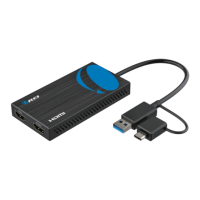

 To Next Page
 General