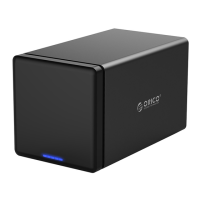
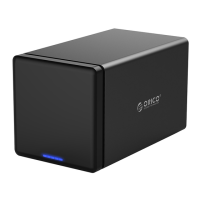
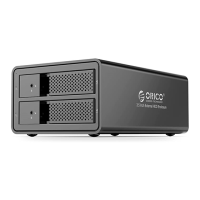
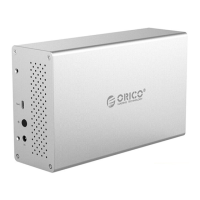
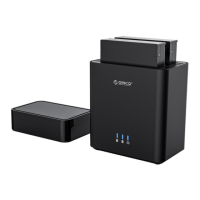
This document describes the ORICO NS-USB3.0 Series, a range of high-end storage disk stations designed for data storage and management. These devices are built with an aluminum-magnesium alloy body and anodizing surface, offering a nice installation experience and excellent design. They support Type-C interfaces with USB3.1 To SATA3.0 program, USB 3.1 Gen1 5Gbps high-speed transmission, and UASP Acceleration Protocol. The NS series aims to provide a different product experience with a new design.
Function Description:
The ORICO NS-USB3.0 Series are disk stations primarily used for external data storage. They support various SATA hard drives (SATA1, SATA2, SATA3) with speeds up to 6Gbps. The devices are designed for easy installation and removal of hard drives, making them suitable for users who need flexible and expandable storage solutions. They are compatible with both Windows and Mac OS/Linux operating systems. The series includes models that support different numbers of hard drives, ranging from single-bay to multi-bay configurations, allowing users to choose a model that fits their storage needs.
Important Technical Specifications:
- Interface: USB3.0
- Speed: 5Gbps
- Disk Supported: 3.5 Inch SATA HDD
- Indicator: Yes (LED indicator for power, hard drive activity, read, malfunction, and hibernation)
- Installation: Magnetic opening type, tool-free
- Texture: Aluminum alloy + ABS
- System Supported: Windows / Mac OS / Linux
- Product Functions:
- Support SATA1, SATA2, SATA3, speed up to 6Gbps.
- Some models have built-in silent cooling fan for strong cooling function.
- Support UASP Acceleration Protocol.
- External high-power power supply to protect the hard drive's stable operation.
- Support hot-swappable, plug and play.
- Structural Design, Appearance Characteristics:
- Unique magnetic opening type of the front panel, the lid can be closed exactly and easily.
- Many cooling holes in the rear panel to meet the metal body heat dissipation.
- Aluminum ridge plus arc chamfer design of the periphery of the product, simple and stable.
- Sandblasted anodized surface, black and white color choices.
- Model-Specific Sizes (L×W×H):
- NS100U3: 215.5×42×131 mm / 8.48×1.65×5.16 Inch
- NS200U3: 223×71×134 mm / 8.8×2.8×5.28 Inch
- NS400U3: 223.5×129×135 mm / 8.8×6.3×5.31 Inch
- NS500U3: 223.5×159.6×136 mm / 8.8×6.28×5.35 Inch
- NS800U3: 247.6×225×140 mm / 9.75×8.86×5.51 Inch
Usage Features:
- Appearance: The device features a power button, USB3.0 interface, power interface, front lid, and hard drive indicator.
- LED Indicator Status:
- Power: Power light always is blue.
- Insert hard drive: Hard drive light always is blue; no hard disk, the hard drive light does not shine.
- Read: The hard drive light blinks blue.
- Malfunction: The hard drive light always is red.
- Hibernation: The hard drive light does not shine.
- Hard Drive Installation:
- Open the disk station by pulling out the magnetic lid.
- Insert the hard drive into the disk station, ensuring it connects with the interface on the disk channel. Note: Insert the hard disk with the front side of the hard disk (with sticker) to the left.
- Close the lid, which will be automatically adsorbed by the disk station due to the magnetic opening type.
- Connection to Computer: After installing the hard drive, insert the original power adapter into the power port, use the data cable to connect the product data port, and the other end to the computer's USB port.
- Hard Drive Initialization and Formatting (Windows):
- Ensure the device is properly mounted and attached to the ORICO dock.
- Right-click on "Computer," select "Manage," then "Disk Management" in "Storage." A new drive needs to be initialized.
- Right-click on the unallocated new drive, select "New Simple Volume" to start adding a new volume and format it.
- Specify the volume size.
- Assign a new drive letter.
- Format the new volume, choosing the file system (NTFS or FAT32) and allocation unit size. Perform a quick format.
- Click "Finish" to complete the formatting.
- Hard Drive Initialization and Formatting (Mac):
- First, stop the read and write operations of the hard drive.
- Drag the disk drive to the Recycle Bin to complete the uninstall.
- For Mac, the process involves removing the drive from the system.
Maintenance Features:
- Troubleshooting:
- USB Host Check: Ensure USB hosts on the computer are working properly. Attach the ORICO device and drive to rear USB hosts if recommended, especially when using a desktop computer.
- Drive Test: If mounting one drive for test is recommended, check if the ORICO device works well when one drive is mounted to HDD slot 1.
- Cable and Power Adapter: Ensure the cable and power adapter are properly attached.
- Drive Recognition: If the drive has been formatted properly, right-click on "Computer," select "Manage," open "Disk Management" in "Storage" of opened windows. If the drive shows any drive mounted to your computer and it is formatted or not, follow the directions of "Initialize and Format New Drives under Microsoft Windows" if you are mounting new drives.
- USB3.0/2.0 Host Test: Test the ORICO device and drive via other USB3.0 or 2.0 hosts or another computer if available.
- Cable Test: Test the ORICO device and drive with another USB3.0 cable or USB2.0 cable if available.
- Data Loss Prevention: To avoid loss of data, users are advised to read the manual, try to use a hard drive that does not have a saved file, so that they can safely familiarize themselves with the use of this product.
- Warranty and Disclaimer: ORICO Technologies Co., Ltd. reserves all rights of maintenance to this manual and shall not be liable for any lost or damage resulting from this manual. They are not liable for compensation and maintenance of the following conditions:
- Any special, incidental, indirect, and secondary lost or damage.
- Profit and revenue lost or damage.
- Files, data, drive, and device lost or damage.
Note: Compensation for lost or damage resulting from this manual or ORICO product shall not exceed the payment of your purchase to this product.
- FCC Compliance: The device complies with part 15 of the FCC Rules. Operation is subject to two conditions: (1) This device may not cause harmful interference, and (2) this device must accept any interference received, including interference that may cause undesired operation.

 Need help?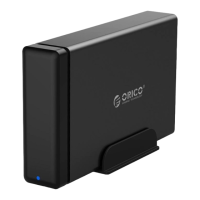

 To Next Page
 General