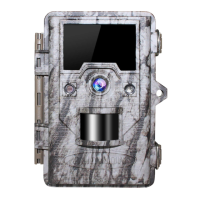
Review/ Delete the Photos and Videos
>Review the Files Directly on the Camera
. Switch to SETUP mode
. If it is [ON] mode, do not switch to [SETUP] mode directly, switch to [OFF] first.
. Press [REPLAY] to enter review mode.
. Press [UP]/[DOWN] to scroll through the photos or videos.
. The right corner of the display will indicate “JPG” for still photos, and a film icon for video files.
. Press the [SHOT] key to review a video.
. Push [MENU] to delete an image.
To exit review mode, press the [OK]
>Review the Files on the Computer
By removing the SD Card (swapping it for a new empty card if you like) and taking it to your
home or campsite to view the images by using an SD card "reader"(user supplied) connected to
your computer.
>Press MENU to delete photos or videos.
High light the "Delete Current" or "Delete All" option, then press OK. Next, select "YES" or "No".
Note: After deleting a picture or a video file, the deleted files can't be restored!
It is also possible to delete all files from the card by using the “Format” parameter.
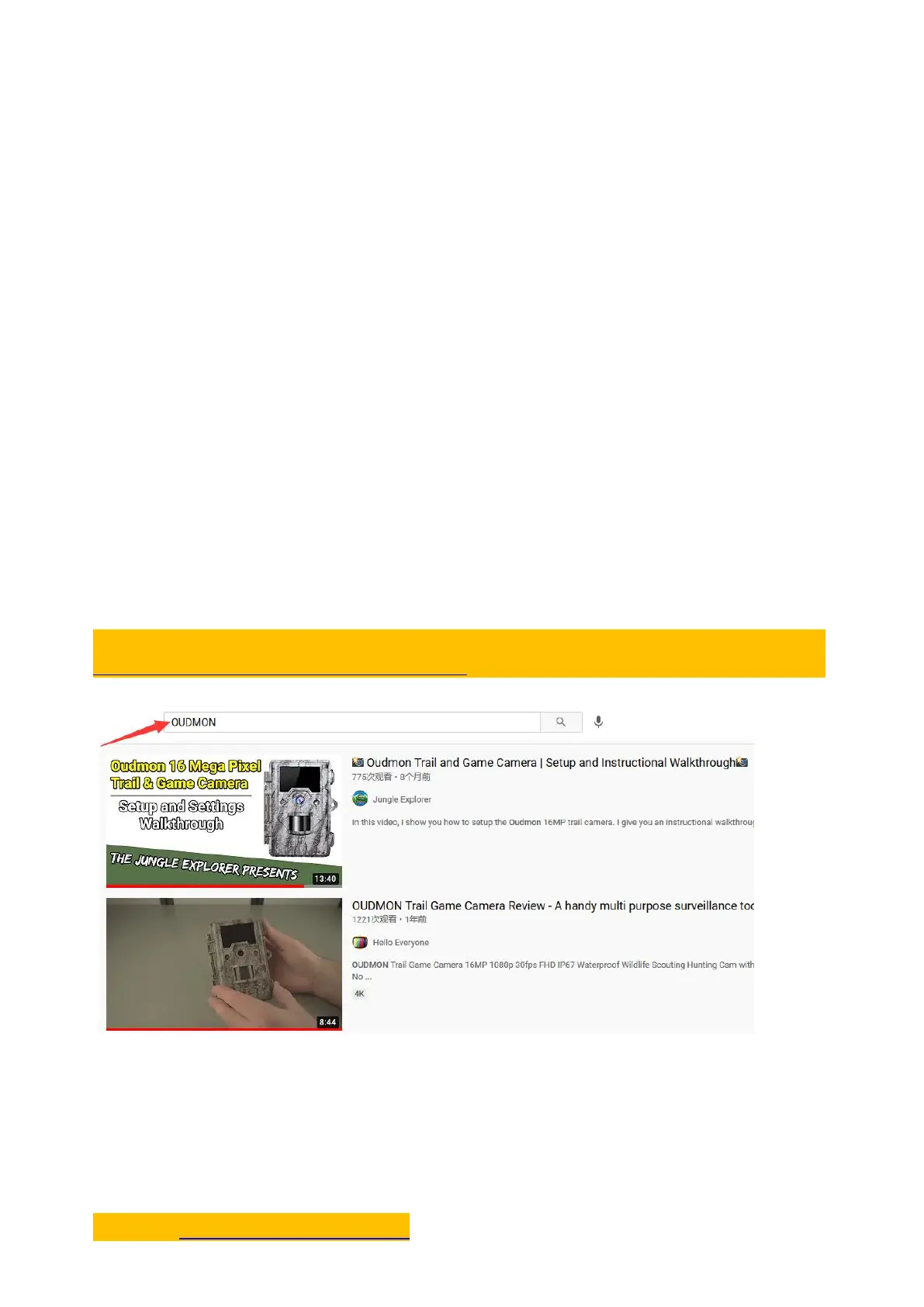
NOTE: Search ‘OUDMON’on YouTube, there will be many useful demo videos.
https://www.youtube.com/watch?v=aKzYiX4e6co
Warranty State
During warranty, hardware failure occurring, which caused by product itself, we will provide
free maintenance service for the customer. Warranty period is 18 months from the day you
purchase it.
Contact: oudmon.us@gmail.com


 To Previous Page
 Loading...