EasyManua.ls Logo

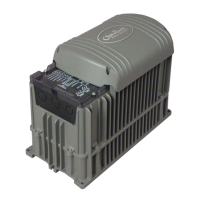
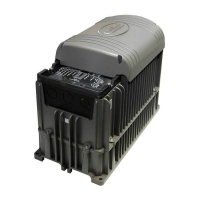
Outback Power Systems GFX1312E - User Manual

Outback Power Systems GFX1312E
60 pages
Print Icon
To Next Page IconTo Next Page
Loading...
International Series
GFX Inverter/Charger
GFX1312E GFX1424E GFX1448E
Operator’s Manual

Table of Contents

Questions and Answers

  • J
    Jamie BeardAug 17, 2025
    What to do if my Outback Power Systems GFX1312E Battery Charger will not charge?
    • W
      William LeeAug 17, 2025
      If your Outback Power Systems Battery Charger will not charge, it could be due to a couple of reasons. First, check if there is AC input. If the AC input is fine, then the charger might be set to OFF. Using the MATE system display, check the Charger Control screen with the AC IN hot key and set it to ON or AUTO. If the charger was intentionally set to off, then no action is required.
  • M
    Megan Sullivan MDSep 2, 2025
    Why does my Outback Power Systems Battery Charger click repeatedly?
    • R
      Robert MartinezSep 2, 2025
      If your Outback Power Systems Battery Charger clicks repeatedly and the AC output voltage fluctuates, here are potential causes: * The inverter's output might be connected to its input. Disconnect wires from either the inverter's AC input or output terminals, or both. If the problem disappears, it's an external wiring issue. The inverter's AC HOT IN and AC HOT OUT must remain isolated from each other. * Low AC input voltage. Test the AC HOT IN and NEUTRAL IN connections with an AC voltmeter. If the voltage is low or fluctuating, this is an external problem. * The inverter may be set to sell to the utility grid but is connected to a generator. Set the AC transfer control menu to 'gen' using the MATE system display to prevent it from selling.
  • C
    Christine MilesSep 5, 2025
    Why won't some inverters invert in my Outback Power Systems multi-inverter system?
    • M
      Michael ByrdSep 5, 2025
      If one or more inverters in your multi-inverter Outback Power Systems Battery Charger system won't invert while others do, it could be because the unit is a slave and is in Power Save mode. Check the Power Save levels in the ADV/FX/STACK menu using the MATE system display and test with loads to see if the inverter comes on at the appropriate levels. If this setting was intentional, then no action is required.
  • T
    Theresa WalkerSep 8, 2025
    What if generator fails to start when triggered by AUX output of Outback Power Systems GFX1312E Battery Charger?
    • B
      Benjamin BradleySep 8, 2025
      If a generator or external fan fails to start when triggered by the AUX output on your Outback Power Systems Battery Charger, it could be because the AUX output is either not connected or is not delivering 12-volt output. First, test the generator or device to confirm it functions. Then, test the AUX+ and AUX– terminals with a DC voltmeter. If voltage is present with the AUX LED on, there is an external connection problem. If voltage is not present with the AUX LED on, the AUX circuit may be damaged.
  • M
    Ms. Michelle Leonard MDSep 12, 2025
    Why does my Outback Power Systems Battery Charger read AC input when no source is present?
    • M
      michelle52Sep 12, 2025
      If your Outback Power Systems Battery Charger reads AC input even when no source is present, the internal transfer relay may be damaged. Disconnect the AC input wires and turn the inverter on. Test the AC HOT IN and NEUTRAL IN connections with an AC voltmeter. If voltage appears there, the transfer relay may be jammed.
  • A
    Angela CarsonSep 14, 2025
    How to troubleshoot no LEDs on Outback Power Systems Battery Charger?
    • M
      mitchellsherrySep 14, 2025
      If there are no LEDs lit on your Outback Power Systems Battery Charger, it indicates there is no DC voltage. Use a DC voltmeter to check the voltage directly on the DC terminals. If there is no voltage, the problem is external.
  • J
    Joy LopezNov 19, 2025
    Why does my Outback Power Systems Battery Charger have no AC output?
    • J
      Jamie KingNov 19, 2025
      If your Outback Power Systems Battery Charger has no AC output and will not invert, here are a few potential causes: * The jumper JP1 might be missing. Check the Installation Manual for its location and confirm it is present. If it's missing, replace it, or follow the manual's instructions to install an external switch. * The unit may have defaulted off, especially during initial install without a MATE present. If JP1 is confirmed present, remove it with narrow pliers and then reinstall it. * The inverter may be set to OFF. If you have a MATE system display, set it to ON using the INV hot key. * The inverter might be set to SRCH (Search mode). If constant power is needed, use the MATE system display to set it to ON with the INV hot key. If Search mode was intentional, no action is...
  • K
    Kelly HansenNov 22, 2025
    What to do if my Outback Power Systems GFX1312E Battery Charger will not connect to AC source?
    • M
      Michael CruzNov 22, 2025
      If your Outback Power Systems Battery Charger will not connect to the AC source, there could be several reasons: * There might be no AC input. Check the AC voltage on the inverter’s input terminals. If there's no voltage, the problem is external. If voltage is present, the inverter might be damaged. * The inverter could be set to disconnect from AC. Using the MATE system display, change the AC Input Control setting from DROP to USE with the AC IN hot key. If this setting was intentional, no action is required. * HBX mode might have disconnected from AC. Check the AC IN hot key screen on the MATE system display to see if HBX mode is in use. If activated prematurely, check the HBX settings. If this was intentional, no action is needed. * The grid use function may have disconnected f...
  • M
    Michael PearsonNov 24, 2025
    Why is the charge rate low on my Outback Power Systems GFX1312E Battery Charger?
    • T
      Thomas CookNov 24, 2025
      If your Outback Power Systems Battery Charger has a low charge rate, consider the following possibilities: 1. The charge might be complete or nearly complete. Check the DC voltage and charging stage using the system display or a DC voltmeter. 2. The system display's DC meter might read significantly higher than the actual battery voltage. Check the DC voltage on the inverter's DC terminals. If different from the system display, the inverter could be damaged. Also, check the DC voltage on the batteries with a voltmeter; a difference from the inverter reading could indicate a DC connection problem. 3. The generator type may not work well with the Grid/Generator Support feature. Turn off the ac2/gen support feature in the ADV/FX/GEN menu using the MATE system display. Note that the AC tra...
  • D
    Diana VillarrealNov 27, 2025
    Why do loads drop out during transfer on my Outback Power Systems GFX1312E?
    • U
      uwilsonNov 27, 2025
      If loads drop out or crash during transfer with your Outback Power Systems Battery Charger, it could be due to several reasons: * Erratic AC source voltage. Check the AC voltage on the inverter's input terminals. If it's inconsistent, the problem is external. The AC source voltage may have dipped or hovered too low to crash a sensitive load before the inverter took over. Raise the lower limit setting if the ac1/grid or ac2/gen lower limit was turned down to accommodate a problematic AC source. If this setting was intentional, no action is required. * The inverter was set to SRCH (Search mode). The unit will take a moment to come out of Search mode after transferring. If constant power is required, set to ON with the INV hot key using the MATE system display. If this setting was intent...

Summary

Important Safety Instructions

Audience and Symbols

Describes the intended user and explains symbols used in the manual.

Definitions

General Safety Guidelines

Covers critical safety guidelines and warnings.

Introduction

About OutBack and System Display

Introduces the company, products, and system display interaction.

Operation

Startup Procedures

Covers functional tests, pre-startup, and startup steps.

System Power Management

Instructions for powering down and adding new components.

LED Indicators Overview

Explains the function of battery and status LEDs.

Status LED Details

Detailed breakdown of GREEN, YELLOW, and RED status LED behaviors.

Battery LED Details

Further explanation of battery LEDs and their values.

Status LED States

Detailed breakdown of status LED conditions and notes.

Core Functions Overview

Introduces inverting, search, input, and AC settings.

Input and Source Management

Covers generators, transfer, and AC source acceptance.

AC Source Settings

Details AC current settings and source acceptance criteria.

Generator and Transfer Operations

Guidelines for generators and switching sources.

Grid;Generator Support Function

How to augment AC source with battery power.

Battery Charging Stages

Explains Bulk, Voltage, No Charging, and charging process.

Advanced Charging and Selling

Covers Absorption, Sell, and Silent modes.

Float Stage and Timers

Details Float stage, timers, and repeated silent mode.

Charging Cycle Management

Covers new cycles, absorption timer, and equalization.

Battery Temperature Compensation

How temperature affects charging and compensation.

Selling Power to Grid

Comprehensive explanation of the grid-tie selling feature.

Multiple Inverter Stacking

How to connect multiple inverters for increased capacity.

Stacking Configurations

Details parallel and three-phase stacking.

Power Save Levels

Manages inverter idle power consumption.

Auxiliary Terminals and Functions

Describes auxiliary terminals and various functions like fans, diversion, and alerts.

System Display Functions

Covers AGS, HBX, and Grid Use programming.

Troubleshooting

Basic Troubleshooting Guide

General guide for diagnosing common issues.

Basic Troubleshooting Steps

Continues general troubleshooting steps.

Basic Troubleshooting Steps

Continues general troubleshooting steps.

Basic Troubleshooting Steps

Continues general troubleshooting steps.

Error Message Troubleshooting

Information on critical fault messages and their resolution.

Error Message Troubleshooting

Continues error message troubleshooting.

Warning Message Troubleshooting

Information on non-critical fault messages.

Disconnect Message Troubleshooting

Reasons why an AC source was rejected.

Stop Sell Reason Troubleshooting

Codes indicating why selling power to the grid stopped.

Specifications

Model GFX1312 E Specifications

Technical specifications for the GFX1312E model.

Model GFX1424 E Specifications

Technical specifications for the GFX1424E model.

Model GFX1448 E Specifications

Technical specifications for the GFX1448E model.

Environmental and Regulatory Specs

Environmental operating conditions and compliance.

Grid-Interactive Use Specs

Specific requirements for grid interaction.

12-Volt Inverter Default Settings

Default configurations for the 12V inverter.

12 V and 24 V Inverter Settings

Default and adjustable settings for 12V and 24V models.

24 V and 48 V Inverter Settings

Default and adjustable settings for 24V and 48V models.

48 V Inverter Settings

Continues settings for 48V models.

Product Registration

System Owner and Purchase Details

Fields for owner and purchase information.

Installation and Installer Information

Fields for installation and installer details.

Extended Warranty Information

Information on purchasing an extended warranty.

Warranty

2-Year Limited Warranty Details

Details of the standard limited warranty.

Warranty Service and Support

Procedures for obtaining service, contacting support, and RMA.

Product Return and Out-of-Warranty

Instructions for returning products and handling out-of-warranty cases.

Outback Power Systems GFX1312E Specifications

General IconGeneral
ModelGFX1312E
Continuous Output Power at 25°C1300 W
AC Input Frequency50/60 Hz
DC Output Voltage12 VDC
Output Current108 A
Weight50 lbs (22.7 kg)
Dimensions14.2 x 10.1 x 5.3 in (360 x 256 x 135 mm)
Surge Power2600 W
Battery Voltage12 VDC
Battery TypeFlooded, AGM
Efficiency90%
Output Frequency50 Hz

Related product manuals