Page 43Page 42
900-0125-12-02 Rev A
©2017 OutBack Power Technologies. All Rights Reserved.
Prole Wizard
Prole Wizard
Profile Wizard (W)
The Prole Wizard is a guided program for rapidly conguring devices. It prevents
the need for repetitive programming when multiple common devices are used.
The Wizard asks the user a series of questions that describe the system. The Wizard uses the answers to
these questions to build a “prole” of the best settings for all devices. When prompted by the user, the
Wizard will use the prole to communicate with the devices and program the settings.
An installer can create new proles, use existing proles, or restore proles to their original state.
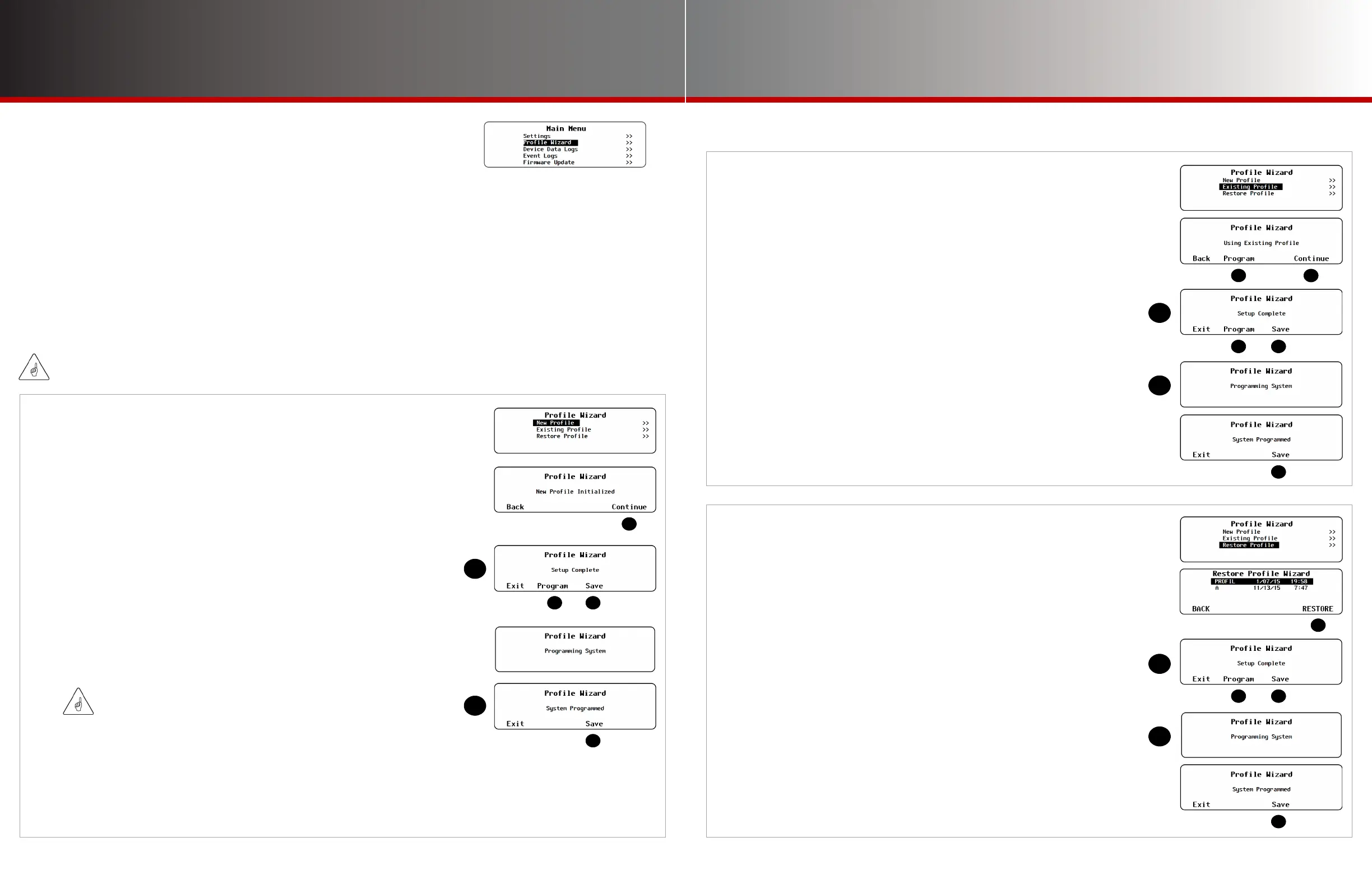
○ Creating New Profiles (W-1)
○ Using Existing Profiles (W-2)
○ Restoring Profiles (W-3)
Note that a Prole is not the same as a System Conguration as programmed in the System menu. See S-2 on
page 5. Additionally, see W-4 on page 44 for other items not programmed by the Wizard.
IMPORTANT:
Please program the Prole Wizard in accordance with the Recommended Programming Order on page 4.
W-1. Creating New Profiles
Creating a prole involves customizing various aspects of a system. These
include system type, battery charging and monitoring, and inverter interactions
with both utility grid and generator. Once a custom prole is saved to an SD
card, it can be re-applied if the settings are ever lost. An installer can also apply
a conguration from an SD card to similar systems.
To create a new prole:
1. From the Prole Wizard menu, select New Prole.
2. Press <Continue> to conrm a new prole. This enters a series of screens with
settings. The screens are shown on page 44, beginning with Wizard Date & Time (A).
3. The last setup screen is the Setup Complete screen J. At this point the prole can
be applied to the system (K), or it can be saved rst (L).
NOTE: Pressing the <Exit> soft key will return to the Main Menu without saving
or applying the prole. All changes will be lost.
4. The <Program> soft key (K) will apply the prole to the system. All settings will be
programmed into the appropriate devices and will immediately take effect. The
message Programming System will appear. When it is complete, System
Programmed will appear. The <Save> soft key (L) will appear again.
IMPORTANT:
Making changes in steps 2 and 3 is not the same as programming them.
Changes are only applied to the system once the <Program> soft key is pressed.
5. The <Save> soft key (L) saves the prole to the SD card. The screens are shown on page 46,
beginning with the Save Prole Wizard screen.
NOTE: Saving a prole will not apply it to the system, but a saved prole can be retrieved and applied later. See W-2.
6. Once programming and saving is complete, press <Exit> to return to the Main Menu.
W-2. Using Existing Profiles
If the most recent prole was lost or changed, it can be retrieved from an
SD card and applied to the system. If the prole was not ideal, any existing
value can be changed before re-applying the prole.
To apply a prole that was previously saved:
1. From the Prole Wizard menu, select Existing Prole. This will take the most recent
prole stored in the MATE3s and apply it to the system.
When Using Existing Prole is displayed:
2. If the prole needs to be changed, press the <Continue> soft key. This enters a
series of screens with settings. The progression of screens is shown on page 44,
beginning with Wizard Date & Time (A).
3. To retrieve and apply the most recent prole, press the <Program> soft key K.
All settings will be programmed into the appropriate devices and will immediately
take effect. The message Programming System will appear. When it is complete,
System Programmed and the <Save> soft key (L) will appear. See Step 5.
4. The last setup screen is the Setup Complete screen J. At this point the prole can
be applied to the system (K). Any changes can be saved rst (L).
5. The <Save> soft key (L) allows the prole to be saved to the SD card. The screens
are shown on page 46, beginning with the Save Prole Wizard screen.
6. Once programming and saving is complete, press <Exit> to return to the Main Menu.
W-3. Restoring Profiles
Previously saved proles can be selected and retrieved. If the prole
was not ideal, any existing value can be changed. Once all values are
conrmed, the prole can either be saved or applied.
To restore a prole that was previously saved:
1. From the Prole Wizard menu, select Restore Prole. The MATE3s will access
the SD card and display the names of the proles available to be restored.
2. Use the control wheel to scroll through the names.
3. When the desired prole is selected, press the <RESTORE> soft key to start
the restoration process. This will go through each screen to conrm it is accurate.
The progression of screens is shown below, beginning with System Type (A).
4. The last setup screen is the Setup Complete screen J. At this point the prole can be
applied to the system (K), or it can be saved rst (L). See Step 6.
5. The <Program> soft key (K) will apply the prole to the system. All settings will be
programmed into the appropriate devices and will immediately take effect. The
message Programming System will appear. When it is complete, System
Programmed and the <Save> soft key (L) will appear.
6. The <Save> soft key (L) allows the prole to be saved to the SD card. The screens
are shown on page 46, beginning with the Save Prole Wizard screen.
7. Once programming and saving is complete, press <Exit> to return to the Main Menu.
○ Profile Settings (W-4)
○ Saving the Profile to an SD Card (W-5)



 To Next Page
 Loading...