Page 51Page 50
900-0125-12-02 Rev A
©2017 OutBack Power Technologies. All Rights Reserved.
Event Logs
Firmware Update
Event Logs (E)
When events occur that affect the system or cause a shutdown, an event message occurs. Events are recorded at
intervals to the MATE3s ash memory at intervals programmed in the settings. (See page 34.)
Event logs can be downloaded to an SD Card or deleted from the MATE3s internal memory.
○ Saving an Event Log (E-1)
○ Reading an Event Log File from the SD Card (E-2)
○ Deleting an Event Log (E-3)
E-1. Saving Event Logs
To save an event log for the FLEXmax Charge Controller:
1. From the Event Logs menu, select Save Events to SD Card.
2. On the Date Range set point, use the control wheel to select the date for the event
log (or logs) to be saved to the SD card. The range will start with All and will move
backward to yesterday, up to one year’s worth of logs.
3. If other event logs have been saved on the SD card, a list will be displayed. Choose
option A or B. NOTE: If the SD card is empty, pressing the <Save> soft key will
automatically default to option B.
A. Select a name on the list with the control wheel. Press <Save> to save the new
events over the selected event log. Saving to SD Card will be displayed.
Proceed to C.
OR
B. Press <New> to create a unique name for the new event log.
(8 characters maximum)
● Use the control wheel to scroll through the available characters.
● Use <> or <> to move to the desired character location.
● Use <Delete> to erase characters when highlighted.
Press <Save> to save the new event log name. Saving to SD Card will
be displayed.
In either case:
C. Wait for the conrmation screen to appear. After the screen appears, press
<Continue> to return to Event Logs.
E-2. Reading Event Logs
When an Event Log is downloaded to an SD card, an .elg le
is created. This le can be opened in Notepad or MS Word
as a text le. Event logs can be used to identify repeated
symptoms and other patterns.
A partial Event Log is depicted here.
6/16/15,12:16:09,FX-1,IN AC Voltage OK,119 VAC
6/16/15, 6:25:13,Remote Power Up
6/16/15, 6:25:13,Remote Power Down
6/09/15,15:40:08,Remote Power Up
6/09/15,15:36:55,Remote Power Down
6/08/15,15:31:14,Remote Power Up
6/08/15,10:51:44,Remote Power Down
6/07/15,14:32:09,Remote Power Up
6/07/15,14:31:59,Remote Power Down
6/07/15,14:30:21,Remote Power Up
5/31/15,15:35:01,Remote Power Down
5/31/15,15:34:51,FX-1,IN AC Freq OK, 59.0 Hz
5/31/15,15:34:51,FX-1,IN AC Voltage Too Low, 118 VAC
5/31/15,15:33:25,FX-1,IN AC Freq Too Low, 51.0 Hz
5/31/15,15:33:25,FX-1,IN AC Voltage Too Low, 95 VAC
E-3. Deleting Event Logs
To erase a MATE3 event log:
1. From the Event Logs menu, select Delete Events.
2. On the Date Range set point, use the control wheel to select the date for the event
log (or logs) to be deleted. The range will start with All and will move backward to
yesterday, up to one year’s worth of logs.
3. If a log with a specic date is desired, then use the control wheel to scroll through the list.
When the name to be deleted is selected, press <Continue>.
4. A query screen will appear. Press <Yes> to erase the data log. Pressing <No> returns
to the Date Range screen.
5. Wait for the conrmation screen to appear. After the screen appears, press <Continue>
to return to Event Logs.
Firmware Update
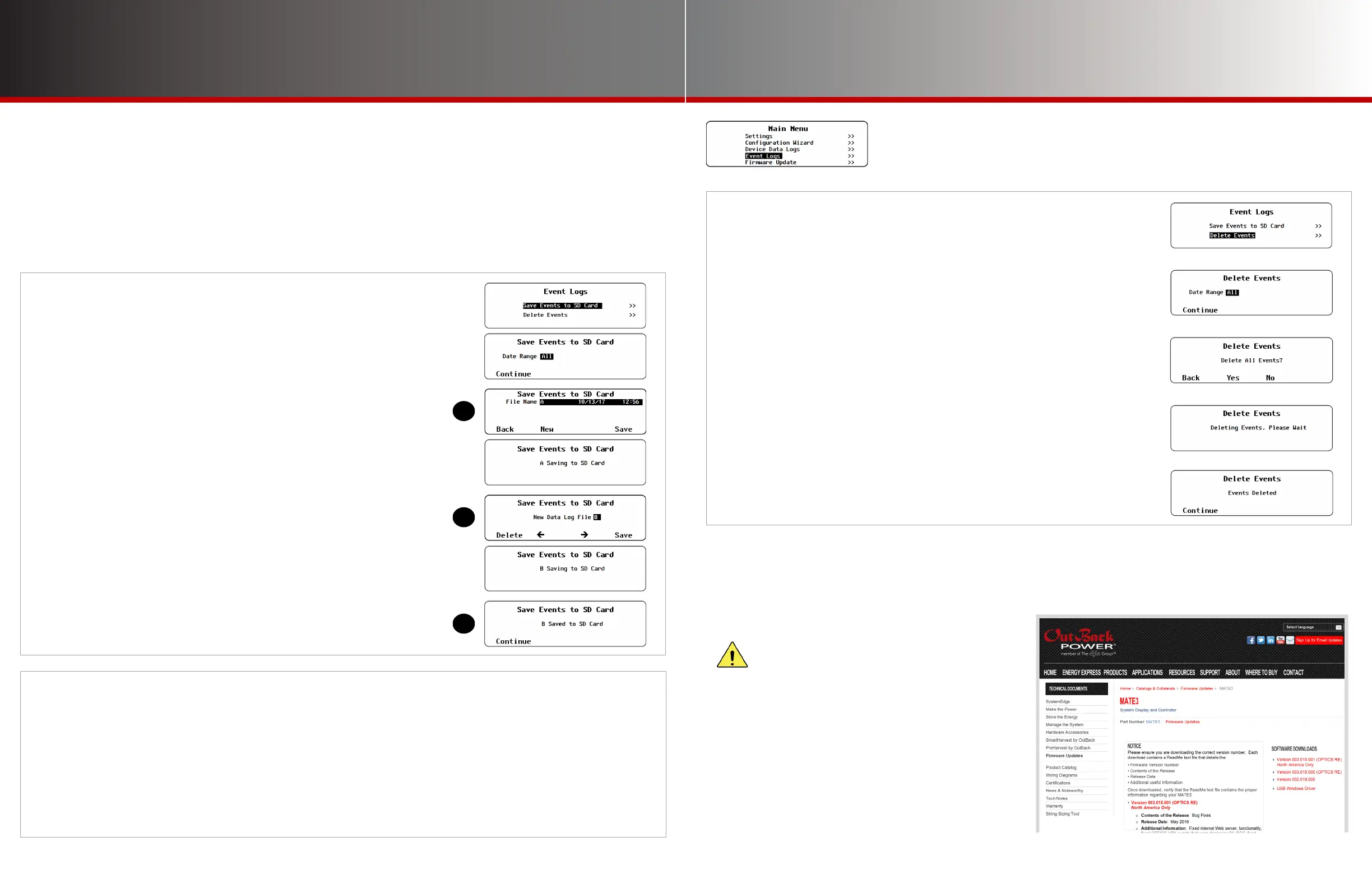
The MATE3s can be updated to the latest revision by installing the latest rmware. Firmware can be ordered on
a preloaded SD card, or downloaded from www.outbackpower.com. For the exact update procedure, refer to the
MATE3s Overview Guide.
CAUTION: Equipment Damage
Make certain to follow all steps listed in the
Overview Guide. Failing to follow any steps
could result in permanent failure of the MATE3s.



 To Next Page
 Loading...