S3 User Guide 26 PN 875-0196-000 Rev C1
Chapter 3: Basic Operation
This chapter explains the multiple view options you have in the Map screen, describes
various information display features on screens tabs, and takes you through some
basic operations such as straight and contour guidance.
Using the Map Modes and Views
S3 offers two view modes: Machine mode and Field mode. Both modes display the
machines position on the field and direction of travel. When you use the Apply
function, the views display the applied areas on the screen in green. Multiple zoom
levels are available in either view mode. Use the Zoom + and Zoom - buttons to zoom
in and out respectively in any of the different view screens.
Selecting Modes and Views
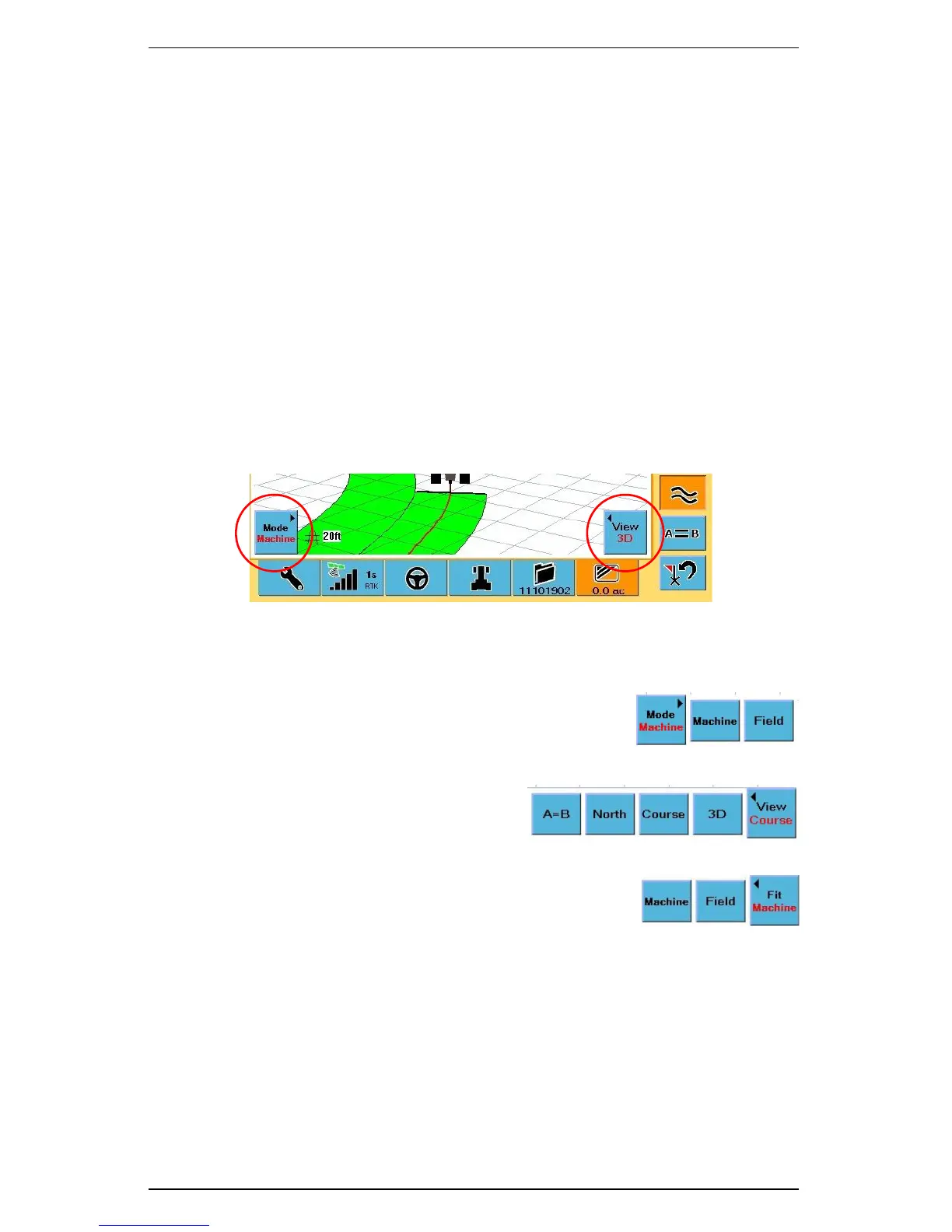
You use the Mode and View/Fit buttons on the Map screen to select the mode
(machine or field) and specific view. The black text on the View/Fit button displays
View when you select Machine mode and displays Fit when you select Field mode.
The text in red on buttons indicate the current mode and view. For example, Figure 3-1
shows that the S3 is in Machine mode and 3D view.
Figure 3-1: Mode and View buttons on Map screen
To select a view:
1. On the bottom left of the Map screen touch the
Mode button. The Machine and Field buttons
appear to the right of the Mode button.
2. Touch either button to select it as the current mode.
3. On the bottom right of the Map
screen touch the View/Fit button.
The available options appear as
buttons to the left of the View/Fit
button.
4. Touch a button to select it as the
current view.
View buttons in Machine mode
View buttons
in Field mode


 To Next Page
 Loading...