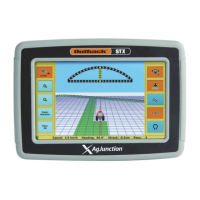
STX Display
You navigate the display using screen buttons/tabs. Press a
screen button to display a screen. Some screens have multiple
tabs (such as Setup, Status, and Diag in the top figure above).
Use fields to edit settings and buttons to adjust settings or
activate functionality. You can edit a field with a thin outline
around it. If a button/field is gray, you cannot use/edit it. Use
control buttons to perform such tasks as engaging automated
steering and setting paths. An orange screen/control button or
tab is active. The status bar shows current vehicle status—
speed, heading, cross track (Xtrack) error, and pass number.
Use the Setup (wrench) and
Map screen buttons to display
other screen buttons:
• Press the Setup screen
button to toggle between
the buttons shown in the
middle and left buttons
sets shown at right
• Press the Map screen
button to toggle between
the buttons shown in the
middle and right buttons
sets shown at right
Working with Vehicles
Adding a New Vehicle
Loading a Previous Vehicle
Deleting a Vehicle
To delete a single vehicle:
To delete all vehicles:
Exporting a Vehicle
To export a single vehicle:
To export all vehicles:
Importing a Vehicle
Vehicle files must be in 'vehicles' folder on USB drive.
To import a single vehicle:
To import all vehicles:
Working with Implements
Adding a New Implement
Loading a Previous Implement
Deleting an Implement
To delete a single implement:
To delete all implements:
Exporting an Implement
To export a single implement:
To export all implements:
Importing an Implement
Implement files must be in 'implements' folder on USB drive.
To import a single implement:
To import all implements:
Working with Jobs
Starting a New Job
Loading a Job
Continuing a Job
Deleting a Job
To delete a single job:


 To Previous Page
 Loading...