EN
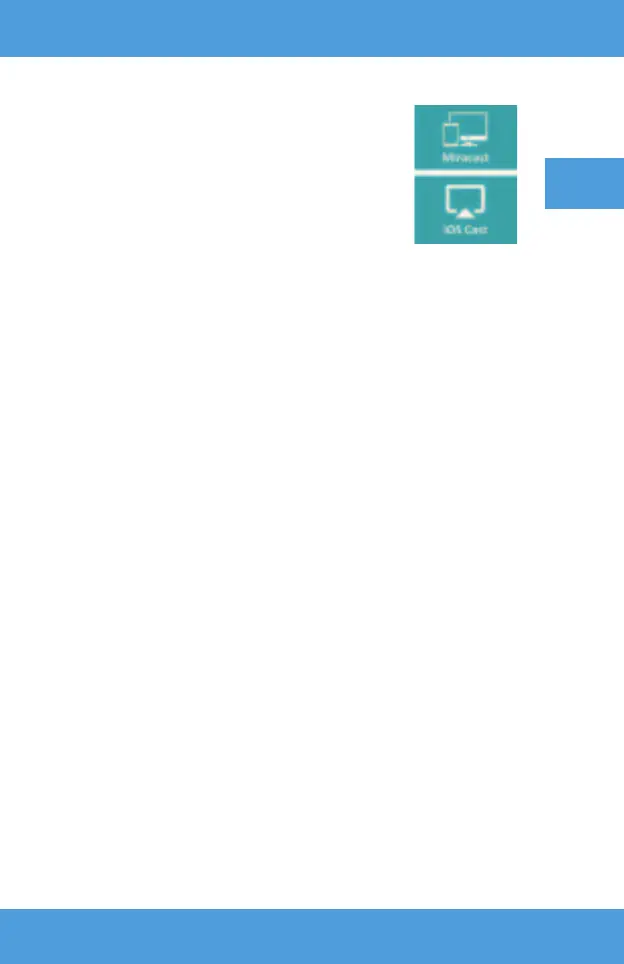
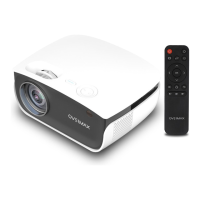
a) Use directional keys on the remote control to select
sections (Miracast) if you use Android-based device,
compatible with Miarast. If you use Apple device with
iOS system, choose (iOS Cast). Once you have selected,
confi rm it with (OK) key on the remote.
b) Enable Wi-Fi in mobile device.
c) Depending on the device, the connection through
„Miracast” may di er.
Android devices: search for settings defi ned as Miracast
or screen mirroring or connection with screen. Next enable searching for
active wireless screens. Then fi nd a device called „ZYCast” and connect to it.
Apple devices with iOS system: Make sure the projector and device from
which you want to display image are connected to the same Wi-Fi network.
Enter the control panel and select screen mirroring, then fi nd the device
called „ZYCast” and connect to it.
If you have any connection issues, return to Wi-Fi network connection
settings (described in point 5). Select (AUTO-IP) and confi rm. Next return
to connection screen (iOS Cast) and repeat the steps on the phone.



 To Next Page