Copyright
©
2014 Pace Americas Page 1
All Rights Reserved
504-3316500
1 Unpacking
. Unpack the items. Your package should include:
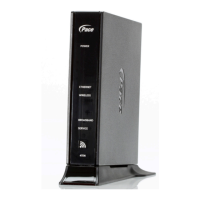
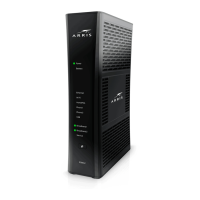
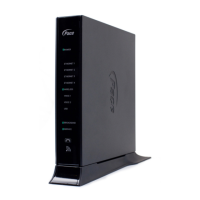
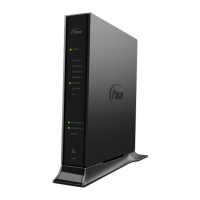
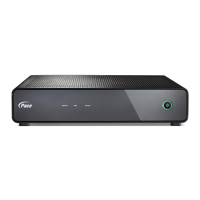
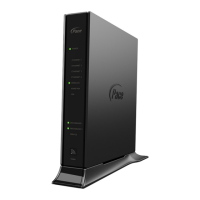
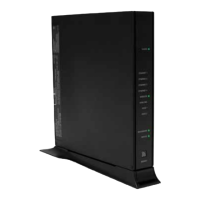
Ÿ One D5001, D3001, or D3003 Cable Gateway
Ÿ One power cord
Ÿ One set of user installation instructions
If items are missing or damaged, contact your place
of purchase. Keep the carton and packing material.
2 What Else You Need
Ÿ Provisioned Internet access on a cable network
that supports cable modem service
Ÿ A Java-enabled Web browser, such as Microsoft
Internet Explorer 5.5 or above
Ÿ Microsoft® Windows® 2000 or higher for USB
driver support
3 Select a Location
Ÿ Mount on a flat table or shelf surface, with a
power source within 6 feet (1.8 meters).
Ÿ Choose a dry area with ambient temperature
between 0 and 40ºC (32 and 104ºF).
Ÿ Keep away from heat sources, sunlight, warm
air exhausts, hot-air vents, and heaters.
Ÿ Be sure there is adequate airflow.
For wireless operation:
Ÿ Place the Gateway upright in an elevated
location, close to the center of where you’ll use
your Wi‑Fi devices.
Ÿ Minimize the number of walls and ceilings
between the Gateway and your Wi‑Fi devices.
Ÿ Avoid electronics, such as microwaves and
cordless phones, that can cause interference.
4 Connect to the Gateway
Make the following connections to the Gateway.
5 Wi-Fi Setup
There are two ways to set up your Gateway for
wireless operation:
Ÿ Manually see “Manual Wi-Fi Setup” below.
Ÿ Automatically see “Auto-Setup Using WPS”
on page 2.
6 Manual Wi-Fi Setup
Record Network Information
Ÿ Lift your Gateway and find the label on the
bottom of the device.
(Bottom of Gateway)
Ÿ Record the SSID (5.0GHz), SSID (2.4GHz), and
encryption key (password) below. You’ll need it
to connect to your wireless network.
SSID (5.0GHz): __________________________
SSID (2.4GHz): __________________________
Encryption Key: __________________________
Connect to the Wireless Network
Ÿ On your Wi-Fi device, confirm that Wi-Fi is
turned on and view available wireless networks.
Ÿ Select an SSID from the list of available
networks. If you see both the 2.4 GHz and 5
GHz SSIDs, connect to either one. Otherwise,
connect to the 2.4 GHz SSID.
Note: When deciding between 2.4 GHz and 5
GHz SSIDs, consider the following:
Ÿ Select 2.4 GHz if wireless range is a priority.
Ÿ Select 5 GHz if network speed is a priority.
There generally are fewer Wi-Fi devices and
less interference in the 5 GHz band.
Ÿ In the Network Security Key field (Windows) or
Password field (Mac), enter the case-sensitive
Encryption Key you recorded in Step 6.
Ÿ Click the OK, Connect, Join, or Apply button.
Your device should now connect to the Internet.
Ÿ Launch a web browser and enter a valid URL
(for example, www.pace.com
) to confirm your
connection.
DOCSIS 3.0 Cable Gateway Quick Start Guide

 Need help?
 General

 To Next Page